How to Download Audiobooks from Libby for Offline Listening
 By Olivia Anderson
Audiobook Tips
Updated on 9/04/2026
By Olivia Anderson
Audiobook Tips
Updated on 9/04/2026
Libby is a great way to borrow audiobooks and eBooks from your local library for free. You can easily read or listen to your borrowed books through the Libby app or web player. However, some users may want more flexibility, such as listening on different devices or saving their audiobooks in more common formats for offline use.
In this guide, we will show you two ways to download audiobooks from Libby. The first method uses AnyLibro Converter, which makes it easier to convert Libby audiobooks and eBooks to formats like MP3, M4A, M4B, and EPUB. We will also introduce a free browser method that allows you to extract audio files from the Libby web player, along with the limitations you should know before trying it.
Part 1: Can You Download Audiobooks from Libby?
Yes, Libby allows you to download borrowed audiobooks for offline listening. After borrowing an audiobook from your library, you can download it within the Libby app and listen without an internet connection. However, these offline downloads are designed to work only inside the Libby app.
If you want to use your Libby audiobooks on other devices or save them in common formats like MP3, M4A, or M4B, Libby does not provide a direct export option. In this case, you will need an alternative method. Below, we will introduce two ways to download Libby audiobooks: a converter-based solution for a simpler experience and a free browser method for users who prefer a manual approach.
Part 2: Download Libby Audiobooks as MP3, M4A, and M4B
If you want to use Libby audiobooks more flexibly, a dedicated converter can make the process much easier. Instead of only listening through the Libby app or web player, you can convert your borrowed audiobooks into common formats that are supported by more devices and players.
With AnyLibro Converter, you can download Libby audiobooks and convert them to formats such as MP3, M4A, and M4B. It also supports converting Libby eBooks to EPUB. During the conversion process, the tool helps preserve important book information, including titles, authors, and cover artwork, making it easier to organize your audiobook and eBook library.
How to Download Libby Audiobooks with AnyLibro Converter
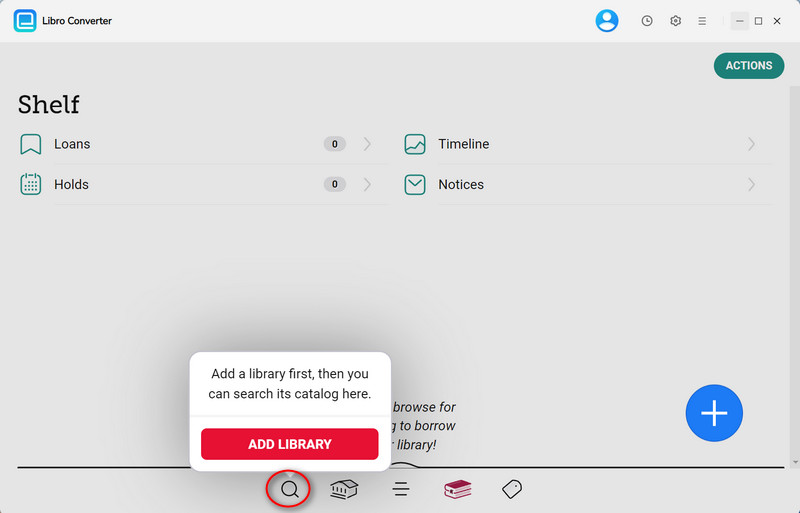
Step 1 Install AnyLibro Converter and sign in to your library account.
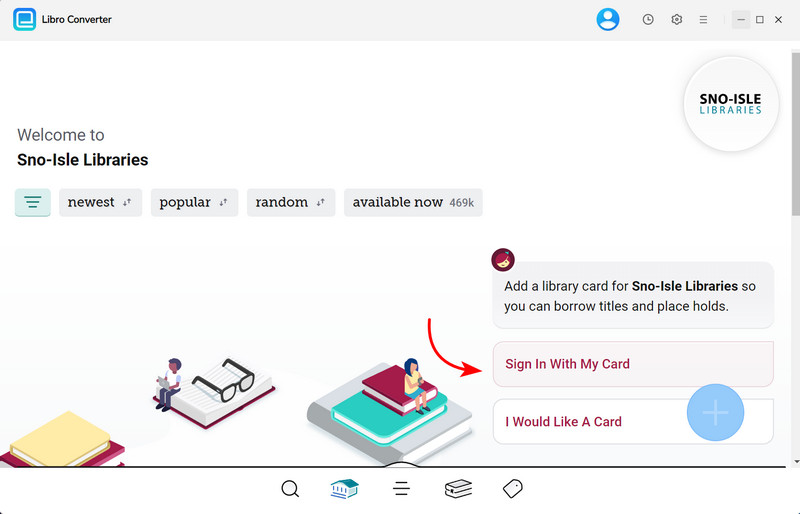
Download and install AnyLibro Converter on your computer. After opening the program, click the search icon at the bottom, find your local library, and log in with your Libby library card information by clicking "Sign in With My Card".
Step 2 Find and add the audiobook you want to download.
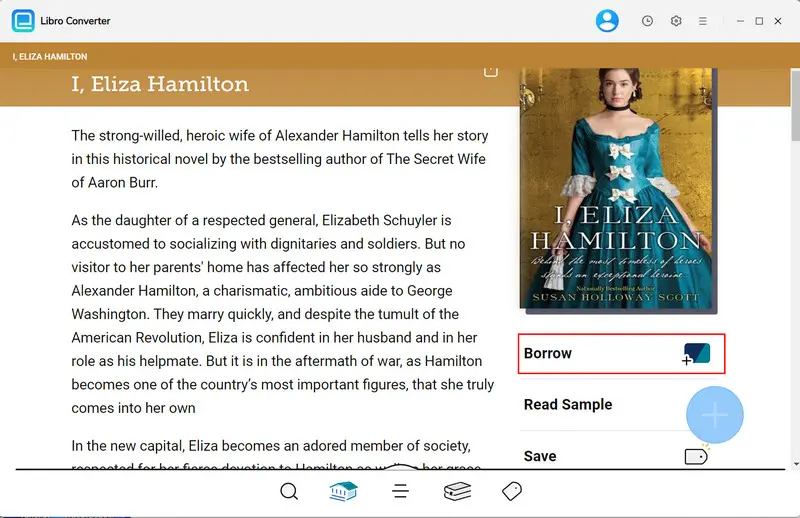
Search for your preferred audiobook and add it to your Loan list. The borrowed audiobook will then appear in your library.
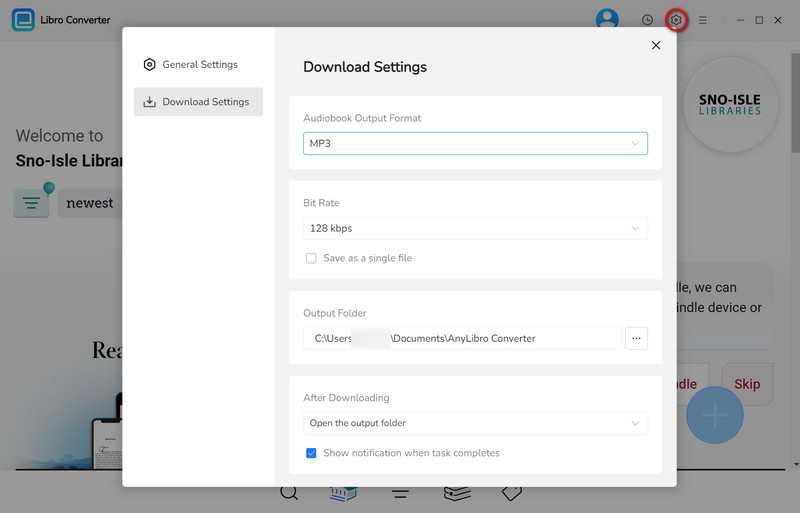
Step 3 Choose the output format and adjust settings.
Open Settings by clicking the gear icon in the upper-right corner. Select the format you need, such as MP3, M4A, or M4B, and customize options like bitrate and output folder if necessary.
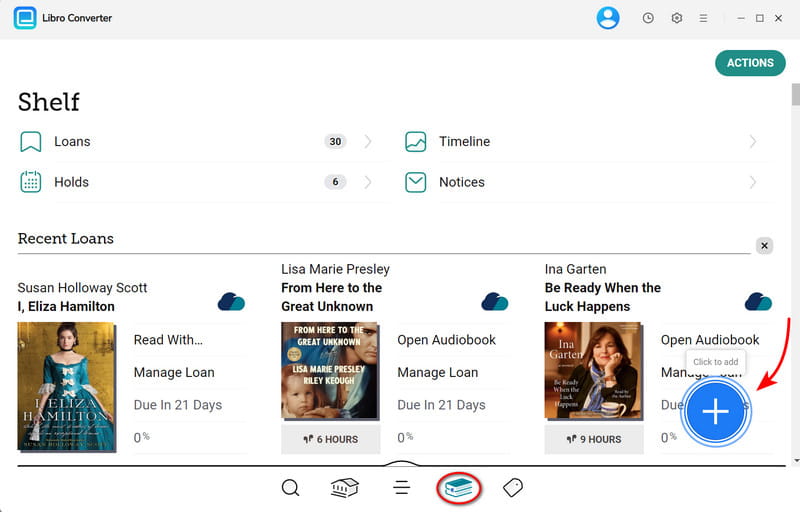
Step 4 Add the audiobook to the conversion list.
Go to the bookshelf section by clicking the book icon, then click the "+" button to parse the audiobook you want to convert.
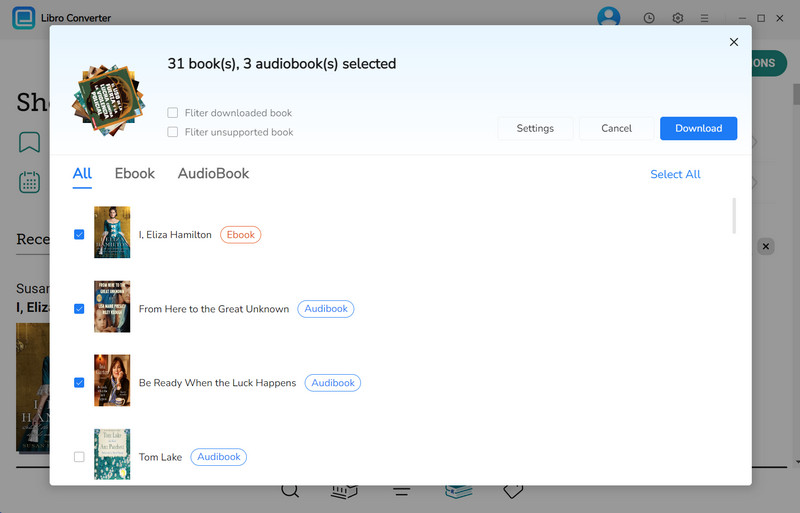
Step 5 Start the conversion and save the audiobook.
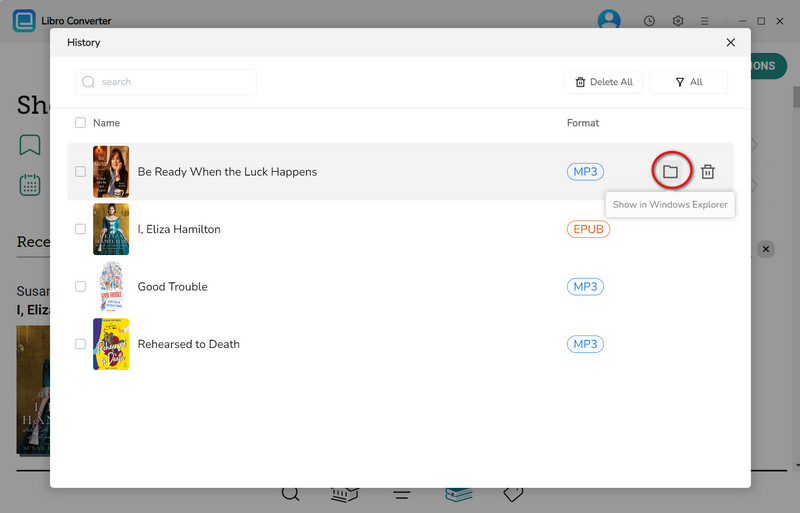
Click the "Download" button to begin converting the audiobook. Once the process is complete, click the clock icon in the upper-right corner to view finished tasks. Hover over the converted audiobook and click the folder icon to open the output location.
Part 3: Save Libby Audiobooks Using Chrome (Free Method)
If you prefer a free solution without installing additional software, you can try extracting audiobook files from the Libby web player using a Chrome-based browser. This method does not require extra setup, but it involves more manual steps and may not be the best choice for longer audiobooks.
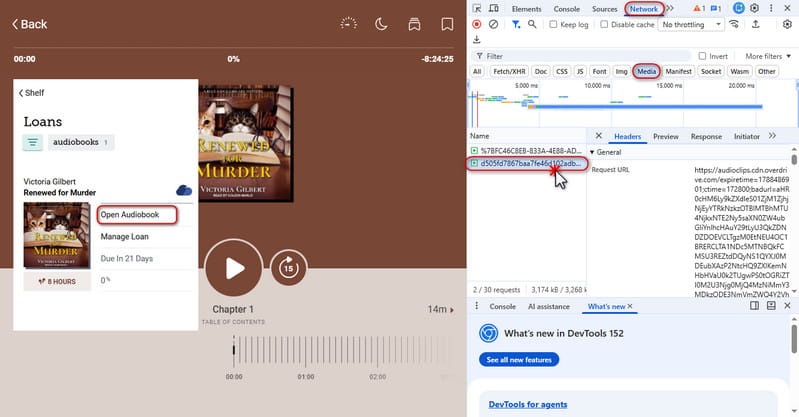
Step 1 Open a borrowed audiobook in the Libby web player and find the audio file request.
First, make sure the audiobook has been borrowed from your library. Open the borrowed audiobook in the Libby web player and start playing it. Then open Chrome Developer Tools by right-clicking the page and selecting Inspect. Go to the "Network" tab, choose "Media", and refresh the page to load the audiobook audio request.
Step 2 Open the audio file and save it.
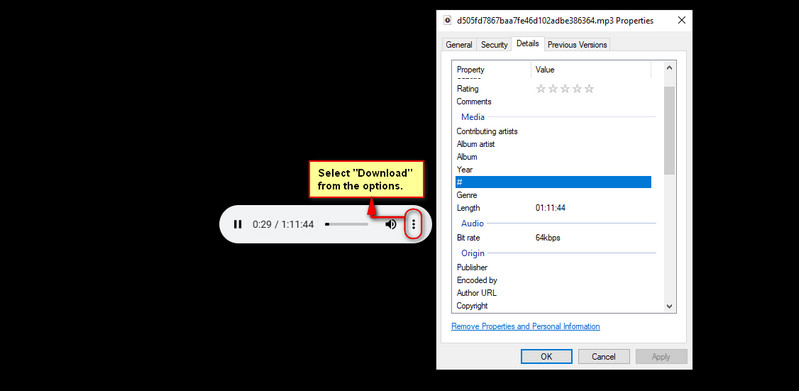
Find the latest audio file request in the Media section and double-click it to open the file in a new browser tab. Once the audio player loads, click the three-dot menu icon and select "Download" to save the audiobook file to your computer. If the link is still valid, you can download the audio directly from the browser.
Step 3 Repeat the process for additional audiobook parts.
Some longer audiobooks are divided into multiple parts. In this case, you may need to repeat the previous steps for each part and combine the downloaded files if needed.
This browser method can work for many Libby audiobooks, but it is not always the most convenient option. You may need to repeat the process for longer audiobooks with multiple parts, and some audio links may expire or require an active Libby session. Because the process depends on how the audiobook is loaded in the browser, results may vary between books.
Part 4: AnyLibro Converter vs. Chrome Method: Which One Is Better?
Both methods can help you save Libby audiobooks, but they are suitable for different needs. The best choice depends on whether you prefer convenience or a completely free solution.
| Feature | AnyLibro Converter | Chrome Method |
|---|---|---|
| Ease of Use | Simple workflow with built-in library access | Requires Developer Tools and manual steps |
| Software Required | Requires installing the converter | No additional software needed |
| Output Formats | MP3, M4A, and M4B for audiobooks | Usually downloaded as the original audio file provided by Libby |
| Long Audiobooks | More convenient for audiobooks with multiple parts | May require repeating the process for each part |
| Metadata | Can preserve information such as title, author, and cover artwork | Usually requires manual organization |
| Best For | Users who want a simple and reliable way to manage Libby audiobooks | Users who only need a free method occasionally |
If you frequently listen to Libby audiobooks and want a smoother experience, AnyLibro Converter is the more convenient choice. It simplifies the download process and provides more flexible output options. The Chrome method is still a useful free alternative if you only need to save an audiobook occasionally and do not mind following additional manual steps.
FAQs About Downloading Libby Audiobooks
Q1: Can I download audiobooks from Libby for offline listening?
A: Yes. Libby allows you to download borrowed audiobooks for offline listening through the Libby app. Once downloaded, you can continue listening without an internet connection during the loan period.
Q2: Do I need a library card to use Libby?
A: Yes. You need a valid library card from a supported library to use Libby. After signing in with your library card information, you can borrow available audiobooks and download them for offline listening.
Q3: Can I convert Libby audiobooks to MP3?
A: Yes. Since Libby audiobooks are designed to be played within the Libby app, you need a dedicated converter to save them in common formats such as MP3, M4A, and M4B. Tools like AnyLibro Converter can simplify this process and help preserve important book information, including titles and cover artwork.
Q4: Can I keep Libby audiobooks after the loan expires?
A: No. Audiobooks downloaded through the Libby app will no longer be available after the loan period ends. If you want to keep a playable copy on your device, you need to convert the audiobook while it is still available in Libby.
Q5: Why can't I find audio files in Chrome Developer Tools?
A: If no audio files appear under the Media section, try starting playback first and then refreshing the page. The audio request is usually generated when the audiobook starts loading, but the result may vary depending on how Libby delivers the audio content.
Conclusion
While Libby makes it easy to borrow and listen to audiobooks offline, its built-in downloads are limited to the Libby app. If you want more flexibility in how you save and manage your audiobook files, you can choose between the free Chrome method and a dedicated converter.
The Chrome method is a useful option for occasional downloads, but it involves more manual steps and may require extra work for longer audiobooks. If you prefer a simpler workflow, AnyLibro Converter can help convert Libby audiobooks to MP3, M4A, or M4B and make your audiobook files easier to manage. Choose the method that best matches your listening needs and usage habits.
Olivia Anderson
Senior Writer