Playlist Transfer is a smart playlist transfer solution designed to move your full music collection, including playlists, albums, and favorite tracks, between popular streaming services such as Spotify, Apple Music, Amazon Music, Tidal, Deezer, and YouTube Music with just one click.
1. How to Register Playlist Transfer?
After purchasing Playlist Transfer, you will receive a confirmation email containing your registration information. Please then follow these steps to register your license and activate the program.
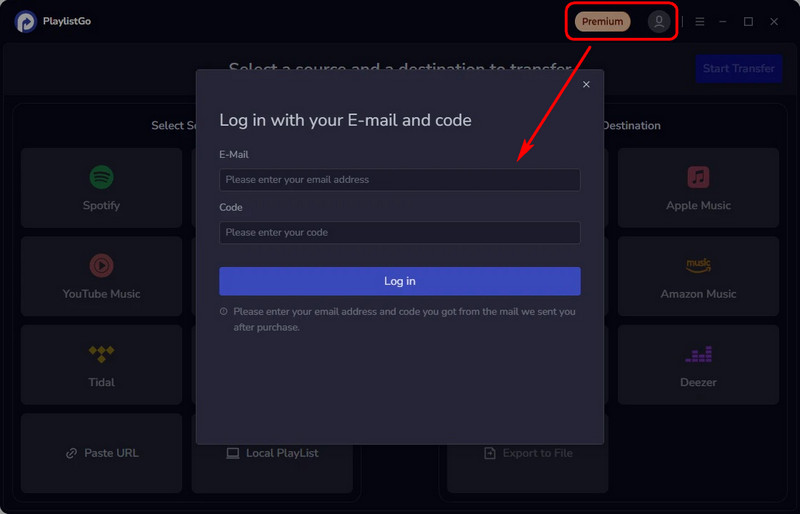
Open the app and click on your profile picture in the upper right corner. Here you'll see input boxes for your email address and registration code. Copy and paste the information you received and click "Log in" to register.
2. How to Use TunePat Playlist Transfer?
Playlist Transfer currently supports playlist transfers between multiple music platforms. In this guide, we will use transferring playlists from Spotify to Apple Music as an example.
Step 1 Open Playlist Transfer and choose Spotify as the source platform from the left panel. Follow the on-screen instructions to sign in to your Spotify account and allow the necessary permissions so Playlist Transfer can access your playlists.
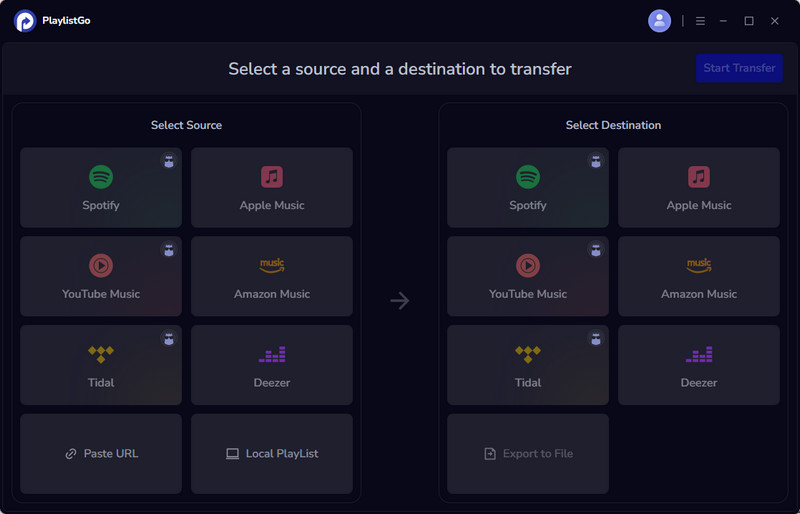
Step 2 Navigate through your Spotify playlists and select the playlists you wish to transfer. You can choose a single playlist or multiple playlists at once.
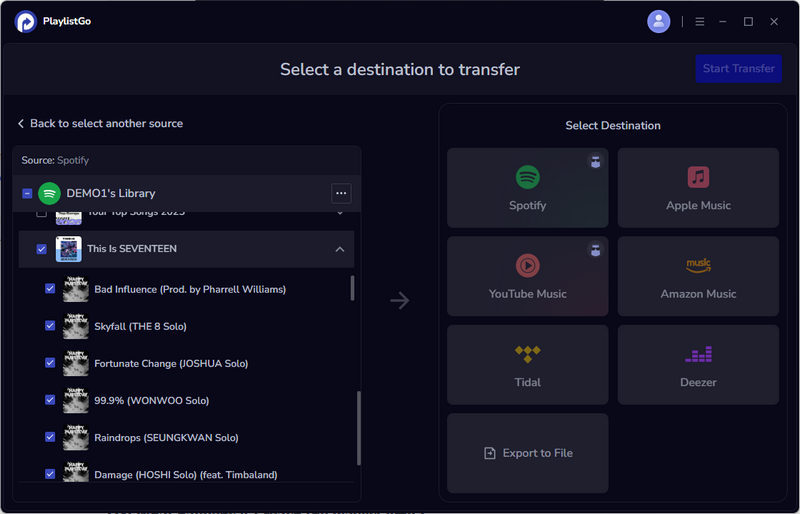
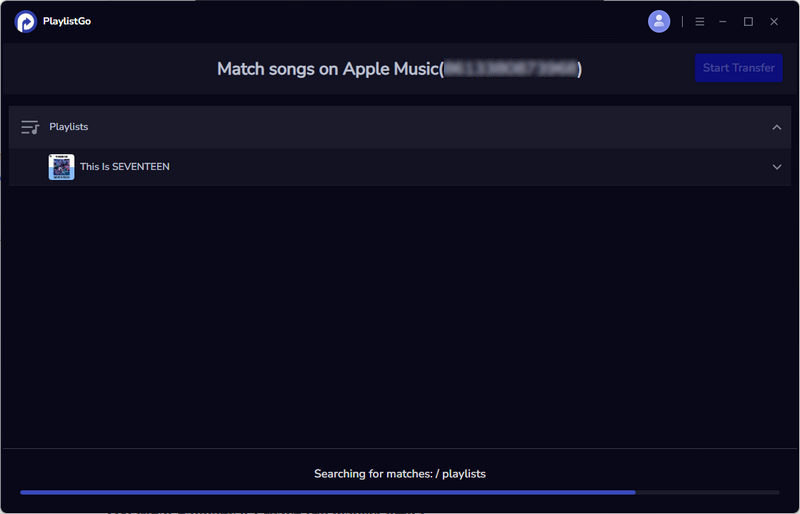
Step 3 Set Apple Music as the target platform. Sign in to your Apple Music account to authorize access, then click "Start Trasnfer" to begin matching your Spotify playlists with Apple Music’s catalog.
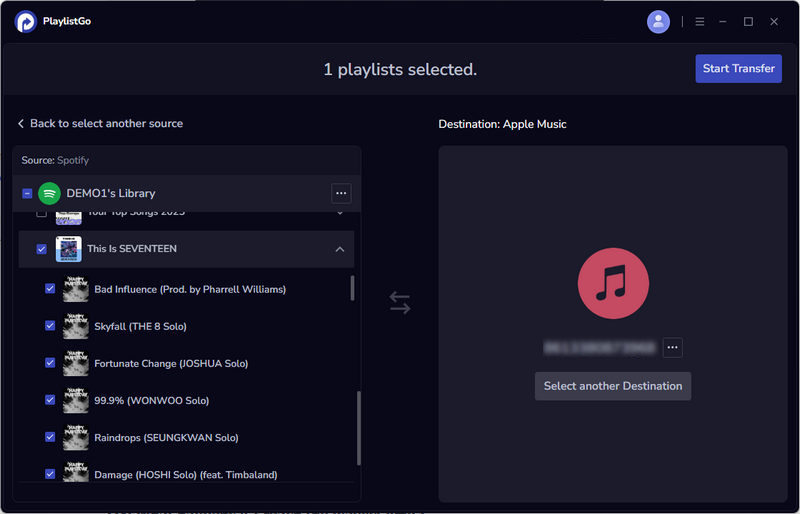
Step 4 After the matching process is completed, click "Start Transfer" once more to start transferring the playlists. Please ensure a stable internet connection throughout the process.
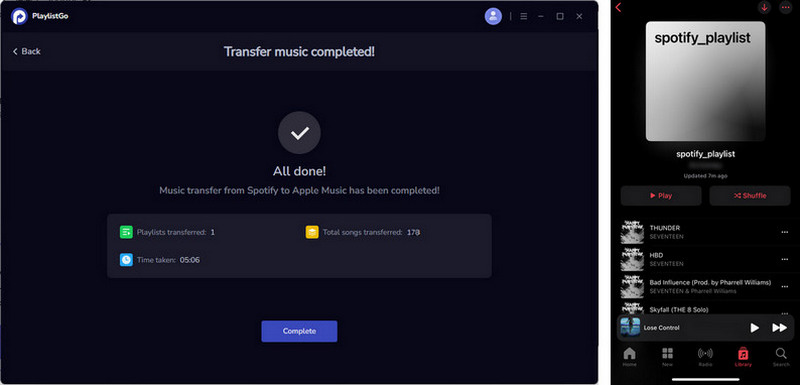
Step 5 When the transfer is finished, open the iTunes app. Your transferred Spotify playlists will appear on the left sidebar. Select any playlist to start listening.
 Free Download Playlist Transfer Now!