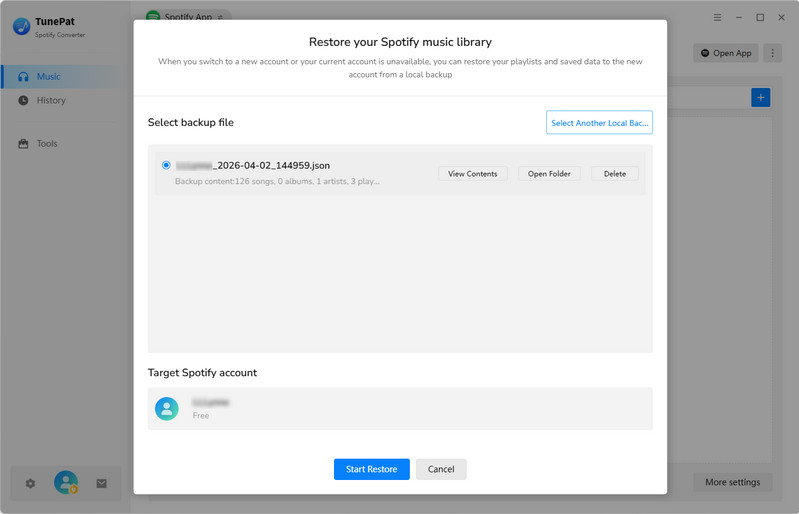
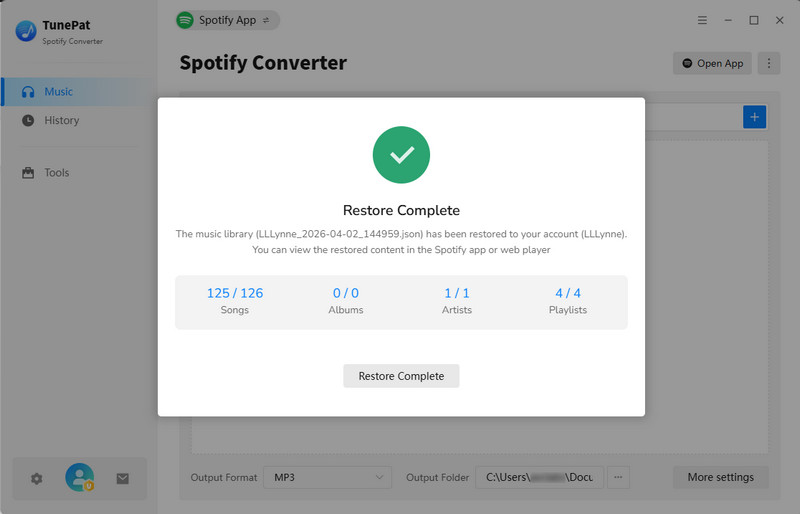
Your account data and music library are always a top priority when using TunePat to convert Spotify music. To better protect your Spotify music library, TunePat introduces a dedicated backup feature designed to enhance user data security.
With just one click, you can back up your entire Spotify music library, including playlists, favorite songs, and other saved items. Whenever needed, you can easily restore your library. This makes it easy to switch between Spotify accounts seamlessly, without worrying about losing your music collection or personal data.
How to Back Up Your Spotify Library?
Follow the steps below to back up your Spotify playlists using TunePat:
Step 1 Launch TunePat on your computer. Click the three dots on the right side of the program, and you'll see two options: Back Up or Restore your Spotify Music Library. Make sure you're logged into your Spotify account.
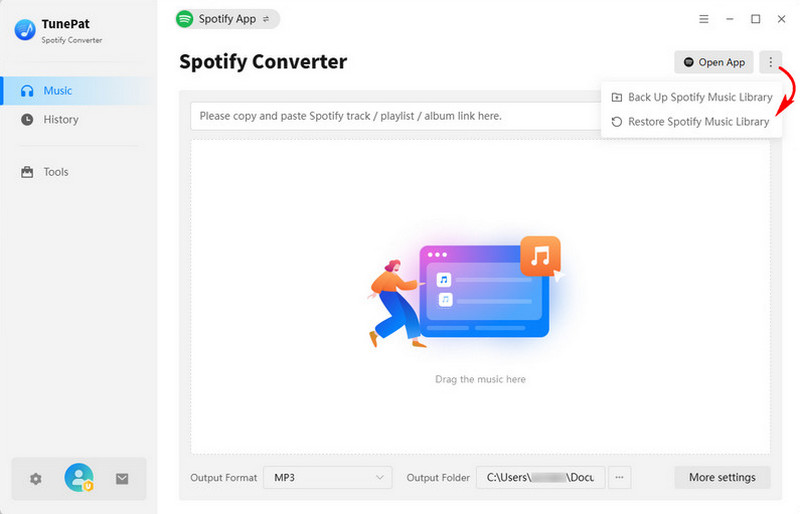
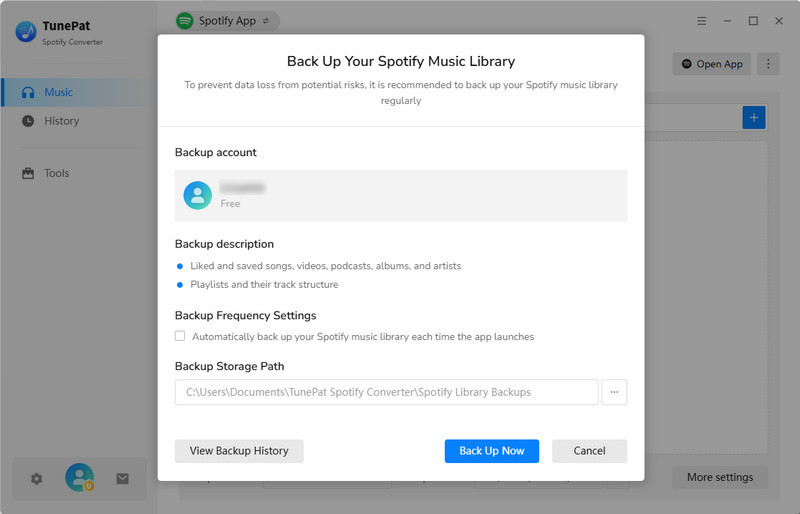
Step 2 Click "Back Up Spotify Music Library". Before starting, you can confirm the account you wish to back up, the content to include, choose the backup path, and decide whether to automatically back up every time you launch the program.
Step 3 Click "Back Up Now" to begin the process. The backup will be completed quickly. Once finished, your Spotify library will be securely saved as a backup file.
How to Restore Your Spotify Library?
If needed, you can restore your Spotify library at any time by following these steps:
Step 1 If you already have a local backup and want to restore it to your Spotify account for some reason, click "Restore Spotify Library".
Step 2 Check the account you want to restore and select the content you want to restore. Click "Start Restore" to begin the restore process. Your music library will then be restored to your Spotify account.