New Update 📢 Free Download 120,000+ podcasts and 67,000+ radio shows with TunePat Music One. Start Now!

TunePat Apple Music Converter FAQ

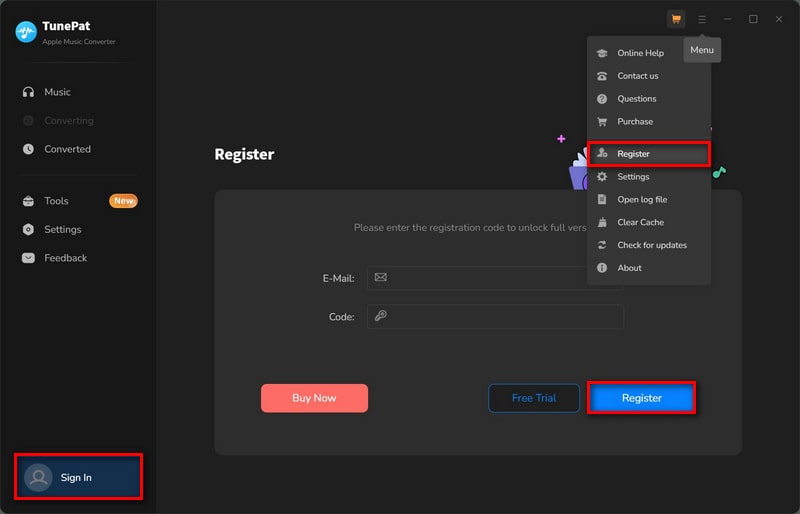
1. Launch TunePat Apple Music Converter on your computer and log in your Apple Music account, and please note that TunePat will not take any information out of your account. Then click "Register" in the left lower corner or click the Menu icon icon and then select "Register" to get the registration window. Copy and paste the registration Email and Code into the registration pop up dialog.

2. Fill the two blanks with your registration Email and license code that you have received from the email. Then click "Register" to register the program.
Register

Strictly speaking, you're not allowed to switch the license code from Windows to Mac computer or from Mac to Windows computer once you purchased the software, as each license code is exclusively for one platform.

If you have purchased a license for the wrong operating system within 5 days, please contact us to help you replace it, or you can purchase a license for the correct operating system from our official website and contact us to refund the wrong order.

If you have switched your computer from Windows to Mac or from Mac to Windows and want to reinstall the program on your new computer, you can contact our support team to purchase a new license for the new computer to get a discount.

We can provide a free license for users who share their experience of using TunePat programs. If you are interested in this, please learn How to Write a Review and Get Free License.

Besides, to benefit TunePat users to enjoy localized software, we warmly welcome volunteers from all over the world to translate TunePat programs into their native languages. We'll offer a free license in return. If you are interested in joining this activity, please visit How to Translate TunePat Programs for more details.

1. Make sure you have registered with correct program, Windows and Mac version will not share a code.

2. The registration code is case sensitive. And, please do not add blank at the beginning or the end of the word. You can also copy and paste the Email and Code into the registration window.

3. One license for one computer only. If you use your code on more than one computer, it will show as invalid.

If you still get the error message, please contact our support team via [email protected] for further help.

The trial version allows you to convert the first 1 minute of each song. You will get the message as below when you try to convert music with the trial version. To unlock the restriction, please purchase a license.

1. Please make sure your license is not expired yet. If it's still within the validity, please register it again.

2. One license for one computer only. If you use your code on more than one computer, it will show as trial version.

3. If you have updated computer system recently, then the regidtarion info may have been wipt. Please register with your license once again.

If you still get the error message, please contact our support team via [email protected] for further help.

Sorry, one license for one computer only. If you use the license code on other computers, it will show as "Invalid".

If you switched to a new computer, you can contact our support team([email protected]) to transfer your registration info to new computer.

Please contact our support team([email protected]) and provide your order info, such as email, receipt, order number and other information you can remember.

Yes, TunePat Apple Music Converter supports batch conversion, so you can add the entire playlist to convert.

The "Recommended" setting downloads music in its source quality and format (AAC or ALAC from Apple Music). The actual quality mirrors what is set in your Apple Music application.

If TunePat cannot convert or download songs, try the following troubleshooting steps in order:

  1. Update TunePat to the latest version. Go to Menu > Check for updates in the program, or download the latest version from the TunePat Download Center or the corresponding product page.
  2. Switch the music source. Switch between the App and Web music sources, then try converting the songs again.
  3. Clear the program cache. Go to Menu > Clear Caches, restart TunePat, and try again. If the issue persists, remove the local cache folder manually:
    • Windows: Open C:\Users\USERNAME\AppData\Roaming\, find the corresponding TunePat program folder (for example, TunePat Apple Music Converter), delete it, and restart the program.
    • Mac: Open Finder and select Go > Go to Folder..., or press Command + Shift + G. Enter ~/Library/Application Support/, find the corresponding TunePat program folder, delete it, and restart the program.
  4. Check your music account. Make sure you can log in normally through an external browser and that your music subscription is still active, if the service requires one.
  5. Check your network, IP address, and region. Turn off your VPN and try again. If necessary, switch to another network or VPN location to rule out IP or regional restrictions.
  6. Contact TunePat Support. Go to Menu > Feedback to submit the issue, or contact us directly at [email protected]. Please describe the problem clearly and include the troubleshooting steps you have already tried, the results, screenshots or screen recordings, and the program log files.

This software requires macOS 11 or later (including the latest macOS Tahoe). Please see your options below based on your system.

If you are using macOS 10.15: You may download the last compatible version [Download Link]. Please note that this version is no longer supported and will not receive any updates or security fixes.

If your system is older than macOS 11 (or for a better experience):

We strongly recommend choosing one of the following supported options:

  1. Upgrade your Mac to macOS 11 or later.
  2. Switch to the Windows version of the software.

If you are a paid user who is unable to upgrade your Mac, we can help you switch to the Windows version. Please contact our support team at [email protected] for assistance.

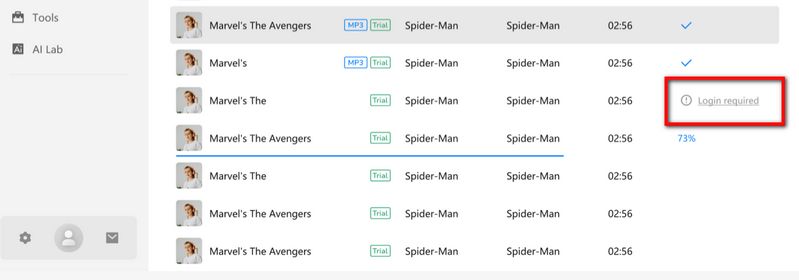
When you see this prompt, it means that the song or songs require logging into the corresponding platform account to convert. Please return to the Apple Music web player window within TunePat and complete the login process for your Apple ID.

login required prompt

If you can't convert Apple Music successfully, you may have both iTunes and Store version of Music app installed on your PC. Please keep the iTunes App only and restart TunePat to complete the download process.

This behavior is typically determined by your selected Conversion Mode. In "Intelligent Mode", TunePat may switch to alternative sources like YouTube to ensure a successful download, especially under unstable network conditions or when the primary source is unavailable. To guarantee downloads exclusively from the original source, please switch to "Record Mode" in the settings.

Lossless formats don't use bit rate! That setting is only for compressed formats like MP3. With lossless files (FLAC, WAV, etc.), you can adjust Bit Depth and Sample Rate.

Note: If the above solutions still cannot fix your problems, please provide the following information to our support team via [email protected]. We will reply to your message within 24 hours on weekdays and 48 hours on weekends. And we will submit your feedback to our developers and inform you if the solution is available.

  • 1. Which Windows OS / macOS are you using?
  • 2. Are you an Apple Music subscriber?
  • 3. Did you convert the song from the Music app/iTunes or Apple Music web player?
  • 4. Which Conversion Mode did you choose? What's the output format you chose?
  • 5. Did the problem happen to a certain audio file or to all audio files?
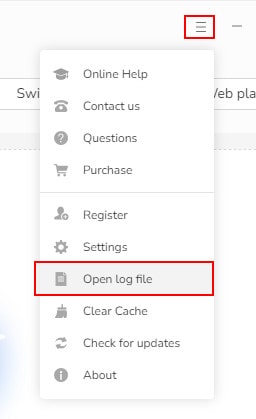
  • 6. Please send us the log files. You can find them by going to the program, click the Menu button (on the upper right corner) > Open log file. You will see a logs folder, please send us all the files in this folder.
open log file

TunePat commits a 100% money-back guarantee within 5 days for TunePat Apple Music Converter 3-month & 12-month plan, and 30 days for the lifetime plan. For more details, please visit Refund Policy.

We will process the refund request in sequence after receiving the refund request that meets our refund conditions. After we process the refund, your refund will generally arrive within 3-10 working days.

All subscription plans (except for the lifetime plan) we provided are automatically renewed by default. If you want to cancel the renewal subscription, you can cancel it at any time before the renewal date. (Please rest assured that you will receive a notification before renewal.)

Method 1: You can view and manage your subscription order by yourself. Once you've successfully subscribed to TunePat, you'll receive an email titled "Thank you for subscribing to TP xxx". At the bottom of the email, you'll find a "View your subscription" button. Click on it to go to the order management interface, where you can cancel your order if necessary.

Method 2: If you encounter any difficulties managing your subscription, you can contact our customer service support team via email, and we'll assist you in the background. Our email address is [email protected].

After the cancellation, you will not be charged starting from the next subscription period.

Your subscription will automatically renew each quarter/year and we will send you the latest license key to your Email. You need to clcik the blue box in the lower left corner, select Renew License and fill in the blank with the registration information received.

If you would like to change your subscription type, please email our customer service team for assistance.

We use Verifone as our payment service provider. Depending on your region, available payment methods may include major credit and debit cards, digital wallets, and other local payment options. The payment methods available to you will be displayed on the checkout page.

In this case, you can contact our support team to switch your license to the right product by providing your order info. Or you can directly go ahead to purchase the correct product and then contact us to refund the wrong order for you.

Our pricing policy is based on transparency and fairness. The price you see listed on the product page is the final price you will pay for the item. However, please note that in some cases, taxes may apply due to varying regulations across different countries. Therefore, any additional charges on top of the listed price will be solely attributed to taxes, which we have no control over.

To meet different needs and provide better service, TunePat offers 3 subscription plans. Please note the following:

1. There are 3 subscription plans to choose from: 3 months, 1 year, and Lifetime. Your plan determines how long you can use the program to convert music from Apple Music.

2. The 3-month and 1-year subscriptions will automatically renew at the end of each billing period. If you no longer need the service, you can cancel the subscription at any time before the next renewal.

3. Each license can be used on one PC only.

4. TunePat offers a 100% money-back guarantee within 5 days for the 3-month and 1-year plans, and within 30 days for the Lifetime plan. For more details, please visit Refund Policy.

If you have any other questions about subscriptions, please visit TunePat Subscription FAQ.

Once your order has been successfully processed, you can expect to receive a confirmation email from the payment platform. Shortly after, you will receive another email that contains the registration code information.

If you do not receive this email promptly, please check your spam folder, as it may have been rejected by your email system. Alternatively, it is possible that you entered the wrong email address during your TunePat purchase, which could prevent you from receiving the email. If so, please contact our support team directly for assistance.