Qobuz Web Player (2026): How to Download HiRes Qobuz Music
 By Olivia Anderson
Music Tips
Updated on 8/6/2026
By Olivia Anderson
Music Tips
Updated on 8/6/2026
For the discerning listener, Qobuz isn't just another streaming service—it's a statement. With its CD-quality and hi-res FLAC streams, it promises studio-fidelity audio that competing platforms often compress away. But what happens when you access that audiophile paradise through a humble web browser?
Does the Qobuz web player deliver the same bit-perfect experience as the desktop app? Can you truly call yourself an audiophile if you're streaming through Chrome? And what about downloading music—is it possible to build a permanent, offline collection without installing software? This guide covers everything about Qobuz web player music downloading—from the official download store to the controversial 48kHz resampling question.
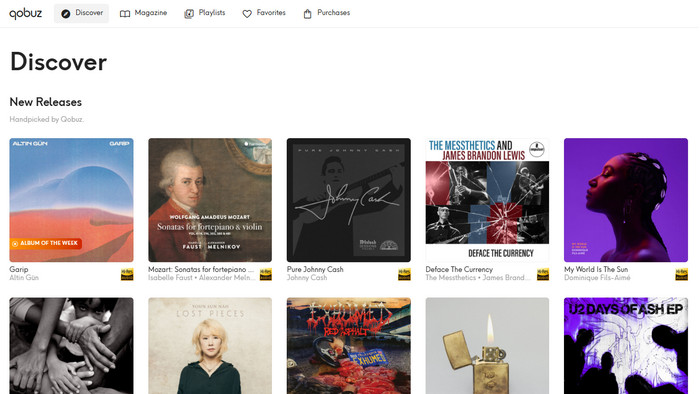
Part 1: Qobuz Web Player - Overview
What is the difference between Qobuz web player and Qobuz app?
The Qobuz web player is a browser-based tool for instant, no-install streaming—perfect for convenience and casual listening. The Qobuz desktop/mobile apps are dedicated software applications that offer advanced features like offline downloads, gapless playback, and bit-perfect audio output for the discerning audiophile.
| Feature | Qobuz Web Player | Qobuz App |
|---|---|---|
| Platform Support | Any browser, like Chrome, Firefox, Safari | Windows, macOS, iOS, Android |
| Offline Playback | ❌ Not supported | ✅ Supported |
| Audio Quality | Up to 24-bit/192kHz FLAC | Up to 24-bit/192kHz FLAC + bit-perfect modes (ASIO/WASAPI) |
| Gapless Playback | ❌ Not supported | ✅ Supported |
| DAC Control | Limited. Relies on browser/OS mixer | Full control |
Can I download music from the Qobuz web player to listen offline?
The direct answer is no. Qobuz's official help center explicitly states that the web player does not allow offline playback. This is a feature reserved for their dedicated mobile and desktop apps, where you can download music for listening when you don't have an internet connection.
Part 2: How to Get Qobuz Music Files – The Official Methods
Method 1: Purchasing Music
This is the only official way to get DRM-free files you truly own, and you can do it entirely from your web browser.
- Log in to your account on the Qobuz website (qobuz.com). Navigate to "My Purchases" in your profile menu.
- Find the album or track you've bought, click the "Download" button. On the next page, choose "Download from browser".
- You can then select your preferred audio quality (e.g., CD quality or Hi-Res) and download the album as a ZIP file.
Method 2: Download with Qobuz Subscription (App Only)
This is where confusion often arises. With a Studio or Sublime subscription, you can download music for offline playback, but this is only possible within the Qobuz mobile or desktop apps.
- Open the Qobuz app and log in to your account.
- Find the album or track you wish to download. For mobile app, Tap the Download icon (it looks like a downward arrow) next to the album or playlist; For desktop app, click the three dots (...) next to the item, then select "Import" or "Download" from the menu.
- Once complete, your downloads are available in the "Offline Library" or "Downloads" section of the app.
These files are not permanent, you cannot transfer or play them in other music players. They are tied to your app and your subscription. If you cancel your subscription or log out of the app, these files will be deleted. If you want to keep the downloaded music available forever, try safe Qobuz music downloader instead.
Part 3: Comprehensive Qobuz Web Player Troubleshooting Guide
Q1. Music appears to be playing, but no sound comes out, or sound cuts out randomly. How to fix?
- Check browser tab volume: Right-click the browser tab and ensure it's not muted.
- Verify system output: Confirm your computer's audio is set to the correct output device (headphones, speakers, DAC).
- Refresh the page: A simple refresh often clears temporary glitches.
- Try Incognito/Private mode: Open a private window and log in again.
- Disable conflicting extensions: Turn off ad-blockers, VPNs, or script blockers temporarily.
- Update your browser: Ensure you're using the latest version of Chrome, Firefox, or Safari.
- Clear cache and cookies: Go to browser settings and clear browsing data.
Q2. Music pauses frequently to buffer, or tracks stop playing entirely despite a stable internet connection. How to fix?
- Lower the streaming quality: Temporarily reduce quality in the playback bar (e.g., from 24-bit/192kHz to CD quality or 320kbps MP3). Hi-res streaming requires more bandwidth, and network fluctuations can cause stuttering.
- Check your network: If using Wi-Fi, ensure you have a strong signal. Wired connections are always more stable for streaming.
- Close bandwidth-heavy applications: Stop other devices from streaming video, downloading large files, or online gaming while using Qobuz.
- Reboot your network equipment: Restart your modem and router. This clears network cache and often resolves streaming issues.
Q3. Can't log in Qobuz web player, or tracks only play as 30-second samples. How to fix?
- Verify your subscription: Log into the Qobuz website to confirm your subscription is active and in good standing.
- Log out and back in: Sign out of your account completely, then sign in again.
- Re-link your account (for third-party apps): If using Qobuz through Roon, Audirvana, or similar, disconnect and reconnect your Qobuz account within that application.
Part 4: Best Qobuz Music Downloader - TunePat Music One
TunePat Music One is a comprehensive streaming music converter designed to download music from over a dozen platforms, including Qobuz, Spotify, Apple Music, TIDAL, Amazon Music, and Deezer. Its primary appeal for Qobuz users is solving the "subscription download problem."
As the official Qobuz tutorial page explains: when you subscribe to Qobuz Studio or Sublime, you can download songs for offline playback, but these files are encrypted and can only be played within the Qobuz app. If your subscription ends, these offline files become unusable. TunePat Music One addresses this by working with the Qobuz web player to create permanent, DRM-free files. It essentially converts the audio stream into standard formats you can keep forever and play anywhere.
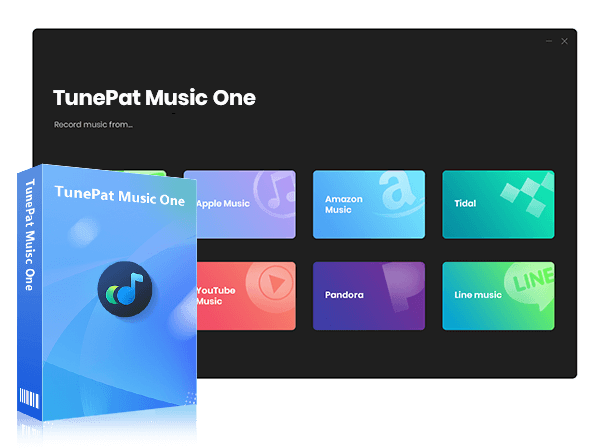
TunePat Music One
TunePat Music One is an all-in-one audio converter, ideal for fans of any music streaming platform.
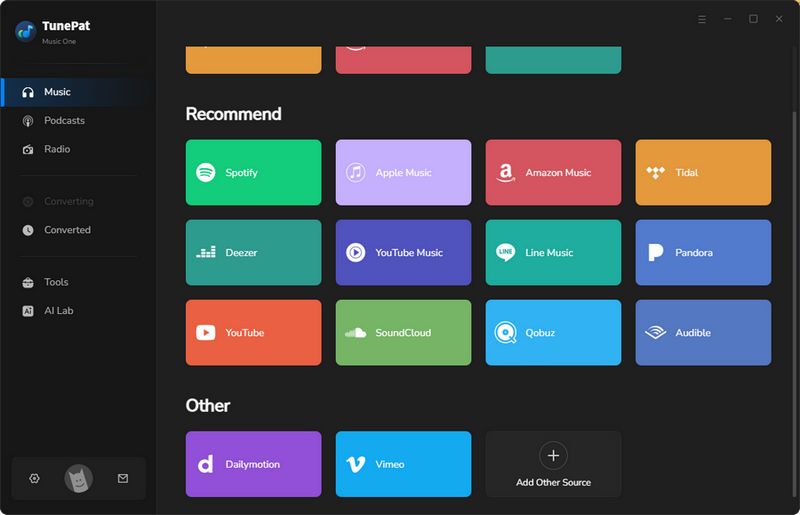
Step 1 Launch TunePat Music One on your computer. From the main interface, click the "Qobuz" option. An embedded Qobuz web player window will open. Follow the on-screen instructions to log in to your Qobuz account.
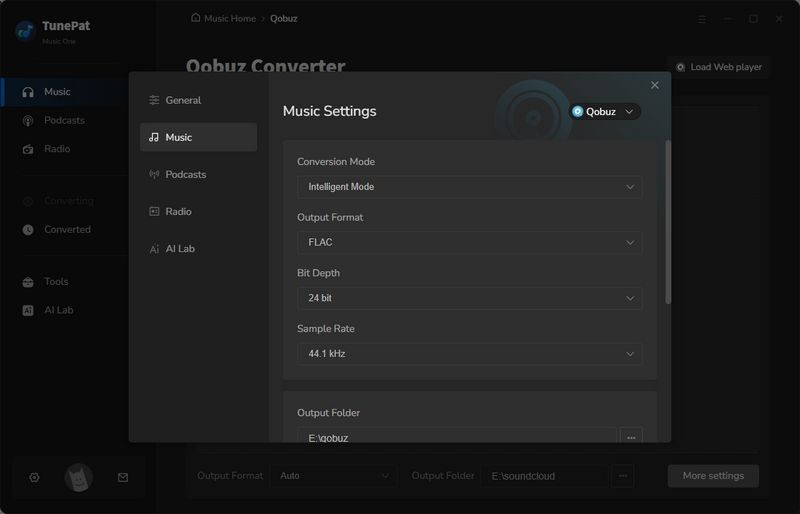
Step 2 Before selecting music, click the "Settings" (gear) icon to customize the output parameters. In the settings window, you can define your preferences:
- Output Format: Change the output format to "FLAC" (you can also choose MP3, AAC, WAV, etc.).
- Audio Quality: Adjust the bit rate, depth and sample rate if needed.
- Output Folder: Select where on your computer you want the downloaded FLAC files to be saved.
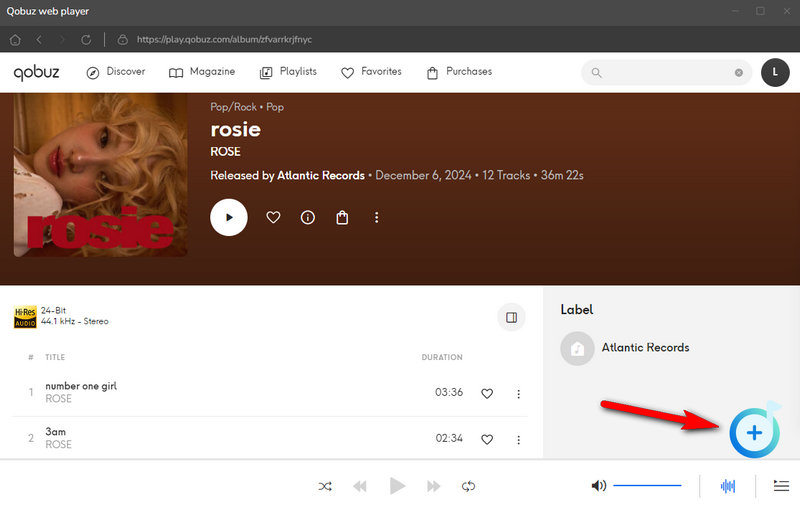
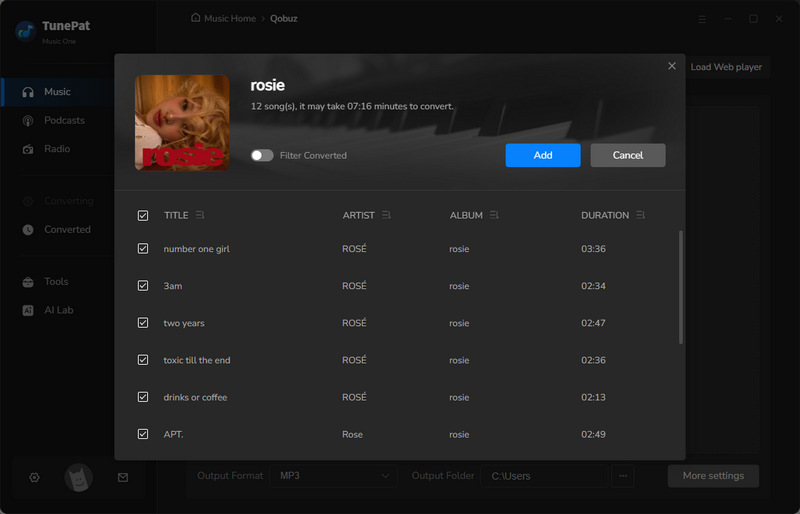
Step 3 Go back to the embedded Qobuz web player window and find the song, album, or playlist you want to save. Click the "Click to add" button (or "+" icon). The software will parse and list all the tracks from that selection. A pop-up window will appear. You can tick or untick specific tracks you want. Click the "Add" button to add them to your conversion queue.
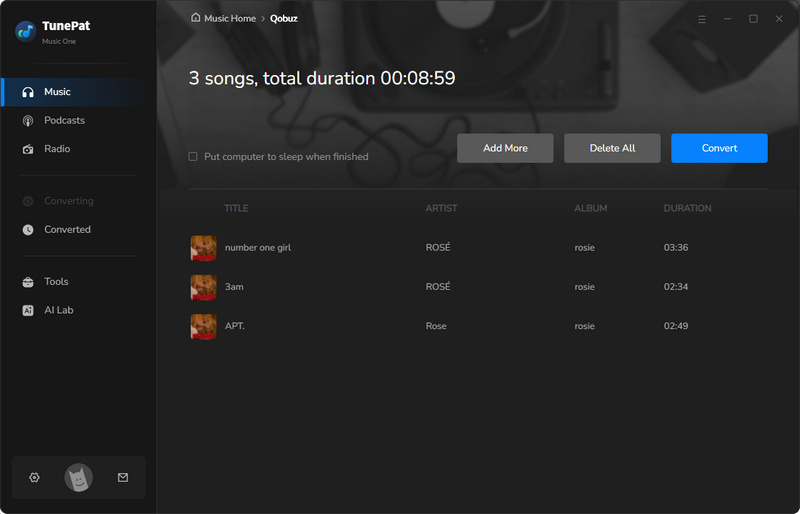
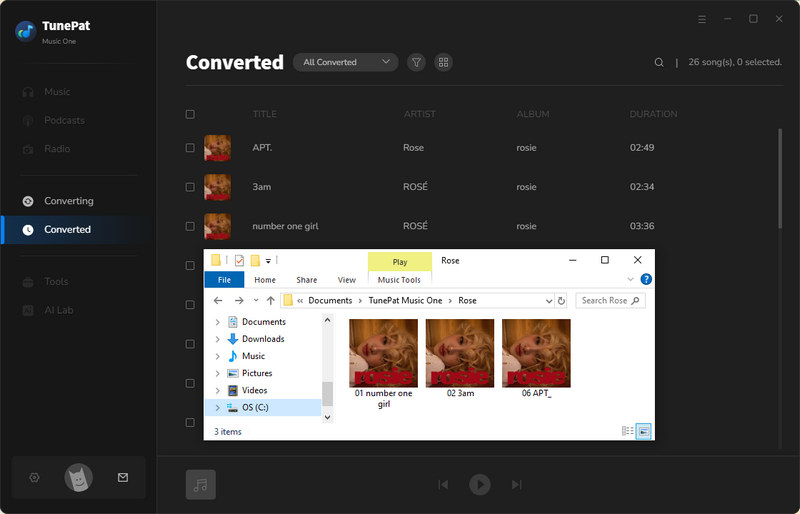
Step 4 On the main conversion interface, click the "Convert" button. TunePat Music One will begin downloading and converting your selected Qobuz music to high-quality FLAC files. Once the conversion is complete, the output folder containing your new FLAC files will open automatically. You can also go to the "History" module within the software to view your conversion history or double-click to play the files directly. These FLAC files are now permanent and DRM-free. You can transfer them to any device, play them in any media player (like iTunes, VLC, Foobar2000), or use them in creative projects.
The Qobuz web player offers two distinct downloading paths—and understanding the difference is everything. If you want to own music permanently, the Qobuz Store lets you purchase tracks and download them as DRM-free FLAC files directly through your browser. These files are yours forever, playable anywhere. If you want offline access through a subscription, the web player itself won't help you. That feature is locked to Qobuz's mobile and desktop apps—and those downloads vanish if your subscription ends.
For subscribers seeking permanent, portable files without buying every track individually, TunePat Music One bridges the gap. It works with the Qobuz web player to convert streams to DRM-free FLAC or MP3, preserving hi-res quality and ID3 tags. Your music stays yours—subscription or not. You can download and start a free trial now, then make your own judgement.

Olivia Anderson
Senior Writer