How to Convert FLAC to MP3 in 2026: Best Tools & Tips
 By Olivia Anderson
Music Tips
Updated on 8/27/2026
By Olivia Anderson
Music Tips
Updated on 8/27/2026
Users may need to convert FLAC to MP3 for reasons such as saving storage space or ensuring better device compatibility. The two formats involve different trade-offs in terms of audio quality, file size, and use cases. However, converting FLAC to MP3 is not simply a matter of changing one file format into another. During the conversion process, the audio data is re-encoded, which affects both the resulting audio quality and file size.
This article starts by examining the differences between FLAC and MP3, then explores what exactly changes when FLAC is converted to MP3 and which use cases are best suited to different MP3 bitrates. We will also compare online and desktop conversion methods and test different FLAC to MP3 converters, evaluating them based on output formats, metadata retention, and batch processing capabilities.
Part 1: FLAC vs. MP3: Why Convert FLAC to MP3?
| Format | Compression | Audio quality | File size | Compatibility |
|---|---|---|---|---|
| FLAC | Lossless | Original | Larger | Good |
| MP3 | Lossy | Lower than FLAC | Much smaller | Excellent |
Why Do Many People Choose to Change FLAC to MP3?
Smaller File Sizes
FLAC files can take up significantly more storage space than MP3 files. Converting a large music library to MP3 can reduce storage requirements, making it easier to keep more songs on a phone, USB drive, or other portable device.
Better Device Compatibility
MP3 is supported by virtually all music players, smartphones, car stereos, and other playback devices. If a device doesn't handle FLAC properly, converting your files to MP3 can provide a simple compatibility solution.
Easier Sharing and Transfer
Compared with FLAC files, MP3 files are smaller, making them faster to upload, transfer, and share, especially when dealing with large music libraries.
When You Don't Need Lossless Quality
If you're listening through everyday earbuds, a car stereo, or in a noisy environment, the benefits of keeping FLAC may not always be noticeable. In these cases, a high-quality MP3 can offer a practical balance between audio quality and file size.
With TunePat Music One, you can convert local FLAC files to MP3 for free or download music from supported streaming platforms and save it in MP3 format. It supports bitrates of up to 320kbps and preserves cover art for easier music management.
Part 2: FLAC to MP3: What Changes After Conversion?
Converting FLAC to MP3 is not simply a matter of changing the file extension; it is fundamentally a re-encoding process. FLAC uses lossless compression, which means the original audio data can be fully restored after decoding. MP3, on the other hand, uses lossy compression, discarding some audio information during encoding in exchange for a smaller file size.
FLAC to MP3: What Actually Happens?
When a FLAC file is converted to MP3, the converter first reads the audio data stored in the FLAC file and then processes and compresses it using an MP3 encoder. Unlike FLAC, which is designed to preserve the original audio information, MP3 takes advantage of the characteristics of human hearing to reduce less perceptible audio information, thereby reducing the amount of data that needs to be stored. As a result, file size is one of the most noticeable changes when converting FLAC to MP3. MP3 files are typically much smaller than the original FLAC files.
Audio Quality: Does FLAC to MP3 Reduce Quality?
Yes. However, this does not necessarily mean that the converted MP3 will sound noticeably worse. The perceived difference depends on several factors, including the MP3 bitrate, encoder, source audio, playback equipment, and listening environment. At higher bitrates and with appropriate encoding settings, the difference between MP3 and the original FLAC may be difficult to notice during everyday listening. At lower bitrates, however, compression artifacts become more apparent, particularly in certain audio details. Therefore, whether converting FLAC to MP3 results in noticeable quality loss cannot be determined by the format alone. The encoding settings also play an important role.
FLAC to MP3 Is a One-Way Quality Trade-Off
Once audio is converted from FLAC to MP3, the audio data lost during MP3 encoding cannot be recovered, even if you convert the MP3 back to FLAC. In other words, converting an MP3 to FLAC only creates a larger FLAC file; it does not restore the original lossless audio quality.
What About Metadata and Album Art?
Metadata can also change during conversion. Both FLAC and MP3 support track information, but some converters may only retain basic details or filenames and may not preserve album art. If retaining album art and metadata matters to you, see how this free FLAC to MP3 converter performed in our FLAC to MP3 conversion tests.
Part 3: What MP3 Bitrate Should You Choose?
| MP3 Bitrate | Audio quality | File size | What You Gain | What You Give Up | Best for |
|---|---|---|---|---|---|
| 128 kbps | Noticeable compression | Smallest | Maximum storage savings | More detail and high-frequency information | Speech, podcasts, limited storage |
| 192 kbps | Good for everyday listening | Small | Good quality with smaller files | Some detail compared with higher bitrates | Casual music listening, large libraries |
| 256 kbps | Good for everyday listening | Moderate | Strong quality-to-size balance | Larger files than 192 kbps | Most music, high-quality everyday listening |
| 320kbps | Highest common MP3 bitrate | Largest | Maximum data allocation in standard CBR MP3 | More storage with potentially small audible gains | Maximum MP3 quality, storage-permitting |
Part 4: How to Convert FLAC to MP3: Online & Desktop Methods
4.1 TunePat Music One
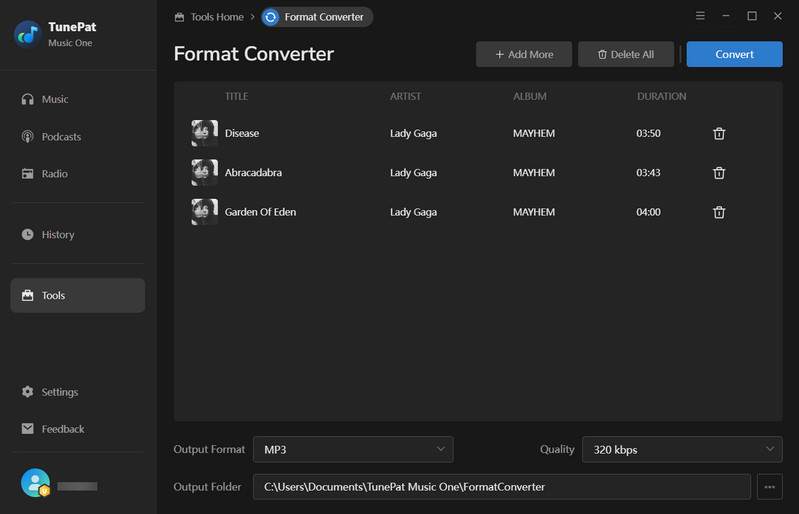
For users who already have FLAC files, TunePat Music One includes a free Format Converter for local audio conversion. It allows you to import them directly, select MP3 as the output format, and adjust settings such as the bitrate before conversion. In addition to MP3, it supports a range of other output formats, including AAC, WAV, FLAC, AIFF, and ALAC, allowing users to choose the format that best suits their playback device or intended use.
If you need to do more than convert FLAC files already stored on your computer to MP3 and also want to obtain and convert music from different music platforms within the same tool, TunePat Music One offers a more comprehensive option. It is not limited to processing local audio files; it also provides music downloading capabilities for platforms including Spotify, YouTube, Apple Music, Amazon Music, Tidal, Deezer, SoundCloud, and YouTube Music. If you don't already have local audio files, you can obtain music through the supported platforms and save it in the audio format you need. This means you don't have to rely on two separate tools for downloading and format conversion.
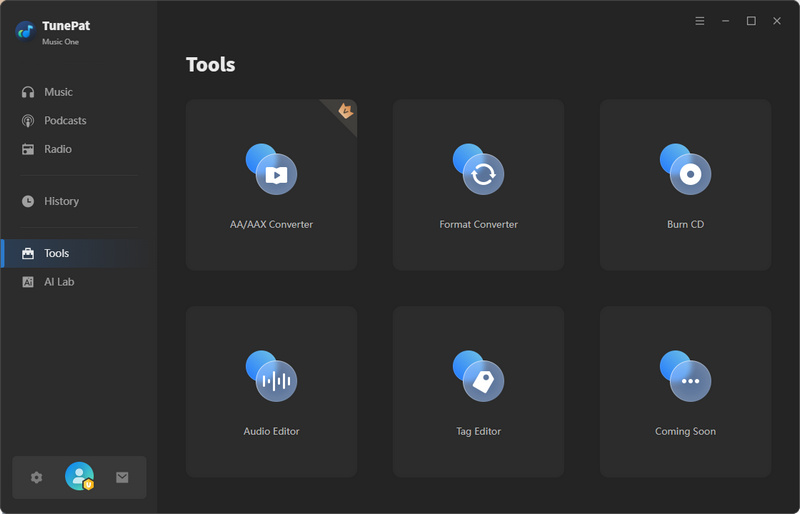
Step 1 First, open TunePat Music One on your computer. As mentioned earlier, TunePat is also a music downloader, so you'll see a range of supported streaming services in the interface. To add a local FLAC file for MP3 conversion, click "Tools" on the left, then select "Format Converter".
Step 2 Click "+Add" to browse your local folders and select the FLAC files you want to convert, then add them to TunePat. Next, choose the desired output format and bitrate, and specify where you want to save the converted files. This FLAC to MP3 conversion is available at no cost. Once everything is set, click "Convert" to start the conversion. After the files are converted to MP3, the output folder will open automatically, allowing you to check the converted files.
TunePat Music One: Quick Pros & Cons
4.2 CloudConvert
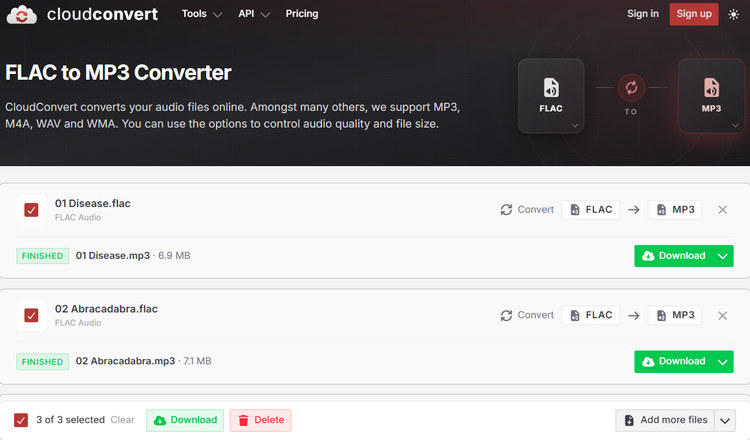
CloudConvert is a web-based file conversion tool that supports a wide range of formats, including audio, video, document, and image files. Open CloudConvert in your browser and click "Select File" to choose the FLAC file you want to convert from your computer, or simply drag and drop the file onto the page. After uploading the FLAC file, select MP3 as the output format. You can also adjust other audio settings, such as Audio Qscale, Audio Bitrate, Channels, and Sample Rate. Once you've finished adjusting the settings, click "Convert" to start the conversion. Wait for CloudConvert to process the file, then click "Download" to save the converted MP3 file to your computer.
CloudConvert: Quick Pros & Cons
4.3 FreeConvert
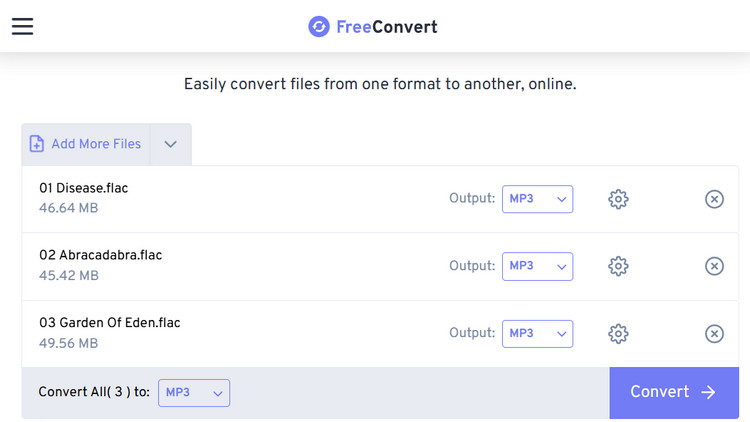
FreeConvert is an online file conversion tool that supports FLAC to MP3 conversion without requiring desktop software. It allows you to upload files from your local device or import them from Dropbox, Google Drive, OneDrive, or a URL. To use it, click "Choose Files" and upload your FLAC file. During our testing, we found that the website could be somewhat sluggish. Sometimes, after uploading a file, it didn't appear on the page immediately, so we tried uploading it again and found that both files appeared afterward. Once the file is uploaded, you can adjust the advanced settings as needed. Then click "Convert" to start the conversion. After the conversion is complete, click "Download" to save the file.
FreeConvert: Quick Pros & Cons
4.4 Zamzar
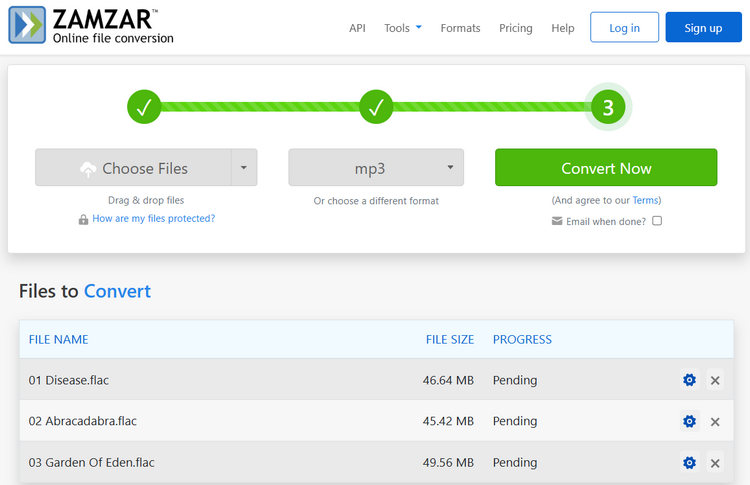
Zamzar is an online file converter that supports FLAC and a variety of other audio formats. Click "Choose Files" or drag and drop your FLAC file onto the page to upload it, then select "MP3" as the output format. The website will automatically prompt you to adjust additional settings, which is more convenient than some other online tools because you don't need to open the settings manually. Then click"Convert Now" to start the conversion. Once the conversion is complete, you can download the MP3 file. However, free users are limited to converting two files per day.
Zamzar: Quick Pros & Cons
4.5 Convertio
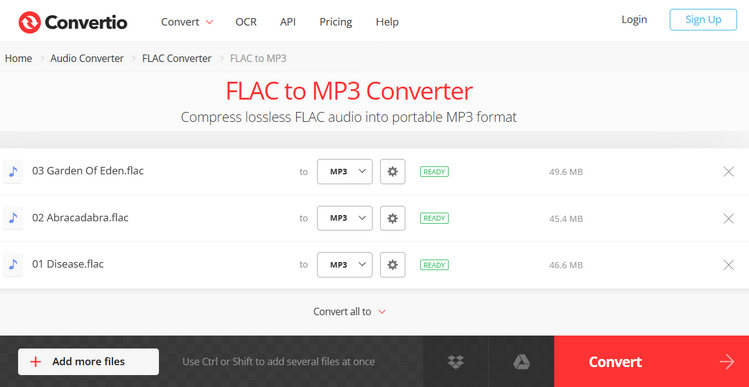
Convertio is an online converter that supports converting FLAC files to MP3 and many other file formats. You can upload a FLAC file from your computer, Google Drive, Dropbox, or a URL, then select MP3 as the output format. If needed, you can adjust settings such as the bitrate and audio channels under the advanced settings. Once the conversion is complete, you can download the converted MP3 file. However, during our testing, we found that the converted files did not retain the cover art, and the audio quality was inconsistent, with the output unable to reach 320kbps.
Convertio: Quick Pros & Cons
Part 5: Best FLAC to MP3 Converters Compared
| TunePat Music One | CloudConvert | FreeConvert | Zamzar | Convertio | |
|---|---|---|---|---|---|
| Conversion Method | Desktop | Online | Online | Online | Online |
| Output Formats | MP3, AAC, WAV, FLAC, AIFF, ALAC | MP3 and more | MP3 and more | MP3 and more | MP3 and more |
| Bitrate Control | Adjustable, up to 320kbps | Adjustable, inconsistent | Adjustable, 124kbps | Adjustable, inconsistent | Adjustable, inconsistent |
| Album Artwork | Retained | Not retained | Not retained | Not retained | Not retained |
| Batch Conversion | Yes | Yes | No | No | No |
| Free FLAC to MP3 Conversion | Yes | Yes | Yes | 2 files/day | Yes |
FAQs About FLAC to MP3
Q1: Does converting FLAC to MP3 reduce quality?
A: Yes. Converting FLAC to MP3 will reduce audio quality because it removes some audio information to shrink the file size. A higher MP3 bitrate generally results in less noticeable quality loss, but MP3 is still a lossy compression format. Converting an MP3 back to FLAC cannot restore the information that was removed during the MP3 encoding process.
Q2: Can I change FLAC to MP3 for free?
A: Yes. You can convert FLAC to MP3 for free using various online converters or desktop software. For example, the tools covered in this article, such as TunePat and FreeConvert, both support free FLAC to MP3 conversion.
Q3: What is the best bitrate for FLAC to MP3?
A: For most people, 320kbps MP3 is the best choice when converting FLAC to MP3, as it offers very good audio quality while still providing the benefits of a smaller file size. If saving storage space is a higher priority, 192kbps is usually sufficient.
Conclusion
Converting FLAC to MP3 effectively reduces file size and improves device compatibility. However, because MP3 uses lossy compression, some audio information is inevitably lost during the conversion. A higher bitrate generally preserves more audio quality, but it also results in a larger file. Therefore, bitrate control is not the only factor to consider when choosing an FLAC to MP3 converter. Choose a converter based on your audio quality requirements, storage limitations, and how you plan to use the converted files.


Olivia Anderson
Senior Writer