How to Recover Deleted Spotify Playlist (Even Without Backup)
 By Olivia Anderson
Spotify Tips
Updated on 4/27/2026
By Olivia Anderson
Spotify Tips
Updated on 4/27/2026
Accidentally deleting a Spotify playlist can be frustrating, especially when it contains years of carefully curated songs, moods, or daily listening collections. Many users immediately search for how to recover deleted Spotify playlist as soon as they notice something is missing.
The good news is that there is an official way to recover deleted Spotify playlists through Spotify’s account system. In some cases, a few indirect methods may also help, depending on whether the playlist data is still accessible. However, it is important to understand that these approaches are not guaranteed to work, especially when no backup exists. Recovery success largely depends on timing, account activity, and whether Spotify still retains the playlist data in its system.
In this guide, you will learn all practical methods to recover deleted Spotify playlist content step by step, along with a long-term solution to prevent playlist loss in the future.

Part 1: How to Recover Deleted Spotify Playlist (Without a Backup)
If you did not create a backup, there is still a chance to recover deleted Spotify playlist data depending on how quickly you act. Spotify provides a few built-in methods, along with some indirect recovery tricks that may help in certain situations.
🎬 Watch the step-by-step video tutorial before trying the methods below for a quicker overview.
Below are the most reliable options you can try.
Method 1: Undo Deletion (Immediate Recovery Only)
If you accidentally deleted a Spotify playlist, there is still a small chance to recover it immediately using the undo function. This method works only when the deletion has just happened, and no other actions have been performed afterward.
Spotify supports basic action reversal inside the desktop application, which allows users to quickly undo recent changes before they are permanently saved. However, this method is extremely limited and should only be considered as an emergency recovery option for very recent deletions.
You can try: Windows: Ctrl + Z / macOS: Cmd + Z
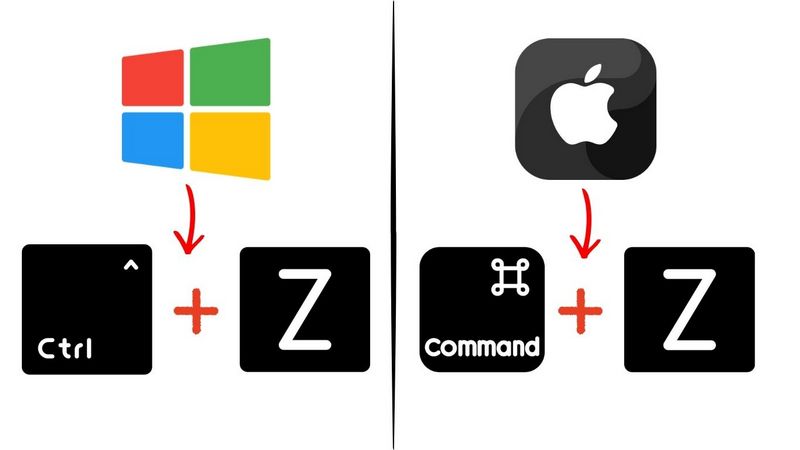
If successful, your playlist will immediately reappear in your library.
Important Notes for Spotify Playlist Recovery
This method is useful as a quick emergency fix, but not a reliable way to recover deleted Spotify playlist content in most situations.
Worried about losing your Spotify playlists? Even official methods cannot always bring them back. The best solution is to back them up in advance. Download TunePat Spotify Converter below and start one-click backup and restore for your Spotify library today.👇👇
Method 2: Restore Deleted Playlist from Spotify Official Website
Spotify provides an official recovery feature that allows users to restore playlists deleted within a limited time window. This is currently the most reliable and direct method offered by Spotify itself.
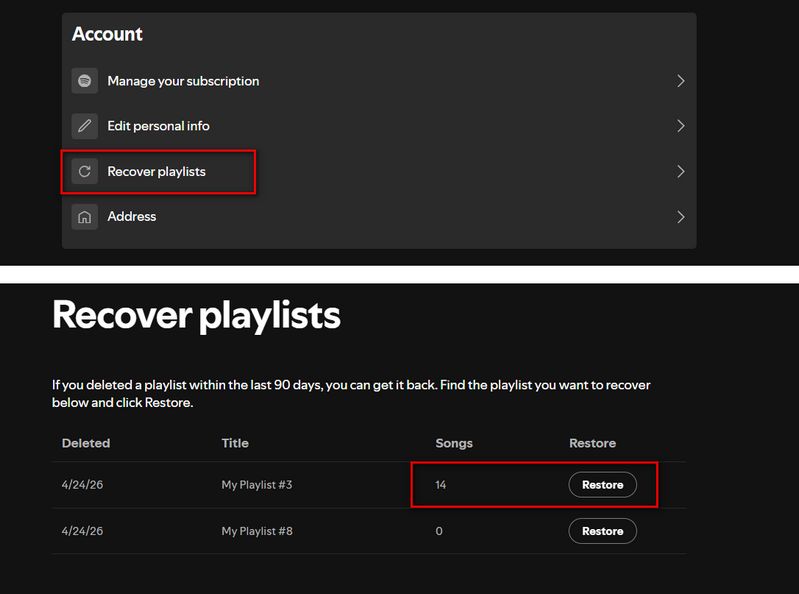
Users can access their account settings and find a dedicated Recover playlists section where deleted playlists are listed for restoration.
However, this feature only works under certain conditions, including a time limit and account-based restrictions, which means not all deleted playlists can be recovered successfully.
Step 1 Go to https://www.spotify.com/account and log in to your Spotify account.
Step 2 Click "Recover playlists" in the menu.
Step 3 Browse the list of deleted playlists and then click "Restore" next to the playlist you want back.
Important Notes for Spotify Playlist Recovery
Method 3: Recover via Old Shared Playlist Links
Another possible way to recover a deleted Spotify playlist is by using previously shared playlist links. In some cases, Spotify may still retain access to playlist data if it has not been fully removed from cached systems or external sharing records.
This method is often reported by users who have shared their playlists through social media, messaging apps, or browser history.
If the link is still active, you may be able to reopen the playlist and save it back to your library. However, this approach is not guaranteed and depends heavily on whether the playlist data is still available.
You can try checking:
- Messaging apps where you shared the playlist
- Social media posts or comments
- Email history / Browser history
- Saved links or bookmarks
If the link still works, you can open it and save or follow the playlist again to restore it.
However, this method is not guaranteed. Once Spotify fully removes the data, the playlist can no longer be recovered this way, making it only a temporary workaround for how to recover deleted Spotify playlists.
Method 4: Check Your Spotify Listening History and Recently Played Section
If your deleted Spotify playlist does not appear in the official recovery page or shared links, another possible place to check is your Spotify listening history and Recently Played section.
Spotify often keeps a record of recently played content, which may include playlists you accessed before deletion. While this method does not directly restore a deleted playlist, it can help you identify what was inside it and rebuild it manually.
Where to find the Recently played section: On both mobile and desktop, you can access the Recently played section from the Home page. Simply open Spotify, go to Home, and scroll down to view your recent listening activity. The exact layout may differ slightly depending on the device.
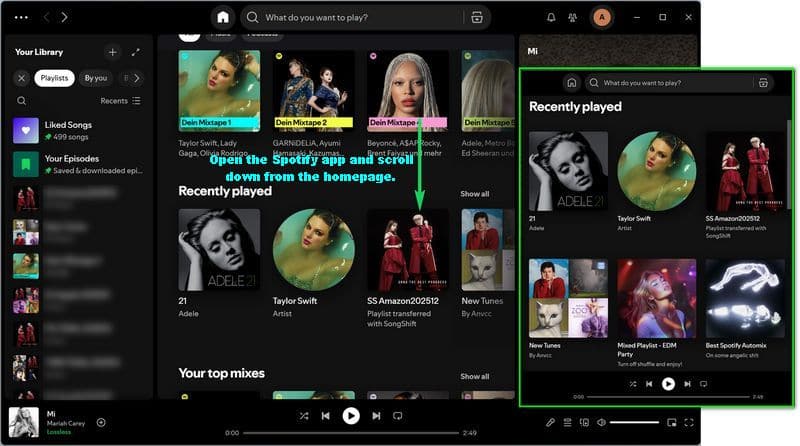
What you can do with it: You can try reopening previously played playlists if they are still available, identify songs from your missing playlist, or manually recreate it if direct recovery is no longer possible. However, this method is not guaranteed, as playlists that have been fully removed from Spotify’s system may no longer appear in your history.
Part 2: How to Back Up and Restore Spotify Playlist in One Click
So far, we have explored several ways to recover deleted Spotify playlist content. While these methods can help in certain situations, they all share one key limitation: they only work after data loss has already occurred.
Even Spotify's official recovery option is time-limited, and restoring multiple playlists manually can quickly become time-consuming and inefficient. For users who manage large or carefully curated music libraries, this process can be frustrating, and in some cases, deleted playlists may no longer be recoverable.
Because of these limitations, it becomes clear that recovery methods alone are not enough. They focus on fixing problems after they happen rather than preventing them. A more reliable approach is to proactively protect your Spotify library with a proper backup strategy, ensuring your music collection always remains under your control.
TunePat Spotify Converter provides this solution through its built-in backup and restore feature, allowing you to save your entire Spotify library locally as a structured JSON file. This includes playlists with full track structure, along with liked songs, saved albums, podcasts, and more content. In addition to backup functionality, it also works as a professional audio converter, supporting Spotify content such as playlists, albums, podcasts, audiobooks, and radio, and converting them into MP3 and other common formats for easier access across devices. With one click backup and restore, your Spotify library can be safely stored and recovered at any time.
TunePat Spotify Converter
TunePat Spotify Converter enables users to convert Spotify audio content from the Spotify app or web player.
Now, click the button above to download and install TunePat, then follow the step-by-step guide below to get started with the process.
2.1 How to Back Up Spotify Playlist in One Click?
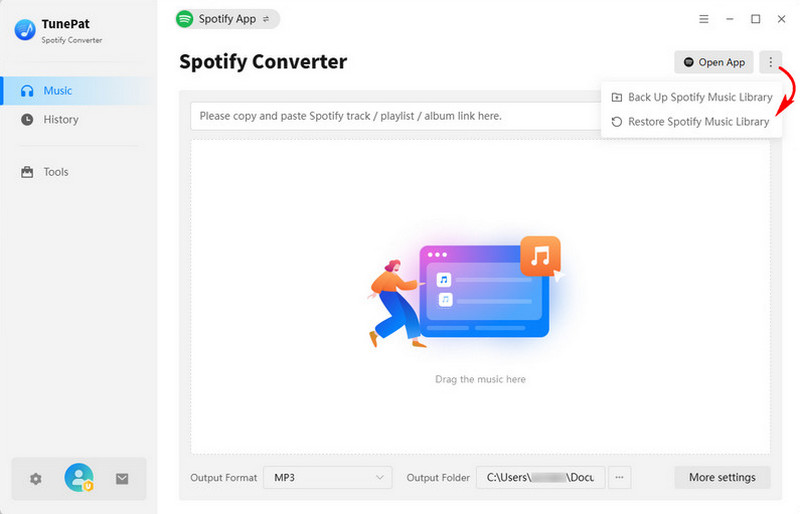
Step 1 Open TunePat on your computer. Click the three-dot menu on the right side of the interface. You will see two options: Back Up or Restore your Spotify Music Library. Make sure your Spotify account is logged in before proceeding.
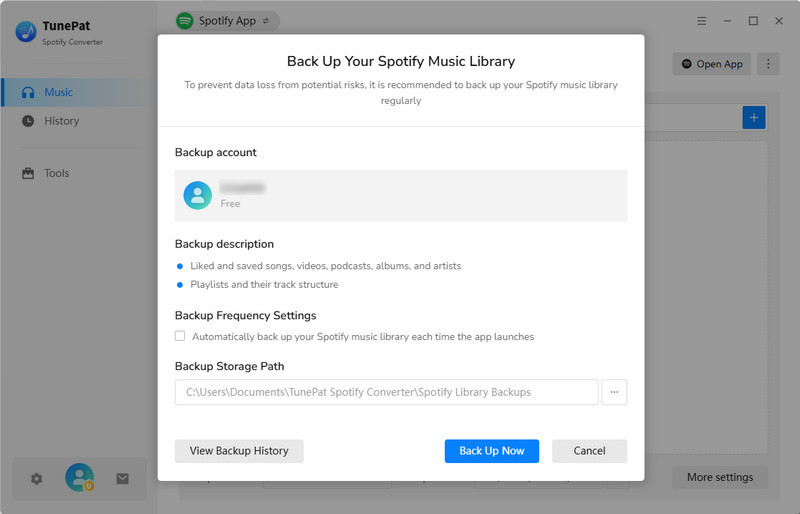
Step 2 Click "Back Up Spotify Music Library". You can then review the account you want to back up, choose the content to include, set a local storage path, and enable automatic backup on startup if needed.
Step 3 Click "Back Up Now" to start the process. TunePat will quickly generate a local backup file, securely saving your Spotify library on your computer.
2.2 How to Restore Your Spotify Library from Backup?
Step 1 If you want to restore a Spotify playlist, open TunePat and click the three-dot menu in the top right corner of the program, then select the "Restore Spotify Music Library" option.
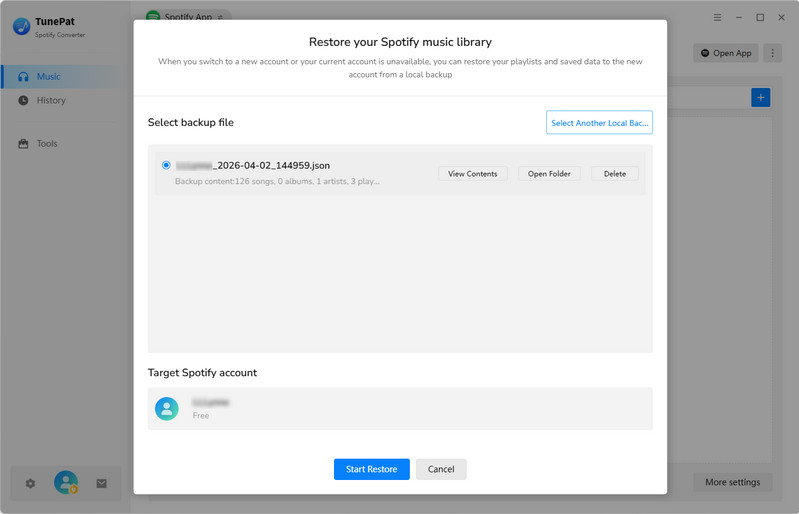
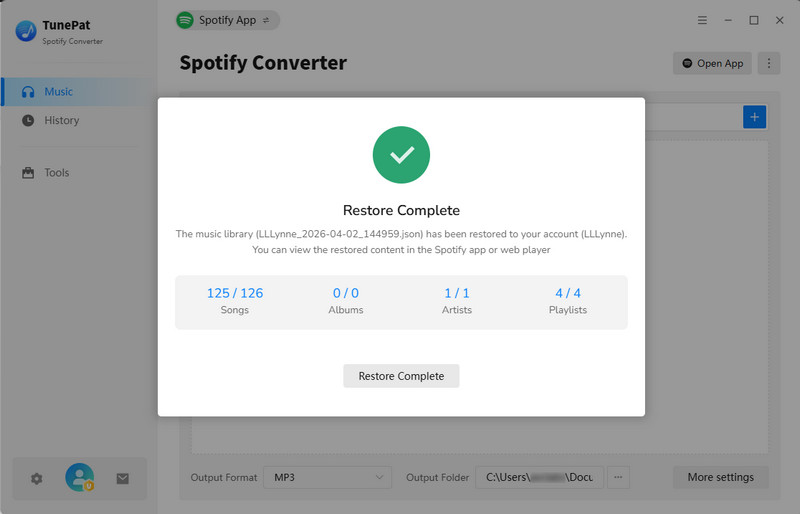
Step 2 Next, choose a backup file and click "Start Restore".
Part 3: FAQs About Recovering Deleted Spotify Playlist
Q1: Can I recover a deleted Spotify playlist after 90 days?
A: No. Spotify only allows playlist recovery within about 90 days. After this period, deleted playlists usually cannot be restored.
Q2: Why is my recovered Spotify playlist missing songs or details?
A: In some cases, restored playlists may lose certain details such as cover images, descriptions, or other metadata, but the track list is usually recovered correctly.
Q3: Does Spotify automatically back up playlists?
A: No. Spotify does not provide any automatic backup feature for playlists or library data at this time. If a playlist is deleted, recovery depends on manual options.
Q4: Can I recover playlists I did not create?
A: No. Only playlists created under your own Spotify account are eligible for recovery. Shared or followed playlists cannot be restored.
Q5: What is the best way to prevent losing Spotify playlists?
A: The most reliable way is to regularly back up your Spotify library. Tools like TunePat allow you to create a local backup and restore your playlists whenever needed.
Conclusion:
There are several ways to recover deleted Spotify playlist content, such as undo actions, Spotify’s official recovery page, or previously shared links. However, all of these methods are limited by time, availability, and completeness.
For a more reliable and sustainable approach, it is better to prevent data loss before it happens by using a proper backup strategy. TunePat Spotify Converter allows you to back up and restore your entire Spotify library in one click, keeping your playlists, songs, and saved content safely stored at all times.
Once a backup system is in place, you no longer need to rely on limited recovery methods when dealing with how to recover deleted Spotify playlist issues, since your music library is always securely saved and ready to restore whenever needed.



Olivia Anderson
Senior Writer