
Need to convert Spotify music to WAV for audio editing or offline use? Several methods are available, from dedicated desktop converters to free recording software and Python scripts. This guide explains four approaches to help you find the one that best fits your needs.
Method 1: Convert Spotify to WAV with TunePat Spotify Converter
TunePat Spotify Converter is a desktop Spotify to WAV converter for Windows and Mac. It lets you download songs, albums, and playlists from Spotify and convert them to WAV files in batches. You can also choose an output folder, customize file names, and retain ID3 tags to keep your downloaded music organized and its metadata intact.
👍 Who Is TunePat Best For?
1. Playlist Collectors: Convert multiple songs from Spotify playlists or albums in one batch.
2. Users who prefer simple controls: Select songs and adjust settings without configuring scripts or command-line tools.
3. Music library organizers: Use custom file names and output folders to keep converted tracks easy to find.
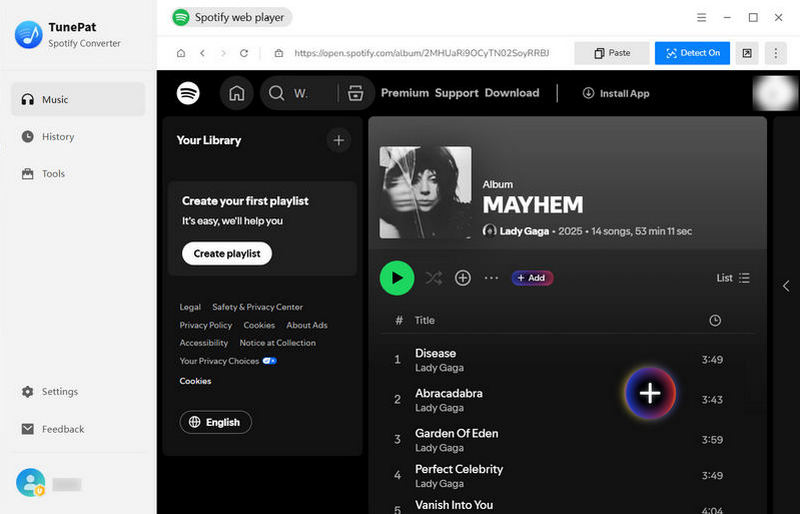
Step 1 Download and install TunePat Spotify Converter on your Windows or Mac computer. Launch the program and sign in to your Spotify account through the built-in web player.
Step 2 Open the song, playlist, or album you want to convert, then click the "+" icon on the right. TunePat will list the available tracks in a pop-up window. Uncheck any songs you don't need, then click "Add" to place the selected tracks in the conversion list.
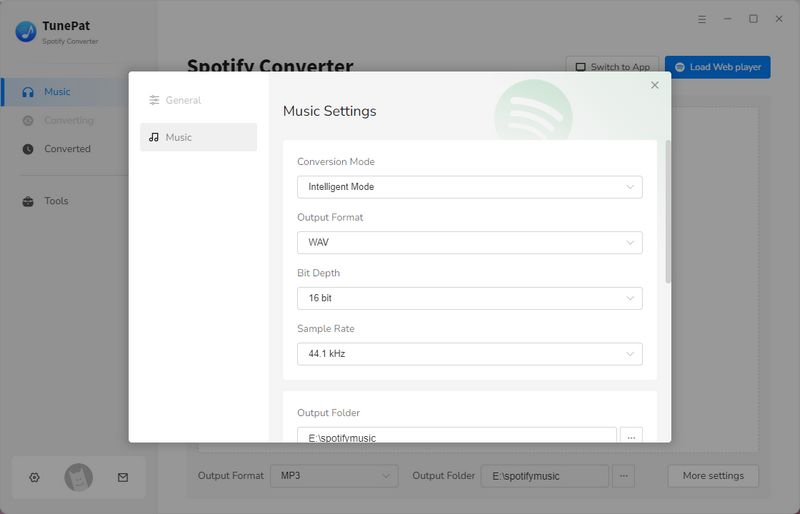
Step 3 Open "Settings" and choose "WAV" as the output format. Select an output folder so you can easily find your files later. You can also adjust the available audio settings and customize how your files are named and organized.
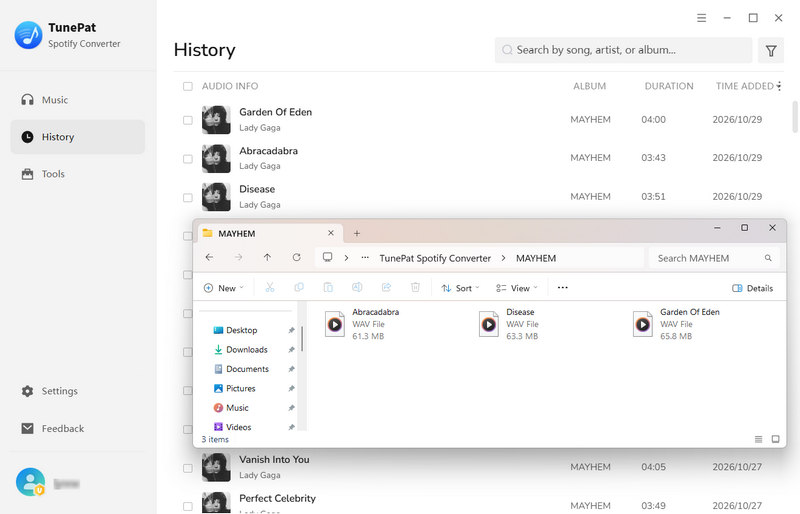
Step 4 Click "Convert" to start converting the selected songs to WAV. Once the conversion is complete, open "History" to view the finished tracks or access them directly in your output folder.
Pros
-
 Batch conversion for multiple songs from playlists or albums.
-
Fast conversion speed for efficient music downloads and conversions.
-
Built-in web player for selecting music without command-line setup.
-
Custom output folders and file names for easier organization.
Cons
-
 Free trial has limitations.
-
Only available for Windows and macOS.
Method 2: Record Spotify to WAV for Free with Audacity
Audacity is a free, open-source audio editor that lets you record Spotify music as WAV by capturing your computer's playback. Recording happens in real time, so you'll need to play each song from start to finish. It's a practical option for a few tracks, especially if you also want to trim or edit the recordings before exporting them.
👍 Who Is Audacity Best For?
1. Users on a Budget: Record and export audio as WAV without paying for a dedicated converter.
2. Users Who Need Basic Audio Editing: Trim silence, remove unwanted sections, and adjust recordings before saving them.
Step 1 The steps below are for Windows. Download Audacity from its official website and launch the program. Before recording, configure the audio input to capture your computer's playback rather than your microphone.
Step 2 Open "Audio Setup" and select "Windows WASAPI" as the audio host. Then choose the playback device marked with (loopback) as the recording device. This allows Audacity to capture audio playing through that device.
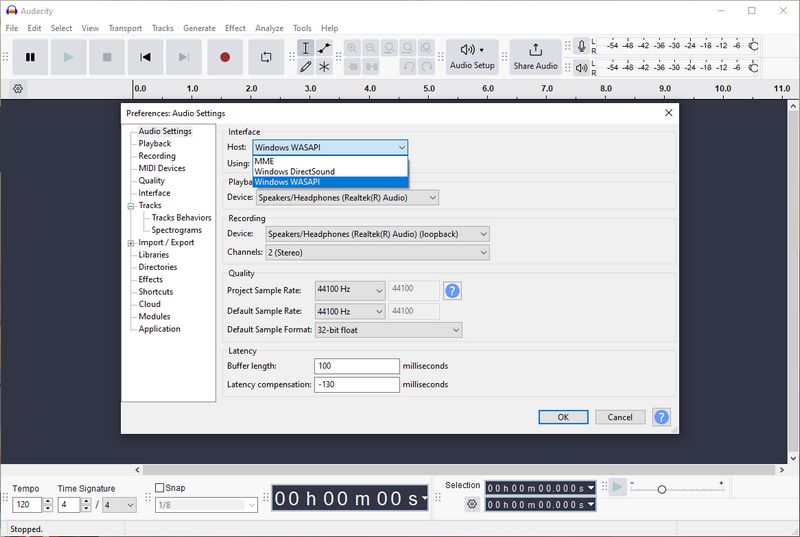
Step 3 Open Spotify and play the song you want to capture. Start recording in Audacity, check that the waveform is moving, and stop the recording when the song finishes. Avoid playing other system sounds during the recording, as they may also be captured.
Step 4 Listen to the recording and trim any unwanted audio or silence at the beginning and end. Go to "File" → "Export Audio", choose "WAV", and set the file name and destination folder. If you recorded several songs together, split them into separate tracks before exporting.
Pros
-
Free and open source.
-
Includes tools for trimming and editing recordings before WAV export.
Cons
-
Records in real time, so a long playlist takes just as long to capture.
-
Notifications and other playback sounds may be recorded.
Method 3: Convert Spotify to WAV with an Online Downloader
If an online Spotify downloader offers FLAC downloads but no WAV option, you can use a two-step workaround: download the FLAC file, then convert it to WAV with the free Format Converter in TunePat Music One. This method works with any online tool that successfully provides a compatible FLAC file; SpotyLoader is used as the example below.
The process is free as long as your chosen online tool offers FLAC downloads at no cost. TunePat Music One's Format Converter is also free to use, but you'll need to install the desktop software to complete the second step.
👍 Who Is This Method Best For?
1. Users whose online downloader lacks WAV output: Download the track as FLAC, then convert it to the format you need.
2. Users who already have FLAC files: Skip the download step and convert your local files directly to WAV.
Step 1 Open SpotyLoader or another online downloader that supports FLAC output. Paste the Spotify track link, select FLAC format, and download the file to your computer.
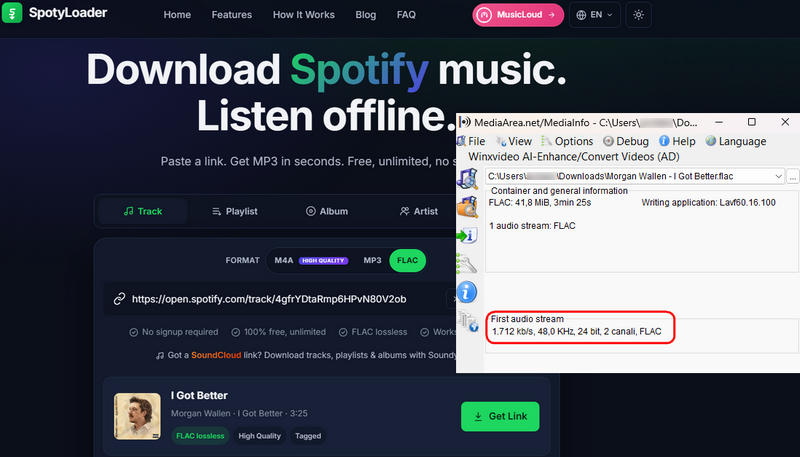
Step 2 Launch TunePat Music One and go to "Tools" > "Format Converter". Add the downloaded FLAC file to the conversion list. Select "WAV" as the output format, choose a destination folder, and start the conversion. Once it finishes, open the output folder to find your WAV file.
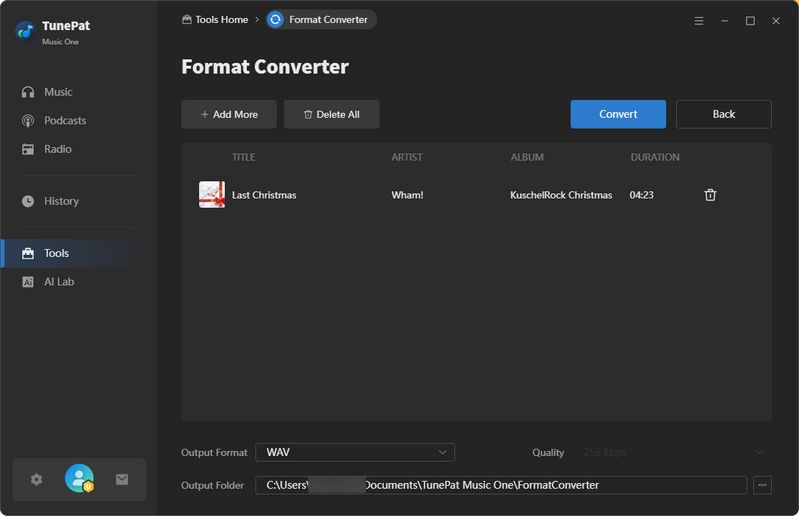
Note: Converting FLAC to WAV changes the file format, not the quality of the original source. A FLAC file downloaded from an online tool is not necessarily sourced from lossless audio, and converting it to WAV cannot restore details already lost.
Pros
-
Can be completed at no cost with a free FLAC downloader and a Format Converter.
-
Works with compatible FLAC files from different tools, including files you already have.
-
Provides a workaround when an online downloader does not offer WAV output.
Cons
-
Requires two tools and a desktop installation.
-
Online tools may have download limits, unavailable tracks, or inconsistent results.
Method 4: Use a GitHub Script to Save Spotify Playlist Tracks as WAV
The Spotify_and_SoundCloud_Playlist_to_WAV_Folder project reads Spotify playlist metadata and searches YouTube for matching audio. It uses these matches rather than downloading audio directly from Spotify, so the version, duration, and sound quality may differ from the original tracks. WAV output requires changing the script's current output settings.
👍 Who Is This Script Best For?
1. Users Comfortable with Python: People who can work with command-line tools, install dependencies, and troubleshoot basic errors.
What You Need Before Getting Started
- Python: Install a compatible Python version and make sure you can run Python commands from your terminal or command prompt.
- FFmpeg: Install FFmpeg and ensure it is accessible from your command line. The project uses it to extract and process audio.
- Project dependencies: The script imports several Python packages, including spotipy, yt-dlp, youtube-search, sclib, pydub, and python-dotenv. Install the dependencies required by the current version of the code.
- Spotify API credentials: Create an app in the Spotify Developer Dashboard and obtain your Client ID and Client Secret. Spotify currently requires the owner of a development-mode app to have an active Premium subscription. Keep your credentials private.
- A Spotify playlist: Have the playlist link or URI ready. You may also need the Spotify username, depending on the script's current implementation.
Step 1 Open the GitHub repository, click Code → Download ZIP, and extract the files to your computer.
Step 2 Install Python and FFmpeg, then install the Python packages required by the project. Make sure FFmpeg is available from your command line.
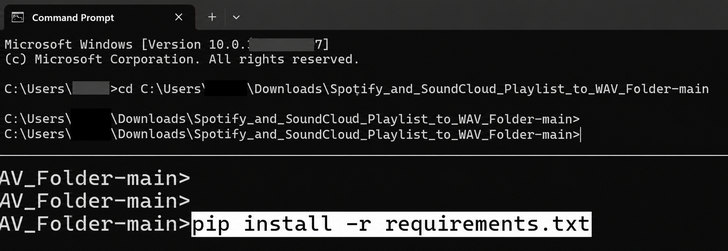
Step 3 Create an app in the Spotify Developer Dashboard and obtain your Client ID and Client Secret. Keep these credentials private and have your Spotify playlist URI ready.
Step 4 Open a terminal in the project folder and run: python downloader.py. Follow the prompts to enter your Spotify credentials and playlist information, then wait for the script to process the tracks.
Pros
-
Helps process multiple tracks without manually handling each song.
-
Users can inspect or modify the Python script to fit their workflow.
-
Produces WAV files that may be more convenient for audio editing or applications requiring this format.
Cons
-
Python, FFmpeg, project dependencies, and Spotify API configuration may require troubleshooting.
-
YouTube search results may differ from the original Spotify tracks in version, duration, or recording.
-
Converting compressed audio to WAV cannot restore lost audio details.
FAQs About Spotify to WAV Conversion
Q1: Can Spotify Export WAV Files Directly?
A: No. Spotify does not offer a WAV export option, and Premium downloads are intended for offline playback within Spotify. To create a separate WAV file, you need a third-party converter like TunePat or a recording tool like Audacity. Scripts that find matching audio on YouTube use a different source rather than exporting the Spotify track itself.
Q2: Can You Convert Spotify to WAV Without Premium?
A: Yes, but not with every method in this guide. TunePat Spotify Converter supports Spotify Free and Premium accounts. Audacity and SpotyLoader do not require a Spotify account. GitHub script requires Spotify API credentials to read playlist information.
Q3: Does Converting Spotify Music to WAV Improve Audio Quality?
A: No. Converting audio to WAV does not automatically improve its sound quality. WAV is a container format that can store uncompressed audio, but it cannot restore details lost in a compressed source. If you record Spotify playback or convert a compressed audio file to WAV, the resulting file may be larger without sounding better. The original audio source and recording or conversion process determine the actual quality.
Q4: Is WAV Better Than MP3 or FLAC for Spotify Music?
A: It depends on how you plan to use the audio. WAV typically stores uncompressed audio and is widely supported by audio-editing software, but files are usually larger. MP3 uses lossy compression, making it more suitable when smaller files are important. FLAC uses lossless compression, preserving the audio data while generally requiring less storage than WAV. For editing workflows that require WAV, choose WAV; for lossless storage with smaller files, FLAC may be a better option.
Conclusion:
The best way to convert Spotify music to WAV depends on your budget, technical skills, and audio workflow. Audacity is a free option for recording a few tracks, while online tools and GitHub scripts come with their own limitations in reliability, setup, or track matching. If you prefer a more straightforward workflow for converting songs, albums, and playlists, TunePat Spotify Converter lets you select tracks, choose WAV as the output format, and organize the resulting files in one desktop application.


Olivia Anderson
Senior Writer