5 YouTube to FLAC Converters (Online & Desktop)
 By Delilah Rene
YouTube Music Tips
Updated on 9/23/2026
By Delilah Rene
YouTube Music Tips
Updated on 9/23/2026
Looking for a YouTube to FLAC downloader? This guide compares five online and desktop options for saving audio as FLAC, with a focus on playlist support, batch download, and ease of use. Converting to FLAC won't improve the original audio quality, but it can be useful if you need the format for your local music library.
- 1. TunePat Music One - Download YouTube Music Playlists in Batches
- 2. Audacity - Record YouTube Audio and Export to FLAC
- 3. AceThinker - Free YouTube to FLAC Converter
- 4. CutYT - Simple YouTube Video to FLAC Converter
- 5. Ytmp3.gg - Free Online YouTube to FLAC Converter
- FAQs About YouTube FLAC Downloaders
Quick Comparison of the Best YouTube to FLAC Converters
| Tool | Measured FLAC Bitrate | Playlist Support | Batch Download | Ideal For |
|---|---|---|---|---|
| TunePat Music One | 1622kbps | ✓ Yes | ✓ Yes | Multi-platform music downloads |
| Audacity | 701kbps | Yes, but manual recording only | X No | Audio recording and basic music editing |
| AceThinker | 1393kbps | X No | X No | Occasional single-video downloads |
| CutYT | 1622kbps | X No | X No | Simple online FLAC conversion |
| Ytmp3.gg | 1441kbps | X No | X No | Quick browser-based conversions |
All tools were tested under the same conditions on September 21, 2026, using Windows 11, Chrome, and the latest available versions of the desktop applications. The test sample was a 3:30 YouTube video (Video ID: RdUV9Ms5GM4), using a free YouTube account where required. The same track was used across all tools to compare FLAC output properties. Playlist and batch downloading were tested separately where supported.
1. TunePat Music One - For Multiple Music Platforms
TunePat Music One lets you download music from YouTube Music, YouTube, Spotify, Apple Music, SoundCloud, and Amazon Music in one app. Choose from FLAC, MP3, AAC, WAV, AIFF, and ALAC, and batch-download playlists, albums, or artist collections where supported. Preserved metadata and flexible file organization help keep your local library organized.
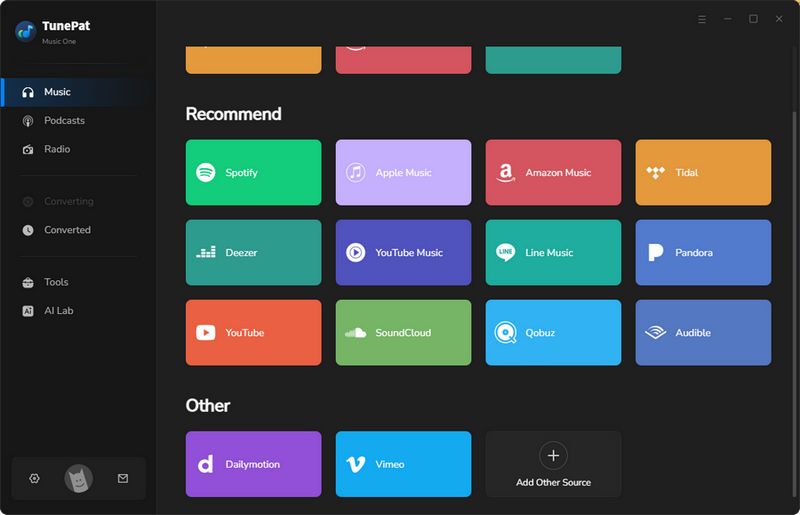
Step 1 Launch TunePat Music One. TunePat Music One supports music downloads from multiple streaming platforms, as shown on its main interface. For this test, YouTube was selected to convert and download a FLAC file. Click "YouTube" to continue.
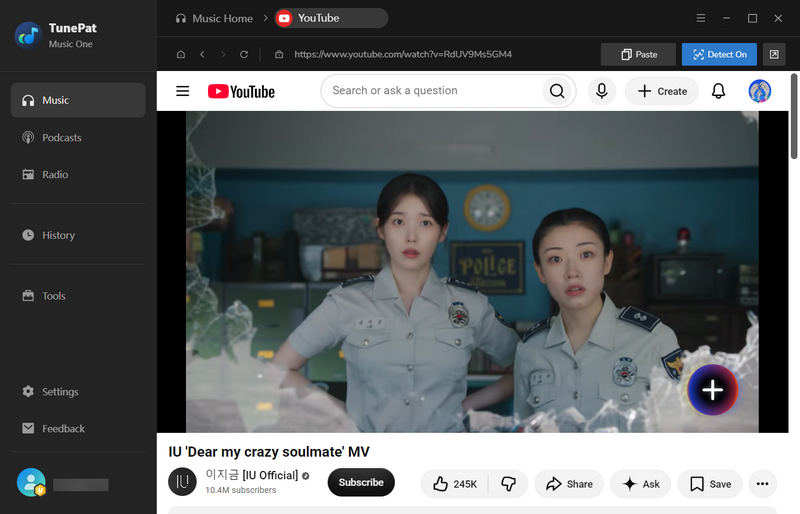
Step 2 The program automatically opens the YouTube web player. After signing in to a YouTube account, select the same video used in the other tests to keep the test conditions consistent. Click the "+" button in the bottom-right corner to add the video. TunePat then automatically analyzes the selected content.
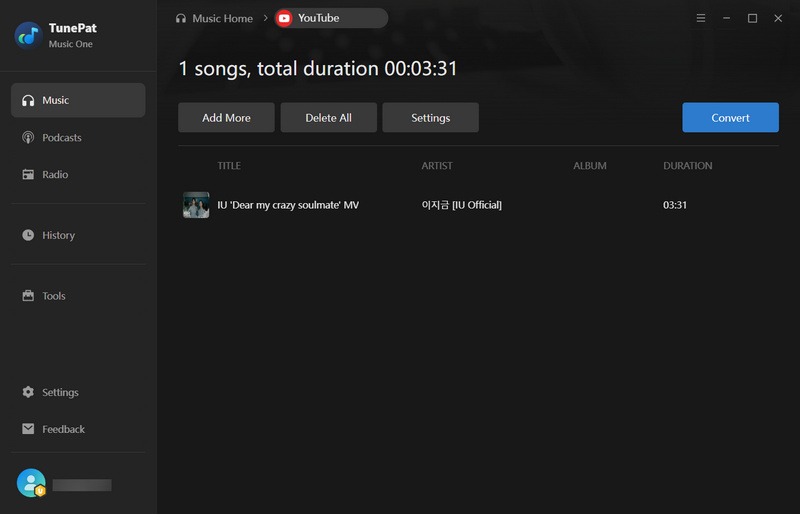
Step 3 Open "Settings" and set the output format to FLAC, along with any other preferred output settings. Click "Convert" to start the conversion. Once the process is complete, the output folder opens automatically, where the converted FLAC file can be found.
TunePat Music One: Quick Pros & Cons
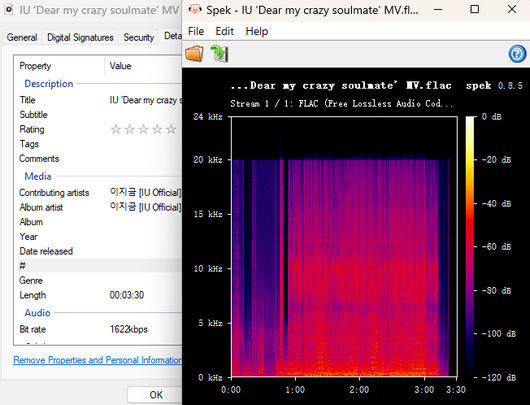
Editor's Real Test (September 2026)
In our tests, the process of adding and analyzing videos in TunePat Music One was seamless. The downloaded FLAC files had a bitrate of 1622 kbps, and the software supports features such as batch downloading and customizable output settings. However, its primary advantage lies in the ability to manage downloads from multiple music platforms within a single application, a capability that might be overkill for users who only need to download content from YouTube.
2. Audacity - Record YouTube Audio and Export to FLAC
Audacity is a free, open-source audio recorder and editor that lets you capture YouTube audio playing on your computer and export it as FLAC. You can trim unwanted sections and adjust audio levels before saving. It requires real-time playback and does not support direct YouTube link downloads. Exporting to FLAC preserves the recording without restoring quality lost in the source.
Step 1 Download and install Audacity 4.0 from the Audacity official website, then launch it. Open "Audio Setup" and set "Host" to "Windows WASAPI". Under "Recording Device", select your current speakers or headphones with "(loopback)" after the device name to capture computer audio.
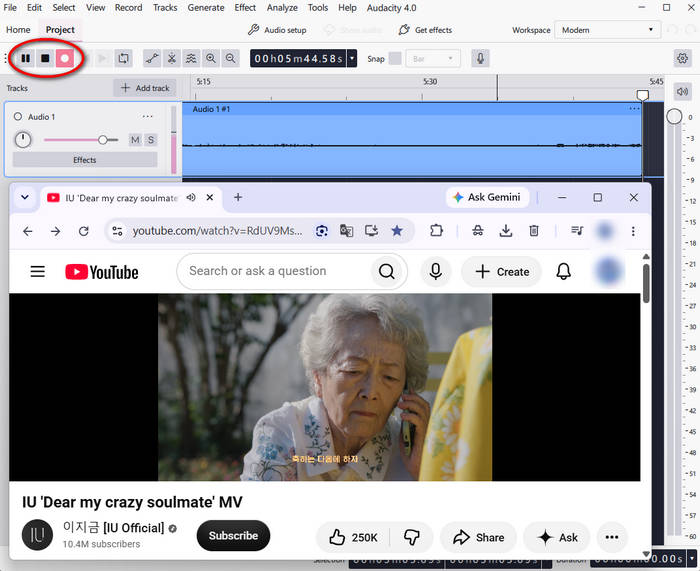
Step 2 Open the YouTube video in your browser and start playback, then click the red "Record" button. Check that a waveform appears. To capture the full opening, restart the video while Audacity is recording, and you can trim the extra audio later. Silence other apps and notifications, and keep Audacity's input monitoring off.
Step 3 When the video ends, click "Stop" in Audacity and stop any further browser playback. Trim unwanted audio from the beginning and end, then go to "File" > "Export Audio". In the export window, choose "Export to computer", then choose "Export full project audio", enter a file name, select a save location, and set the format to FLAC. Click "Export" to save your recording.
Audacity: Quick Pros & Cons
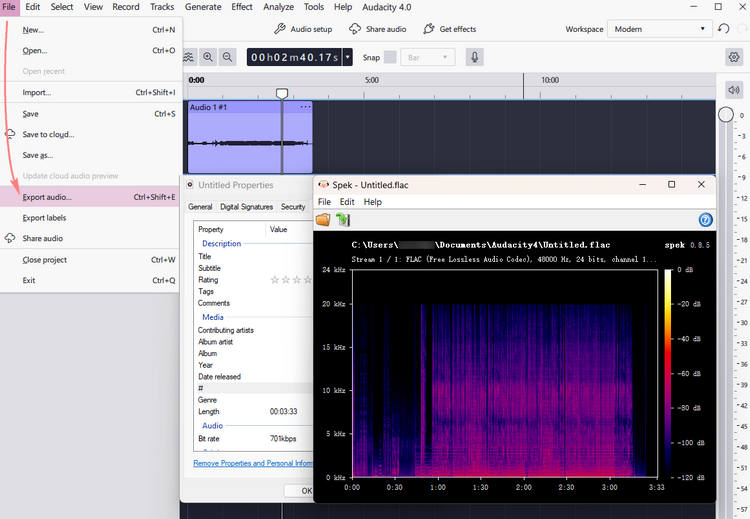
Editor's Real Test (September 2026)
In our test, Audacity recorded YouTube audio in real time and exported the file as FLAC with a measured bitrate of 701kbps. However, it requires real-time playback. The recording quality depends on network stability and the recording environment, as background noise may be captured. After recording, users can easily trim clips with Audacity's built-in editing tools, and the overall operation is simple and beginner-friendly.
3. AceThinker - Free YouTube to FLAC Converter
AceThinker YouTube to FLAC Converter is a browser-based tool that allows you to download YouTube videos and convert them into FLAC format. It is designed for users who want a quick and easy way to extract audio from YouTube and save it as FLAC or other supported formats. While the free online version has some limitations, intended to encourage the use of their desktop software, it is perfectly suitable for downloading the occasional song. Open the AceThinker YouTube to FLAC Converter page in your browser. Copy the link of the YouTube video you wish to convert, paste it into the site's input box, and click the download button. The site will automatically begin analyzing the video; once the analysis is complete, available download options will appear. Click the "Download FLAC" button to save the FLAC file to your device.
AceThinker: Quick Pros & Cons
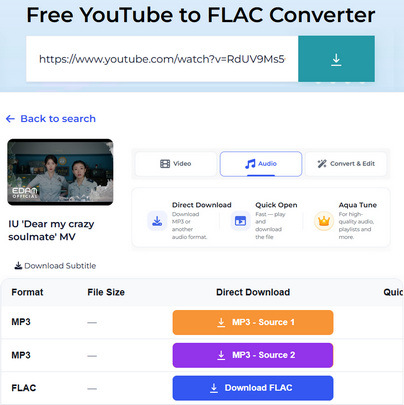
Editor's Real Test (September 2026)
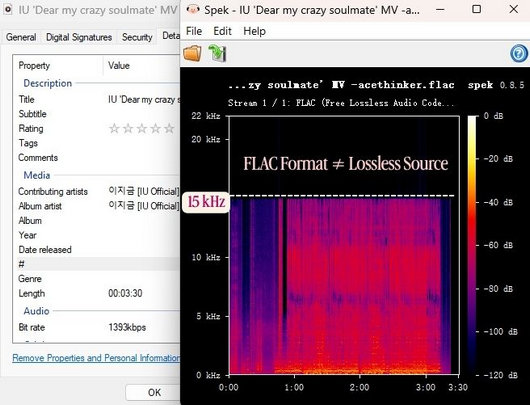
In our test, AceThinker stood out for its clean, ad-free interface and fast processing speed, which was the fastest online converter we tested for analyzing YouTube links. However, some download buttons redirect users to its desktop software. The online version also limits downloads to 5 files per day. The downloaded FLAC files had a 1393kbps bitrate, while retaining key metadata including Album Artist and Artist tags.
4. CutYT - Simple YouTube Video to FLAC Converter
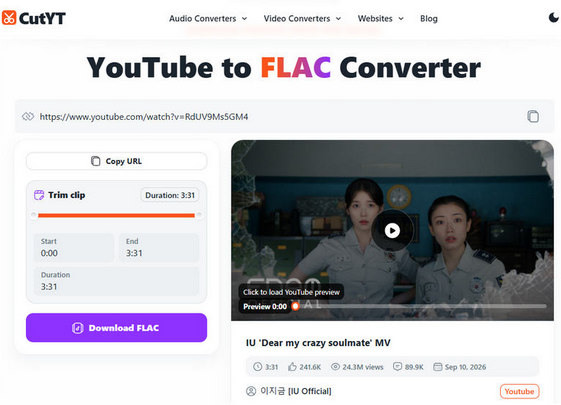
CutYT YouTube Video to FLAC Converter is a free online YouTube conversion tool that allows users to convert YouTube videos into various formats, including FLAC, WAV, MP3, and AAC. You can extract audio directly in your browser without downloading any software; the service also supports mobile browsers such as Safari and Chrome. To get started, copy the URL of the YouTube video you wish to convert and paste it into the input box on CutYT page. The page should load automatically, but if it doesn't, click the "Load FLAC audio" button. Once the processing is complete, click "Download FLAC" to save the file to your device.
CutYT: Quick Pros & Cons
Editor's Real Test (September 2026)
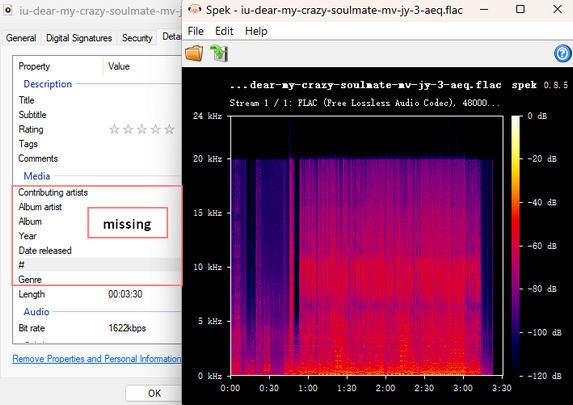
In our test, CutYT offered a clean, straightforward interface with no registration or software installation required, and the conversion process was relatively fast. The downloaded FLAC file had a 1622kbps bitrate. However, it retained only the Title tag, with other metadata not preserved. Parsing could also fail occasionally during peak hours, which may affect its reliability.
5. Ytmp3.gg - Free Online YouTube to FLAC Converter
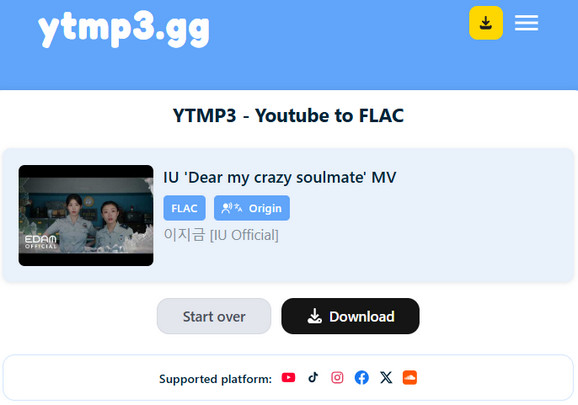
Ytmp3.gg allows users to convert YouTube videos directly into local files within their browsers, offering a range of formats such as FLAC, MP3/WAV, M4A, OGG, Opus, AAC, and ALAC. While downloading MP3 320kbps or WAV files requires a premium subscription, the good news is that downloading FLAC files currently requires neither a subscription nor an account registration. Simply copy the link to the YouTube video you wish to download, visit the YTMP3.gg website, and paste the link into the input box. Select FLAC from the available audio formats, click "Convert", and wait for the processing to finish. Once the conversion is complete, download the resulting FLAC file.
Ytmp3.gg: Quick Pros & Cons
Editor's Real Test (September 2026)
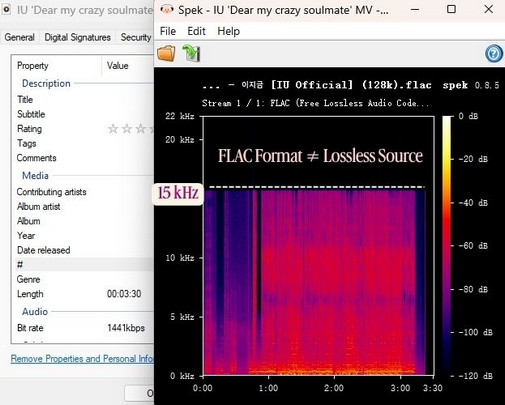
In our test, YTMP3.gg provided a simple, ad-free interface and relatively fast processing and download speeds. It supports multiple audio formats, but parsing was occasionally unsuccessful during peak hours. The downloaded FLAC file had a 1441kbps bitrate and retained only the Title tag, with other metadata not preserved.
FAQs About YouTube FLAC Downloaders
Q1: Is YouTube to FLAC really lossless?
A: FLAC itself is a lossless audio format, which means it compresses audio without losing additional information. However, converting YouTube audio to FLAC does not restore audio information that may have already been lost during YouTube's original encoding process. If preserving the best possible quality is your goal, choose a converter that avoids unnecessary re-encoding and lets you save the downloaded audio as FLAC.
Q2: Why Is My FLAC File Larger Without Sounding Better?
A: FLAC files are often larger than MP3 or other lossy formats because FLAC preserves all the information contained in its source audio instead of discarding some data to reduce file size. However, converting a lossy YouTube audio stream to FLAC does not add back the details that were already removed during the original compression. As a result, your FLAC file may be significantly larger without sounding noticeably better.
Q3: Why Is My YouTube to FLAC Conversion Failing?
A: YouTube-to-FLAC conversions may fail due to unavailable videos, invalid URLs, unstable internet connections, or limitations of online conversion tools. If you frequently encounter conversion failures when converting YouTube Music to FLAC, TunePat Music One provides a desktop-based alternative. It supports downloading and converting content from YouTube Music, YouTube, and other platforms, offers FLAC and other popular audio formats, and provides batch conversion with customizable output settings.
Conclusion
Choosing the right YouTube-to-FLAC converter depends on your specific needs. Online tools like AceThinker, CutYT, and YTMP3.gg are convenient and quick options for occasionally downloading individual videos; meanwhile, desktop software such as TunePat Music One is better suited for users who require playlist support, batch downloading, or greater control over output quality. Differences in processing speed, FLAC bitrates, and metadata preservation across these tools can also impact the overall user experience.
Delilah Rene
Senior Writer