Apple Music Playlist Downloader 2026: 4 Tools Tested
 By Delilah Rene
Apple Music Tips
Updated on 11/04/2026
Want to download an Apple Music playlist as local audio files? The options below cover desktop converters, online downloaders, and a recording alternative. Compare how they handle Apple Music playlists before choosing one.

Quick Comparison of Apple Music Playlist Downloaders
| Apple Music Playlist Downloader | Lossless Audio | Playlist Method | Ease of Use | Supported Output Formats |
|---|---|---|---|---|
| TunePat Apple Music Converter | ✅ | Batch download | Easy | FLAC, ALAC, MP3, WAV, AAC, AIFF |
| AAPLmusicDownloader | ❌ | ZIP download (Paid) | Easy | MP3, AAC |
| APLMate | ❌ | One-by-one downloads | Easy | MP3 |
| Audacity | Conditional* | Real-time recording | Moderate | FLAC, MP3, WAV, AAC, OGG, Opus |
* Lossless capture is possible, but depends on the source and recording settings.
How I Tested
- Test Environment: I conducted the tests on November 3, 2026, on Windows 11 using TunePat Apple Music Converter 3.4.4, Audacity 4.0.2, and the live websites of AAPLmusicDownloader and APLMate.
- Test Collection: I used the same 12-track edition of Adele's 21, totaling approximately 51 minutes, across all four tools. View the album on Apple Music.
- Account Status: I activated TunePat with a valid license and used an active Apple Music subscription for testing where required.
- Audio Analysis: I checked the output files' audio properties and examined their frequency spectra using Spek. Bitrate and frequency range alone do not confirm lossless quality.
#1: TunePat Apple Music Converter [Windows & Mac]
TunePat Apple Music Converter is a desktop tool for downloading Apple Music tracks, albums, playlists, and podcasts in MP3, AAC, WAV, FLAC, AIFF, or ALAC format. It claims to preserve the original audio quality and ID3 tags while converting at up to 10x speed. In this review, I tested its playlist download performance, output quality, and metadata retention, and recorded any issues encountered.
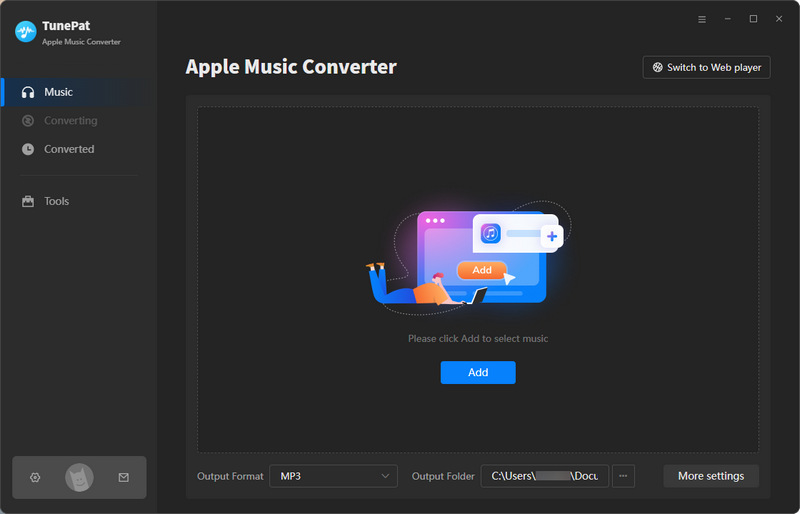
Step 1 Below, I'll demonstrate how to download Apple Music playlists using a Windows PC as an example. TunePat offers two download sources: the Apple Music web player and iTunes app. You can switch between them using the buttons at the top. For this review, I used the Apple Music web player. Simply follow the on-screen prompts to sign in to your Apple Music account.
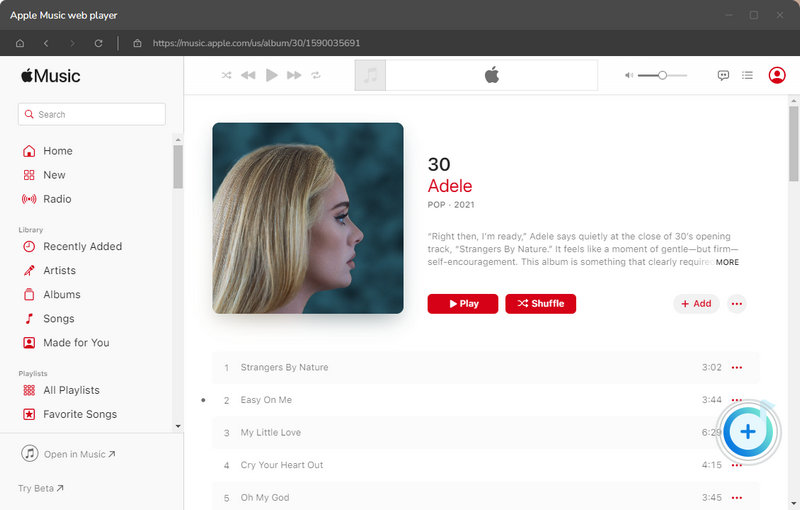
Step 2 Open the playlist or album you want to download. Click the "+" button, and TunePat will automatically load the songs in the playlist or album. Then, click "Add" to add the songs to TunePat. Next, click "Settings" to customize your output preferences, such as the output format, bit rate, sample rate, and output file name.
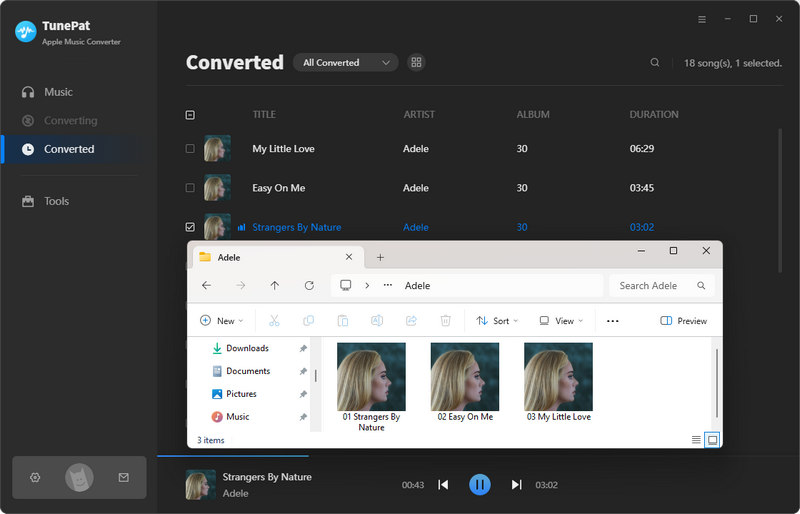
Step 3 To include songs from other playlists, click "Add More" and repeat the previous steps. Once your queue is ready, click "Convert". When conversion finishes, open the output folder to find your downloaded Apple Music playlists. After conversion, you can use them in other creative projects, such as GarageBand, Djay Pro, or Premiere Pro.
Hands-on Test Results
1. Completion
12/12 tracks downloaded successfully.
2. Speed
12 tracks in 3 min 30 sec.
Output: AAC (.m4a)
3. Batch handling
All 12 playlist tracks were converted in one batch.
4. Metadata
Titles, artists, albums, years, genres, and cover art were preserved.
5. Audio Quality
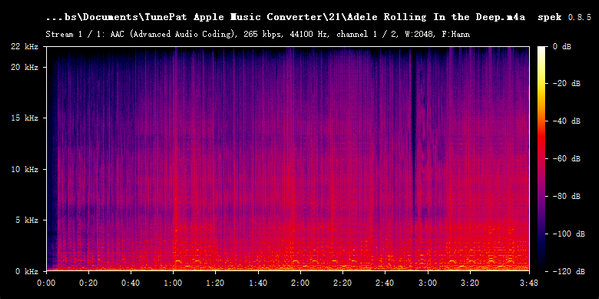
AAC at 265 kbps / 44.1 kHz, with frequency content extending to around 22 kHz.
#2: AAPLmusicDownloader [Online Website]
🔗 https://aaplmusicdownloader.com/
The second tool I tested, AAPLmusicDownloader, is a browser-based downloader that offers M4A and MP3 output. In my test, ads were minimal, but free downloads were limited: I saved three tracks before the fourth attempt triggered a limit prompt. Full-playlist ZIP downloads require a paid plan, so free users need to download tracks individually.
Step 1 Open AAPLmusicDownloader in your browser and paste your Apple Music playlist URL into the input field. The site will process the link and redirect you to a web player page.
Step 2 Click "Generate Download Link" for the song you want to save, then select your preferred format and bitrate. I chose M4A for this test. Repeat the process for each track. After three successful downloads, my fourth attempt triggered a daily limit message and a prompt to log in.

Hands-on Test Results
1. Completion
3 tracks downloaded; the fourth attempt was blocked by a limit prompt.
2. Speed
3 tracks in 1 min 55 sec.
Output: AAC (.m4a)
3. Batch handling
Tracks downloaded individually.
4. Metadata
Titles, artists, albums, genre, and cover art were preserved.
5. Audio Quality
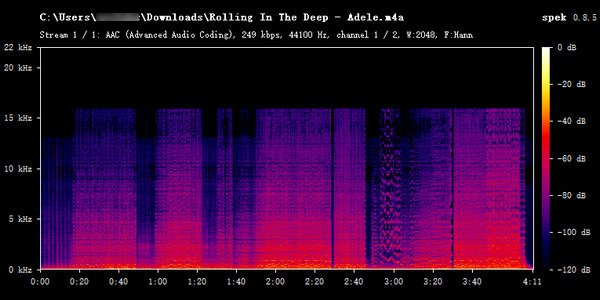
AAC at 249 kbps / 44.1 kHz, with a sharp cutoff around 16 kHz suggesting a bandwidth-limited source.
#3: APLMate [Online Website]
The third tool I tested, APLMate, is a free online downloader that saves songs as MP3 files. I downloaded all 12 test tracks without encountering a download limit, although frequent pop-up ads interrupted the process. Each track had to be downloaded individually, as no batch download option was available during my test. The files retained basic metadata and cover art, but some tag fields were missing, and the filenames included the website's branding.
Step 1 Open APLMate in your browser. Copy the link to the Apple Music playlist you want to download, paste it into the search bar, and click "Download".
Step 2 Once the album artwork appears, click "Download MP3" to download the song. To download another song, click "Download Another Song" and repeat the process. Continue until you have downloaded all the songs in your playlist. For example, in my test, the playlist contained 12 songs, so I repeated this process 12 times. Since APLMate requires you to download each track individually, keep track of the songs you've already downloaded to avoid duplicates.

Hands-on Test Results
1. Completion
12/12 tracks downloaded successfully.
2. Speed
12 tracks in 3 min 40 sec.
Output: MP3
3. Batch handling
Tracks downloaded individually.
4. Metadata
Titles, artists, albums, and cover art were preserved.
5. Audio Quality
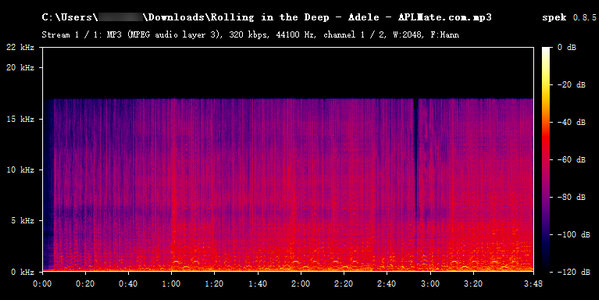
MP3 at 320 kbps / 44.1 kHz, with a sharp cutoff around 17 kHz suggesting a bandwidth-limited source.
#4: Audacity [Audio Recorder]
🔗 https://www.audacityteam.org/
Audacity is a free audio recorder and editor that can capture Apple Music playback on your computer. Recording takes the full playback time, making it less convenient for long playlists. System sounds or audio from other applications, may also be captured, and song metadata is not added automatically. It is a practical option for recording a few tracks if you don't mind the extra setup and manual work.
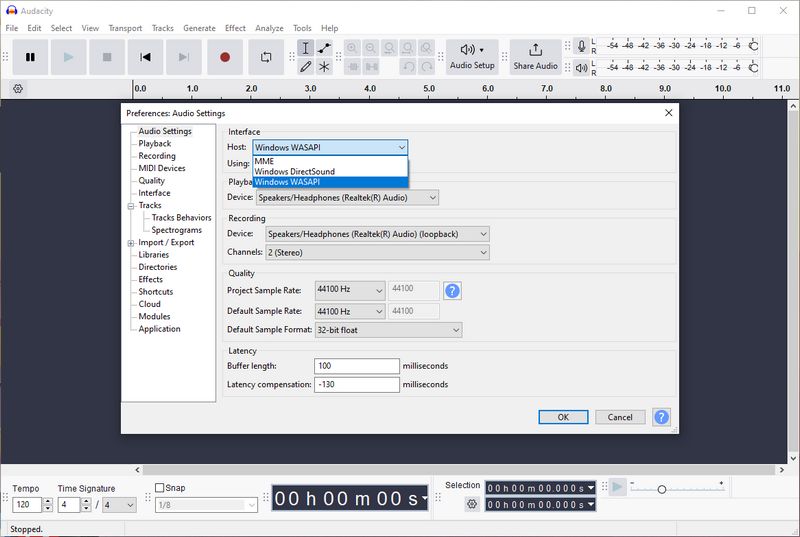
Step 1 Download and install the Audacity program on your computer. Launch Audacity, go to "Edit" > "Preferences" in the top-left corner, and select "Windows WASAPI" as the audio host. Configure your basic settings here, such as your playback and recording devices.
Step 2 Click the "Record" button in Audacity, then begin playing your content on Apple Music. Once playback is complete, click the "Stop" button in Audacity to end the recording.
Step 3 Click "File" in the top-left corner, select "Export audio", and choose "Export to computer". You can then adjust the file name, output format, and other audio settings as needed.
Hands-on Test Results
1. Completion
12/12 tracks recorded successfully.
2. Speed
Real-time.
Output: MP3
3. Batch handling
Record one by one.
4. Metadata
Song metadata was not captured automatically.
5. Audio Quality
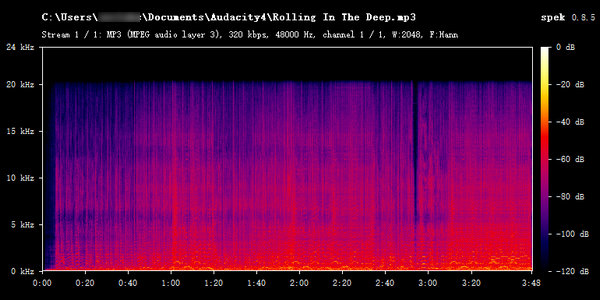
MP3 at 320 kbps / 48 kHz, with a cutoff around 20 kHz; the exported file is mono.
FAQs About Apple Music Playlist Downloaders
Q1: Can I download an entire Apple Music playlist at once?
A: Some tools support batch downloads, while others require you to save each track individually. In my TunePat test, all 12 playlist tracks were converted in one batch. With APLMate, I downloaded the 12 tracks one by one.
Q2: Is there a free Apple Music playlist downloader?
A: Yes, but free options have limitations. In my tests, APLMate let me download all 12 tracks individually, although pop-up ads interrupted the process. AAPLmusicDownloader stopped me after three free downloads with a daily limit message. Audacity is also free, but it records in real time, making it less convenient for long playlists.
Q3: Can I download Apple Music playlists as MP3 files?
A: Yes. TunePat, AAPLmusicDownloader, and APLMate offer MP3 output. Audacity can also export recordings as MP3. Check whether your chosen tool supports batch processing if you want to save an entire playlist.
Q4: Will downloaded songs keep their titles and album artwork?
A: Results vary by tool. In my tests, TunePat retained titles, artists, albums, years, genres, and cover art. Both online tools retained basic metadata and artwork, but some fields were missing. Audacity did not capture song metadata automatically, so it needed to be added manually.
Conclusion
Choosing the right tool for downloading Apple Music playlists depends on the number of songs you wish to save, your preferred output format, and the amount of time you are willing to invest. For occasional downloads of a few tracks, AAPLmusicDownloader and APLMate are convenient options. Alternatively, Audacity can be used, though saving playlists via real-time recording is extremely time-consuming.
If you frequently need to download entire Apple Music playlists and are looking for a simpler, more efficient workflow, TunePat Apple Music Converter is worth considering. In my own testing, it not only supports batch processing but also preserves detailed metadata in its entirety.



Delilah Rene
Senior Writer