
Want to add a favorite Apple Music song to GarageBand for editing, mixing, or creating a ringtone? You may find that some songs are greyed out, unavailable, or simply can't be imported, even if you've already downloaded them in the Apple Music app.
So, can you actually add Apple Music to GarageBand? This guide explains why Apple Music songs cannot be imported directly, how to prepare compatible audio files, and how to add music to GarageBand on Mac, iPhone, and iPad.
- Part 1: Can You Add Apple Music to GarageBand Directly?
- Part 2: How to Convert Apple Music for GarageBand
- Part 3: How to Add Apple Music to GarageBand on Mac
- Part 4: How to Add Apple Music to GarageBand on iPhone/iPad
- Part 5: Apple Music Not Showing Up in GarageBand?
- ❓ FAQs About Apple Music and GarageBand
Part 1: Can You Add Apple Music to GarageBand Directly?
It depends on where the song comes from. GarageBand can import compatible local audio files, but songs from an Apple Music subscription cannot normally be imported directly for editing. This is why a song may appear in your Music library but still be unavailable in GarageBand.
Why Are Apple Music Songs Greyed Out in GarageBand?
If an Apple Music song is greyed out in GarageBand, it usually means the track is not available as an importable audio file. Downloading an Apple Music subscription song for offline listening does not turn it into a regular local audio file that GarageBand can freely import and edit.
If you are already using a compatible local audio file but the song is still unavailable, see how to fix common GarageBand import issues later in this guide.
What Audio Files Can GarageBand Import?
Here is a quick way to check whether your music can be imported into GarageBand directly:
| Music Type | Direct Import? | What to Do |
|---|---|---|
| Local audio file (MP3, WAV, AIFF, AAC) | Yes | Import it directly into GarageBand |
| Apple Music subscription song | No | Convert it to a compatible local audio file first |
If you already have a compatible local audio file, you can import it into GarageBand directly. If your song comes from an Apple Music subscription, you'll first need to get it into a GarageBand-compatible format. In the next section, we'll show you how.
Part 2: How to Convert Apple Music for GarageBand
As explained above, downloading songs in the Apple Music app does not give you regular audio files that can be imported directly into GarageBand. If you want to edit an Apple Music song in GarageBand, you first need to save it as a compatible local audio file.
What Is the Best Audio Format for GarageBand?
The best format depends on your editing needs. MP3 is a practical choice for everyday GarageBand projects, while WAV and AIFF are better for high-quality editing. AAC offers good quality with smaller file sizes.
| Format | Main Features | Best For |
|---|---|---|
| MP3 | Small files, wide compatibility | Everyday GarageBand projects |
| WAV | Uncompressed audio, high quality | Professional editing |
| AIFF | High-quality audio, common in music production | Music creation and editing |
| AAC | Good quality with smaller files | Saving storage space |
Once you choose a suitable format, convert your Apple Music songs into compatible files before importing them into GarageBand.
How to Convert Apple Music to a GarageBand-Compatible Format
Since Apple Music subscription songs cannot be imported into GarageBand directly, you need to convert them into a compatible local audio format first. TunePat Apple Music Converter provides a straightforward way to prepare Apple Music songs for GarageBand. It supports MP3, AAC, WAV, FLAC, AIFF, and ALAC, so you can choose the format that best fits your project.
TunePat Apple Music Converter
- Save Apple Music songs, albums, and playlists as local audio files for use outside the Apple Music app.
- Convert Apple Music to MP3, WAV, AIFF, AAC, FLAC, or ALAC for different audio needs.
- Preserve audio quality and song information, including title, artist, album, artwork, and other ID3 tags.
- Convert multiple songs or playlists in batches, making it easier to prepare several tracks for GarageBand at once.
Follow these steps to prepare your Apple Music songs for GarageBand:
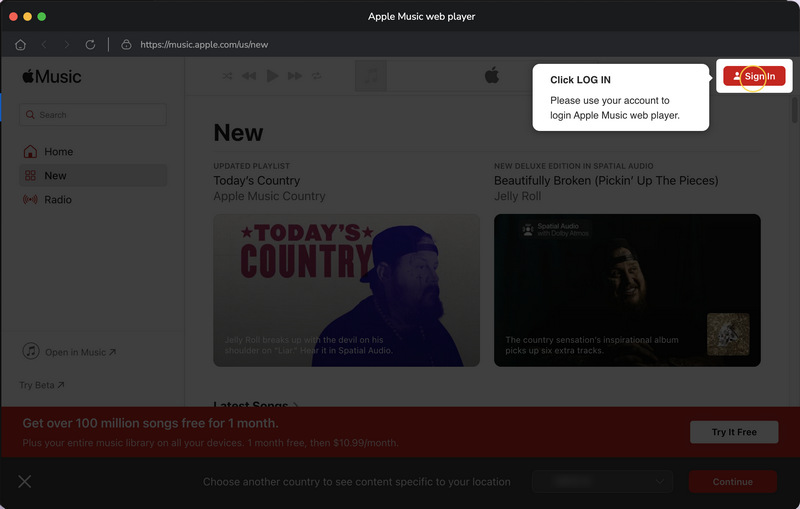
Step 1 Install and launch TunePat Apple Music Converter. Choose the "Apple Music web player" or the "iTunes / Music app" as your music source. For a smoother experience, you can use the web player and sign in with your Apple ID.
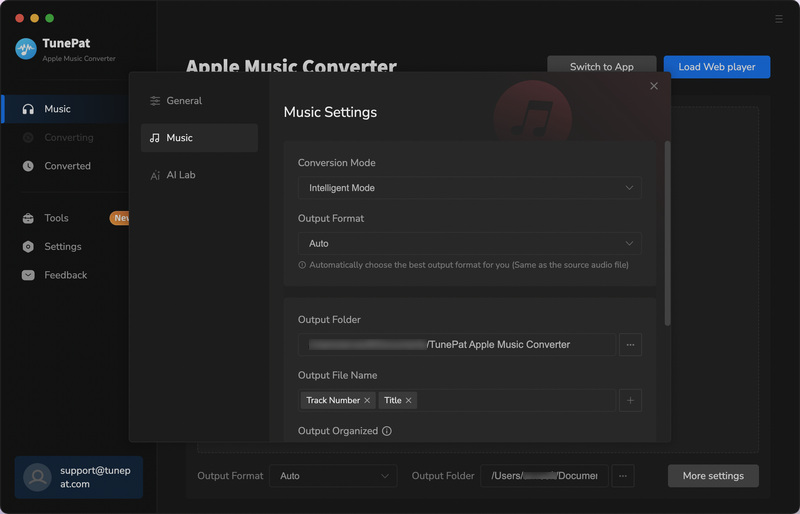
Step 2 Click "Settings" on the left panel and choose an output format. Select MP3 for easy importing into GarageBand, or WAV/AIFF if you prefer higher-quality audio for editing. You can also adjust the bit rate, sample rate, and file naming options.
Step 3 Go to your Apple Music library and open the song, album, or playlist you want. Click "+", select the tracks you want to convert, and click "Add" to add them to the conversion list.
Step 4 Click "Add More" if you want to include music from other playlists. When you are ready, click "Convert". After the conversion is complete, open "History" to find your converted audio files.
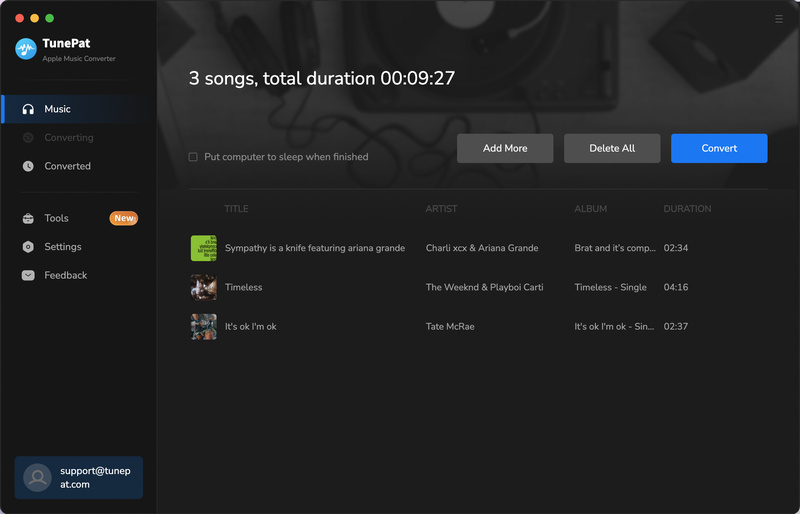
Once the conversion is complete, you will have local audio files ready to import into GarageBand. Next, let's look at how to add them to GarageBand on a Mac.
Part 3: How to Add Apple Music to GarageBand on Mac
Once you have a GarageBand-compatible audio file, adding it to GarageBand on Mac is simple. Apple lets you import audio files directly from Finder by dragging them into the Tracks area.
Step 1 Open GarageBand on your Mac and create a new project or open an existing one.
Step 2 Open Finder and locate the MP3, WAV, AAC, or other compatible audio file you prepared earlier.
Step 3 Drag the audio file from Finder to an audio track in GarageBand. You can also drop it into the empty area below the existing tracks to add it to the project.
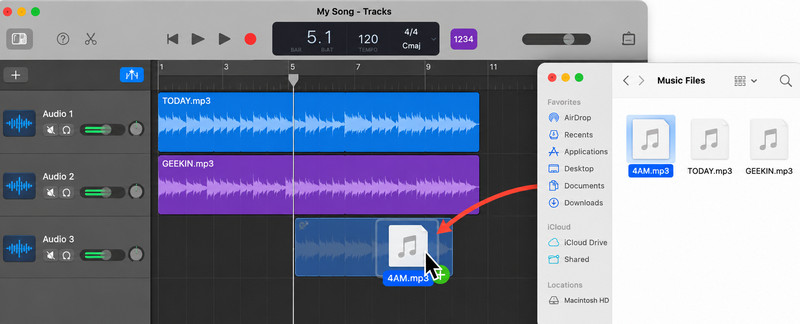
Once imported, the audio file appears as a region in the Tracks area. You can then move, trim, split, or edit it as part of your GarageBand project.
Part 4: How to Add Apple Music to GarageBand on iPhone/iPad
Once you have converted your Apple Music songs to a compatible audio format, you can import them into GarageBand on your iPhone or iPad through the Files app. The steps are essentially the same on both devices.
Before you start: Make sure the converted audio files are available in the Files app on your iPhone or iPad. If the files are on a Mac, you can send them to your device with AirDrop or save them to iCloud Drive. If you converted the songs on a Windows PC, iCloud Drive is a convenient way to make them available in the Files app.
Step 1 Open GarageBand and create a new song or open an existing project. Switch to Tracks view.
Step 2 Tap the Loop Browser button, select Files, and tap Browse items from the Files app. Find and tap the song you want to add.
Step 3 When the song appears in the Files list, touch and hold it, then drag it into Tracks view. Position it where you want the audio to start.
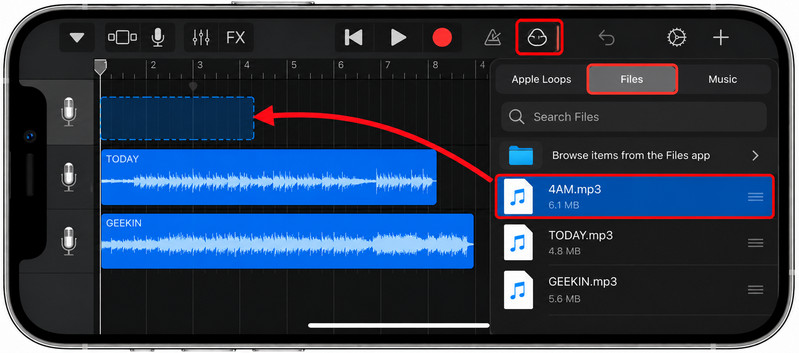
Tip: To import the entire song, set the song section length to Automatic. Otherwise, GarageBand may import only the portion that fits the current song section.
The song will appear as an audio region in your GarageBand project, ready for editing.
Part 5: Apple Music Not Showing Up in GarageBand?
If a song is greyed out, missing, or won't import into GarageBand, the problem usually comes down to the song source, file location, or audio format. Here are the most common issues to check.
What to Do If a Song Is Greyed Out
If the track comes from an Apple Music subscription, downloading it for offline listening does not make it a regular audio file that GarageBand can import. Instead, prepare a compatible local audio file first using the method in Part 2, then import that file into GarageBand.
What to Do If a Song Doesn't Appear
First, check where the song is stored. On iPhone or iPad, a local audio file saved in the Files app can be added through Loop Browser > Files > Browse items from the Files app. If you are importing from the Music app instead, GarageBand only allows unprotected songs that are stored locally on the device.
If you converted the song on a computer, make sure you transferred the actual audio file to your iPhone or iPad through AirDrop, iCloud Drive, or another file transfer method.
What to Do If GarageBand Won't Import the File
Check the file format first. GarageBand on iPhone and iPad supports common audio formats such as MP3, WAV, AIFF, and AAC. If the file uses an unsupported format, convert it to a compatible format and try again.
If the file imports but only part of the song appears, set the song section length to Automatic before importing the file again.
FAQs About Apple Music and GarageBand
Q1: Can I add Apple Music to GarageBand without a computer?
A: Yes, in some cases. If you already have a compatible local audio file on your iPhone or iPad, you can import it into GarageBand through the Files app without using a computer. You can also try Apple Music online downloaders that work in a mobile browser to get compatible audio files. However, supported content, output quality, and reliability can vary between tools.
Q2: Can I use Apple Music songs to make a ringtone in GarageBand?
A: Yes, GarageBand on iPhone can be used to create custom ringtones from compatible audio files. If the song comes from an Apple Music subscription, you first need an importable local audio file before you can edit it in GarageBand and use it for a ringtone.
Q3: Can I add Spotify or other streaming music to GarageBand?
A: Not directly in most cases. Offline downloads from streaming services such as Spotify are intended for playback within their apps and are not regular audio files that GarageBand can import. To use Spotify music in GarageBand, you need a compatible and legally usable local audio file, such as MP3, WAV, etc.
Conclusion
GarageBand works best when your music is already saved as a compatible local audio file. If the song you want is only available through an Apple Music subscription, TunePat Apple Music Converter can save it as MP3, WAV, AIFF, or another format that GarageBand supports.
Once the file is ready, just drag it from Finder into GarageBand on Mac, or add it through the Files app on iPhone or iPad. From there, you can edit your Apple Music song just like any other audio track in your project.


Olivia Anderson
Senior Writer