
As a dedicated Spotify user, you may find that offline listening is more convenient in certain situations, such as when traveling or when you have limited internet access. Spotify Premium allows users to enjoy offline listening through the official Spotify app. However, some users may also look for Spotify playlist downloaders to better organize their favorite playlists, manage music collections, or explore additional playback options.
In this guide, we will introduce different types of Spotify playlist downloaders, including online tools and desktop applications. We will compare their features, supported formats, ease of use, and overall performance, helping you choose a suitable tool based on your personal needs.
Part 1: Why You Need a Spotify Playlist Downloader
Spotify is one of the most popular music streaming services, allowing users to create playlists and discover new songs easily. However, when it comes to managing and organizing your favorite playlists, many users look for more flexible solutions. A Spotify playlist downloader can help users save playlist content in a more convenient way and manage their music collections more efficiently.
Although Spotify provides an official offline listening feature for Premium users, downloaded songs can only be played within the Spotify app. For users who want to organize their playlists, manage audio files, or enjoy their music with different players, a Spotify playlist downloader can be a useful tool.
1. Keep a backup of your favorite playlists: Many users spend a lot of time creating playlists. Saving playlist content locally can help preserve your carefully organized music collections and make them easier to manage.
2. Manage your music library more easily: With a Spotify playlist downloader, users can organize playlists, edit music information, and maintain their personal music library in a more flexible way.
3. Enjoy wider device compatibility: Some music players and devices do not support Spotify’s original offline format. Converting playlist content into common audio formats can make it easier to listen across different platforms.
4. Save time when handling large playlists: For users with multiple playlists or hundreds of saved songs, a playlist downloader can simplify the process of organizing and managing music collections.
5. Choose a listening method that fits your needs: Different users have different music habits. A Spotify playlist downloader gives users more options for managing their playlists and enjoying their favorite tracks in a way that suits them.
Part 2: Best Spotify Playlist Downloader for Windows & Mac
If you want to save your Spotify playlists as local audio files, a desktop Spotify downloader can make the process much easier. TunePat Spotify Converter lets you batch download Spotify songs, playlists, albums, podcasts, and other audio content on Windows and Mac. It supports both Spotify Free and Premium accounts and provides a simple way to save your favorite Spotify content for offline listening.
TunePat supports six output formats, including MP3, AAC, WAV, FLAC, AIFF, and ALAC. Depending on your setup, you can use either the Spotify app or Spotify Web Player as the source. It also supports 320 kbps MP3 or Lossless audio output and conversion speeds of up to 40X. With batch conversion and straightforward settings, you can process multiple songs or an entire playlist at once. Click the Download button below to install TunePat, then follow the steps to get started.
How to Use TunePat Spotify Converter to Get Spotify Songs?
After installing and launching the TunePat Spotify Converter, you will see two options. You can choose to use either the App or Web player to convert your files. Select one source, and then log in to your Spotify account, whether Free or Premium, in order to do so.
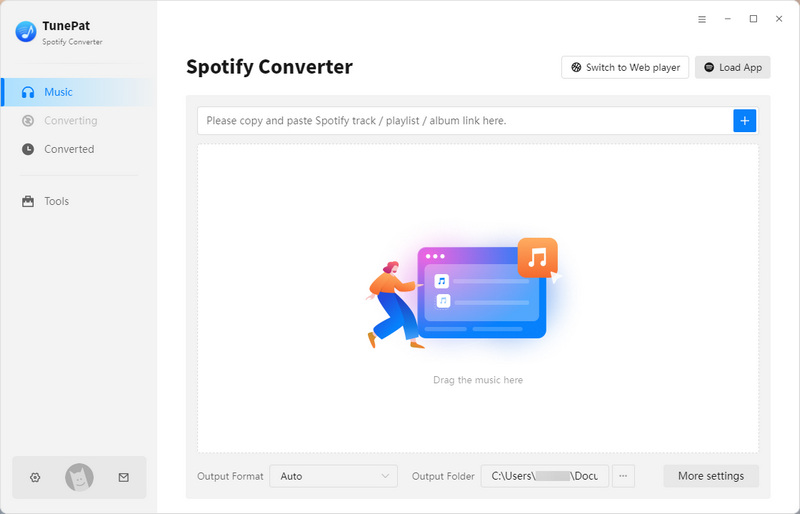
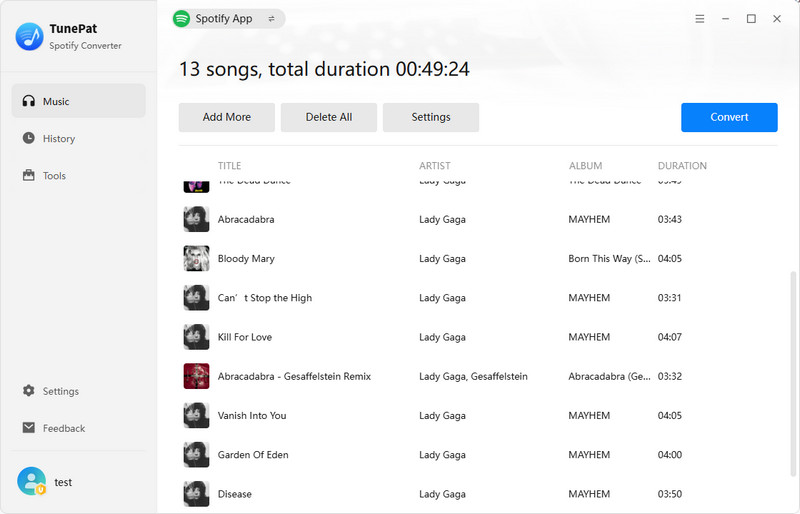
Step 1 After logging in successfully, you can access Spotify's library directly through either the Spotify app or the built-in web player window. Prior to initiating the conversion process, click on the "Settings" option found in the menu bar located on the left-hand side of the primary interface. Here, you must configure the output and conversion settings, such as the output format, bit rate, sample rate, output folder, etc. Notably, TunePat Spotify Converter also supports lyric file exporting. If needed, you can select the "Save lyrics (if provided)" button.

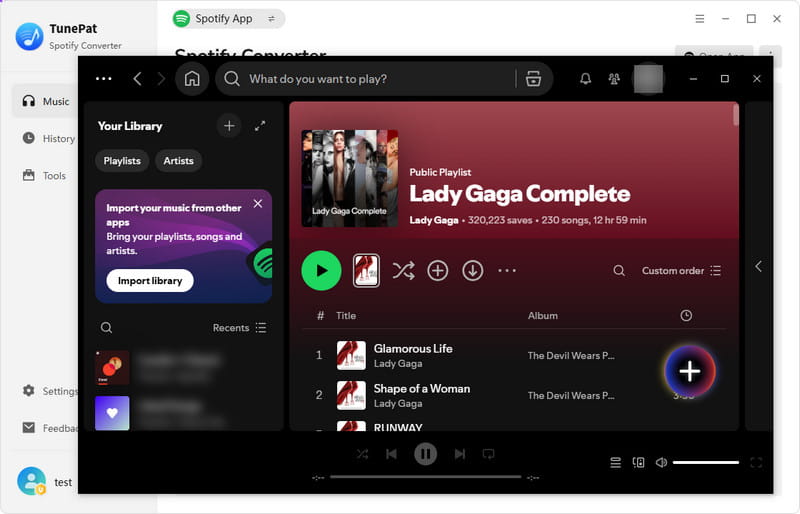
Step 2 To access songs in your chosen mode, either application or web player, click the "+" button located in the interface's lower right corner, which turns clickable blue after you open the playlist you want to convert. TunePat will parse and display all titles in the playlist, with all items in the pop-up window selected by default. Please select the specific items you need, then click "Add" to proceed.
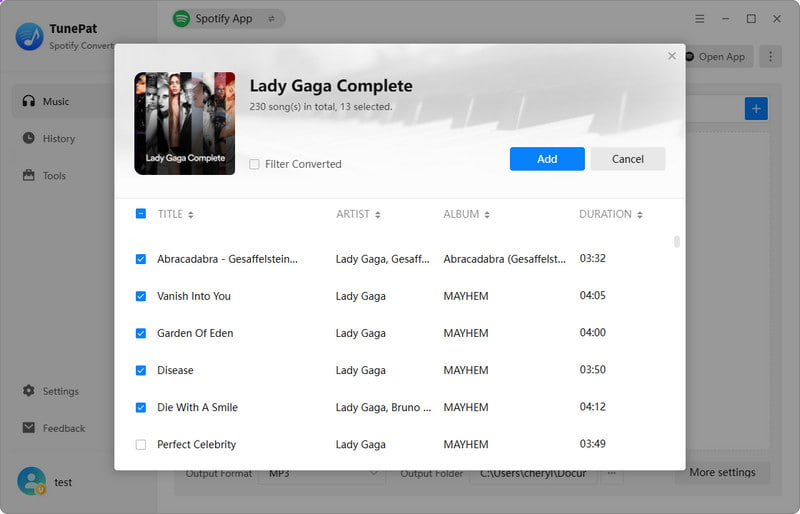
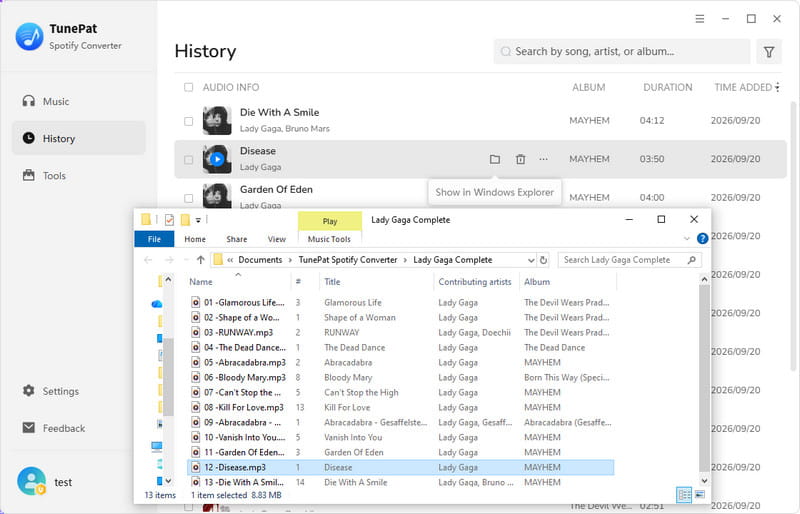
Step 3 Clicking the Add button will take you to the Home interface. If you need to select additional songs from other playlists for a one-time conversion, please click "Add More" in this interface. Once all target songs have been chosen, click "Convert" to start the conversion process. After completion, the converted Spotify playlist can be viewed in the History module or in your local folder.
Pros
-
 Six output formats are supported: MP3, AAC, FLAC, WAV, ALAC, AIFF.
-
Outputs Spotify music in 320 kbps MP3 or Lossless FLAC.
-
Supports batch conversion of entire playlists; arranges them in original order.
-
Proceed at 10X download speed.
-
Keep ID3 tags.
-
Customize the output file name.
Cons
-
 The free trial has limitations.
If you wish to store your preferred Spotify playlists on your computer, this Spotify playlist downloader is the ideal selection thanks to several benefits. However, if you require a tool that can be easily accessed through a browser on any device or a mobile app, please read on. The subsequent tools do not facilitate batch downloads, and the audio quality is lower compared to TunePat Spotify Converter, but they are all free of charge.
How to Recover Deleted Spotify Playlist
Worried about losing your Spotify playlists or deleted one by accident? Not sure if you can get it back, especially if it took time to build? This guide walks you through how to recover deleted Spotify playlists and also shows a simple way to back them up. Learn More >>
Part 3: Top 3 Free Online Spotify Playlist Downloaders
#1: SPOTIDOWN.CO
SPOTIDOWN.CO is a straightforward and user-friendly online tool that enables the download of songs from Spotify. Users have the option to download either individual songs or entire playlists and albums. The tool also includes all relevant metadata, such as cover images, artist names, and release dates, with the downloaded songs.
How to Use Spotify Downloader to Download a Spotify Playlist?
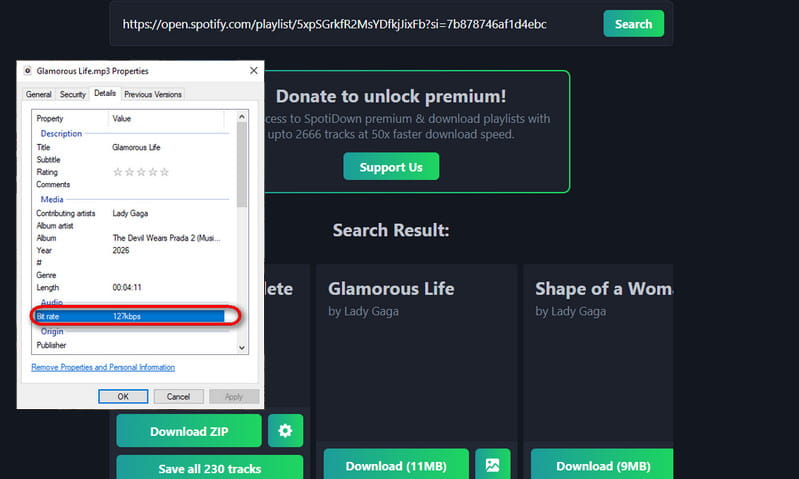
Step 1 Copy and paste the link of Spotify playlist to box of the website.
Step 2 Click the "Search" button to parse the URL.
Step 3 If you are parsing a playlist, click "Download ZIP" > "Save ZIP" for one-click download, or select the "Download" > "Save" button below the song you want to convert to download a single song.
Pros
-
Free and easy to use.
-
Support batch export of albums or playlists in ZIP format.
-
Keep some ID3 tags.
Cons
-
Unable to parse Spotify shows, podcasts, and artists.
-
The downloaded songs are only 120 kbps to 192 kbps.
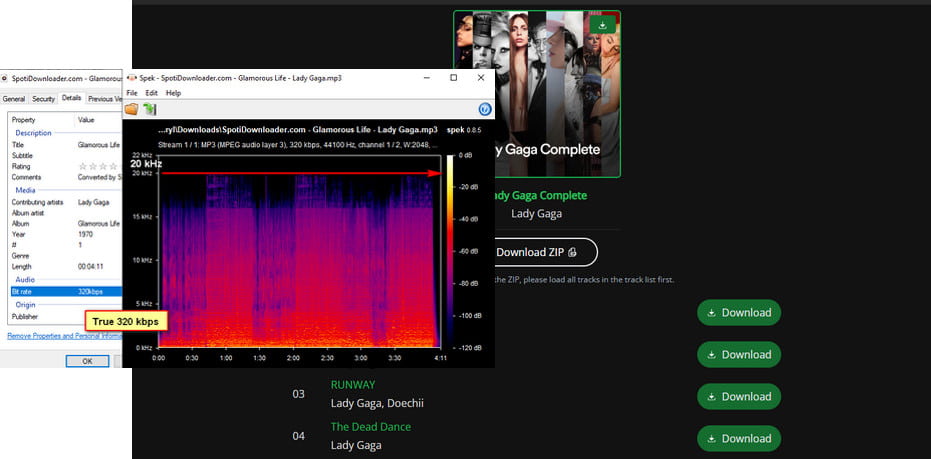
#2: SpotiDownloader
SpotiDownloader is an online Spotify playlist downloader that enables users to download music, albums, or playlists from Spotify with ease and efficiency. The music can then be converted to MP3 and other audio formats, and saved onto any computer or mobile device for offline playback.
How to use SpotifyDown to Export a Spotify Playlist?
Step 1 Open the Spotify app and open the playlist you want to convert. Find and click to copy its sharing link.
Step 2 Copy it to the website and click the "Download" button to start parsing.
Step 3 The website will list the songs included in the playlist one by one, and each song will have a separate Download button.
Step 4 Find the song you want to convert and click the "Download" button next to it. Then the interface will display "Converting Song to MP3, Please wait...”. After the conversion is completed, "Downloading Song, Please wait..." will be displayed. Then you will see two buttons. Select the "Download MP3" button to start downloading songs.
Pros
-
Free and fast to parse links.
-
Some ID3 tags can be saved, such as the artist name, album title, artwork, etc.
-
Up to 320kbps can be reserved.
-
Supports one-click download of Spotify albums or playlists in ZIP format for free.
Cons
-
Parsing podcasts/audiobooks is not supported.
-
The file name of the output audio file contains the file name and needs to be deleted manually.
-
There are pop-up ads on the right side, and clicking the Download button triggers a redirect.
#3: spotisongdownloader
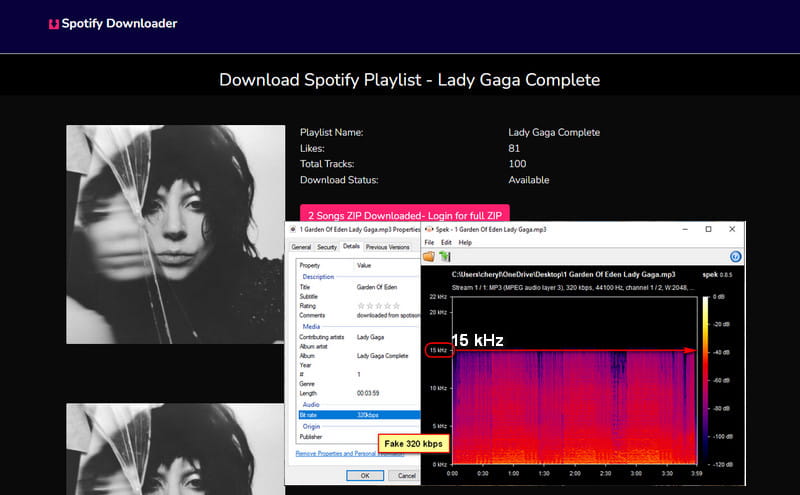
Spotisongdownloader.com is a simple and easy-to-use Spotify playlist downloader that lets you download songs in M4A or MP3 format. However, unlike the two tools mentioned above, this tool only allows free users to download the first two songs, even though it supports downloading an entire Spotify playlist as a ZIP file. Depending on your needs, you may need to decide whether it is worth paying to unlock the full download or simply downloading the songs from the playlist one by one.
How to Use spotisongdownloader to Get Spotify Playlist?
Step 1 Copy the Spotify playlist link, click "Download", and complete the CAPTCHA.
Step 2 Select "Download ZIP" or click "Generate Download Links" to get individual songs.
Step 3 Choose your desired format, such as 320 kbps. Then, you will download Spotify playlist in ZIP or MP3 format.
Pros
-
Ad-free interface and easy access.
-
Supports MP3 and M4A formats.
-
It can retain some song information.
Cons
-
Converting podcasts/audiobooks is not supported.
-
Although it supports parsing Spotify playlists, only the first 2 songs can be downloaded for free with a single click.
-
The 320 kbps audio quality is fake; actual testing reveals the file is only around 100+ kbps.
Part 4: Top 3 Spotify Playlist Downloaders for Android or iOS Devices
#1 Fildo
Fildo is an Android application that enables users to download and stream MP3/FLAC music. It should be noted that Fildo does not have its own audio collection and instead aggregates tracks from various sources.
How to Use Fildo to Download Spotify Playlists?
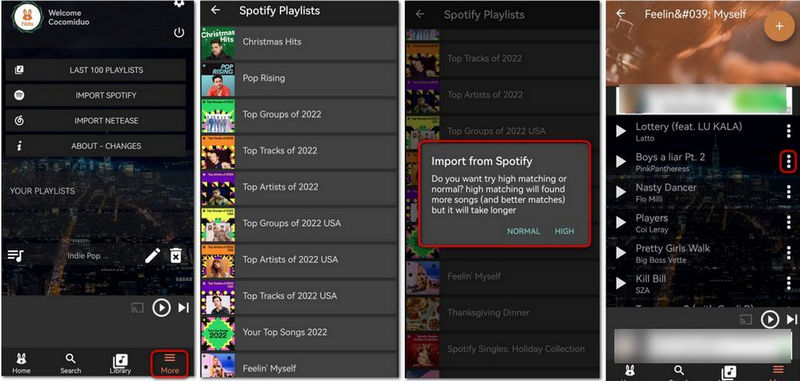
Step 1 Open Fildo on your Android device. Tap the "More" tab located at the bottom of the screen and select "IMPORT SPOTIFY".
Step 2 You will be prompted to log in to your Spotify account, after which the app will load playlists from your Spotify library.
Step 3 A pop-up will appear, allowing you to choose between "NORMAL" or "HIGH".
Step 4 After successfully importing your selected playlists into Fildo, you may download music from Spotify by clicking on the "three dots" icon.
Pros
-
Free of charge.
-
Download Spotify in MP3 or FLAC format.
Cons
-
An APK download is required, and there are potential risks of data collection and other privacy violations.
-
Only one song can be downloaded at a time, which is very time-consuming for people who have a large number of songs they want to download.
#2 SpotiFlyer
SpotiFlyer APK is an easy-to-use offline music program that lets you browse and download songs from famous music streaming apps and then listen to your favorite songs on your phone without the need for an internet connection. Presently, Spotifyflyer is compatible with Spotify, YouTube, Gaana, Jio-Saavn, and SoundCloud. Here is how to use SpotiFlyer:
How to Download Spotify Songs with SpotiFlyer Android?
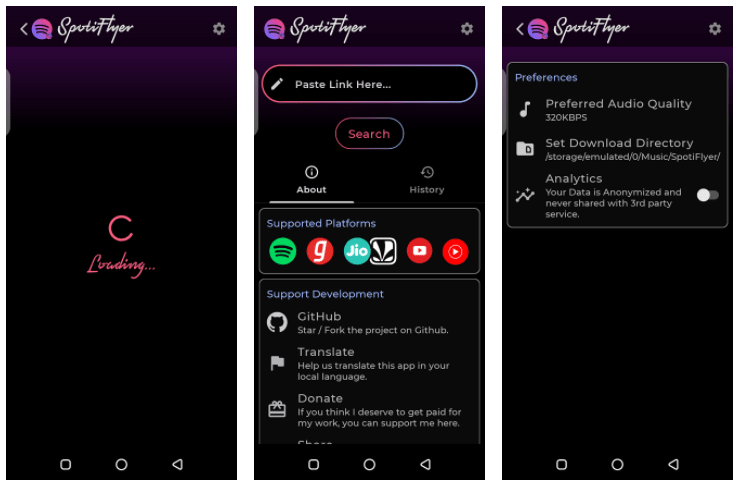
Step 1 Install and run SpotiFlyer on your Android phone.
Step 2 Copy the Spotify song, album, or playlist link from Spotify app or website.
Step 3 Paste the Link into the SpotiFlyer input field that says Paste link here.
Step 4 Tap on the "Search" icon, and the search result will display below.
Step 5 Click on the "Download" icon.
Pros
-
Free to use.
-
The app interface has no ads and is comfortable to use.
-
In addition to Spotify, other platforms are also supported, such as YouTube Music, etc.
Cons
-
The output file does not meet the advertised sound quality and is compressed.
-
Batch conversion is not supported and the download speed is slow.
-
It is not operated by a stable company and lacks security and technical support.
#3 Telegram
Telegram bots are automated Telegram accounts with artificial intelligence capabilities. The Spotify Telegram Bot is a chatbot that enables users to search and download songs directly from Spotify within the Telegram app. There are various Telegram bots currently accessible for downloading Spotify, including @SpotifySaveBot, @SpotifyMusicDownloaderBot, etc. The following example uses @SpotifySaveBot.
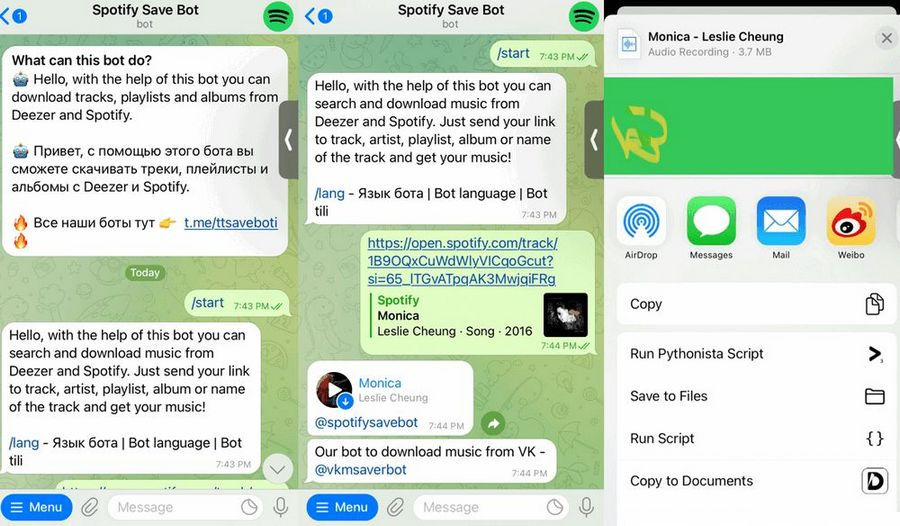
How to Use Telegram Bot to Download Spotify Music?
Step 1 Open Telegram, search for @SpotifySaveBot and select the bot from the search results.
Step 2 Click on "Start" to begin.
Step 3 Then, navigate to Spotify and find the relevant URL.
Step 4 Paste the link into the chat field and click "Send".
Step 5 Then this bot will provide a source for downloading. Select the three dots icon and choose "Save to Music" to download Spotify Music.
Pros
-
Free to use.
-
Easy to find bots that download different streaming platforms.
Cons
-
This method simply downloads the track with a matching name, rather than the original track from Spotify, with poorer sound quality.
-
Lack of customer support.
Quick Comparison: TunePat vs. Other Spotify Playlist Downloaders
| Name | TunePat Spotify Converter | SPOTIDOWN.CO | SpotifyDown | spotisongdownloader | Fildo | SpotiFlyer | Telegram |
|---|---|---|---|---|---|---|---|
| Supported Systems | Windows & Mac | Use in browser | Use in browser | Use in browser | Android/iOS | Android/Windows/Mac/Linux | Android/iOS |
| Output Format | MP3, AAC, WAV, FLAC, AIFF, ALAC | MP3 | MP3 | MP3, M4A | MP3, FLAC | MP3 | MP3 |
| Audio Quality | 320 kbps / Lossless | Low | 320kbps | Low | Low | Low | Low |
| Conversion Speed | up to 40X | 1X | 1X | 1X | 1X | 1X | 1X |
| Support Batch Conversion | √ | √ | √ | × | × | × | × |
| Keep in the Original Playlist Order | √ | × | × | × | × | × | × |
| Customize Output File Name | √ | × | × | × | × | × | × |
| Ad-Free | √ | × | × | × | × | √ | √ |
*Disclaimer: The tools listed on this page are third-party applications provided for informational purposes only. Please use them responsibly and in accordance with applicable laws and platform terms. They are not affiliated with, sponsored by, or endorsed by Spotify AB.
Conclusion:
After considering the information provided in the table, it is evident that the TunePat Spotify Converter stands out as the most impressive option. With state-of-the-art decoding technology, this software can efficiently acquire Spotify songs complete with ID3 tags. Furthermore, the program can convert one or multiple Spotify playlists simultaneously while still maintaining the original order of tracks. This undoubtedly makes it a valuable asset for managing local music libraries.
However, most free tools only support MP3, but TunePat Spotify Converter supports six common audio formats, fulfilling the needs of various users to enjoy Spotify playlists on diverse devices or players. If you still have not installed this amazing tool, press the Download button below for a swift installation.
Delilah Rene
Senior Writer