Instafest Spotify (2026): Make Your Festival Lineup & Fix Issues
 By Olivia Anderson
Spotify Tips
Updated on 2/26/2026
By Olivia Anderson
Spotify Tips
Updated on 2/26/2026
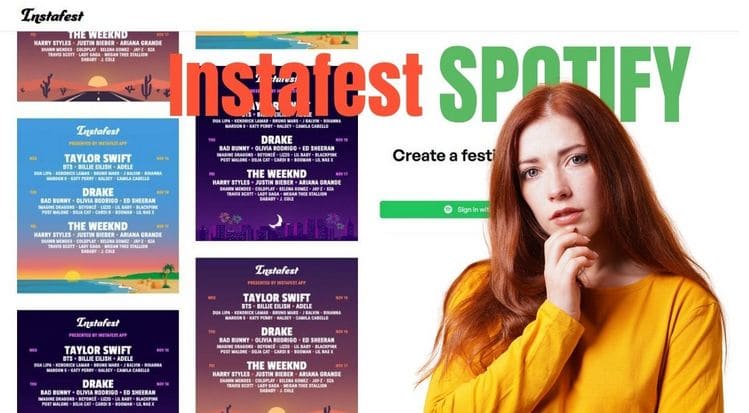
Instafest Spotify is a free web tool that turns your Spotify listening history into a personalized music festival lineup poster. In this guide, you’ll learn how to use Instafest step by step, customize your lineup, share your poster on social media, and fix common issues like login errors or missing lineup days on both desktop and mobile devices.
- Part 1: What Is Instafest Spotify?
- Part 2: How to Use Instafest Spotify (Step-by-Step)
- Part 3: Why Does Instafest Spotify Only Show One Day?
- Part 4: Instafest Spotify Not Working? Try These Fixes
- Part 5: Is Instafest Spotify Safe to Use?
- Part 6: Best Instafest Spotify Alternatives
- Part 7: Bonus: How to Keep Your Festival Playlist Offline? 🔥🔥
- Part 8: FAQs About Instafest Spotify
Part 1: What Is Instafest Spotify?
Instafest Spotify is a free web tool that creates a music festival-style poster using your Spotify listening history. Unlike traditional stats, Instafest displays your top artists as a three-day festival lineup. Users can view their favorite artists in headliner order, customize themes, and share the poster.
It became viral because it allows people to visually showcase their music taste on social platforms like TikTok and Instagram.
Part 2: How to Use Instafest Spotify
Before diving into the step-by-step instructions, here's a quick overview of what you'll do: log in with your Spotify account, generate your festival lineup, customize the poster, and finally save or share it on your devices.
Looking to download albums or playlist collections from all the artists in your Festival Lineup to your local device, saving them as MP3, FLAC, or other common formats for offline playback anytime? You really should give this amazing Spotify Converter a try:
Step 1 Open the Instafest Spotify Website:
Visit the Instafest website using your preferred browser:
- Desktop: Chrome or Edge recommended
- iPhone: Safari works best
- Android: Chrome recommended
*Note: Avoid opening inside social app browsers like Instagram or TikTok to prevent login issues.
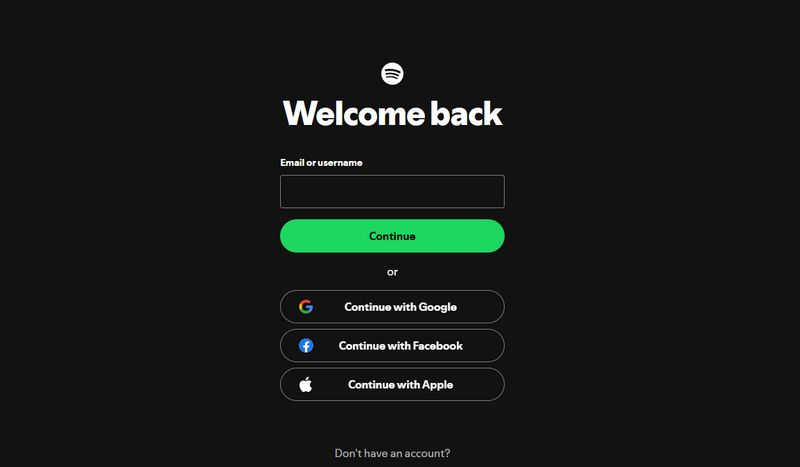
Step 2 Log in With Your Spotify Account:
Click Sign in with Spotify and authorize access. Instafest only reads your listening history and does not change playlists or account settings.
Step 3 Generate Your Festival Lineup:
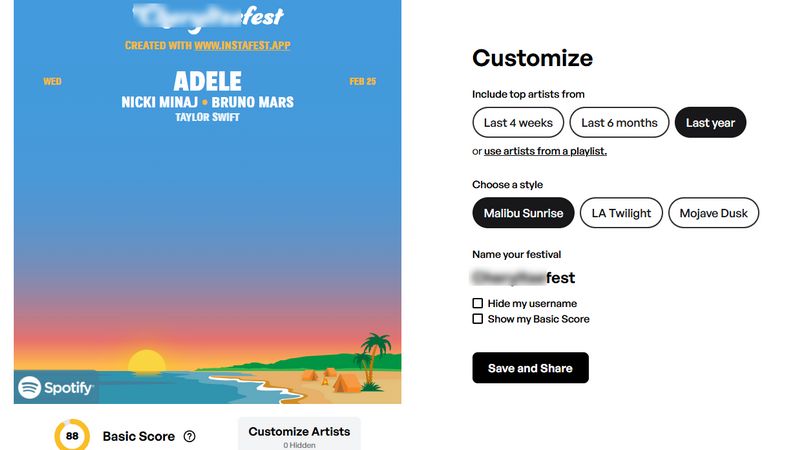
Choose the time range: Last 4 weeks, Last 6 months, or All Time. Your most-played artists will automatically populate the lineup.
Step 4 Customize Your Poster:
Options include changing the festival name, poster theme, artist ranking style, and background design to make your poster unique.
Step 5 Save or Share Your Poster:
- Desktop: Right-click → Save Image As
- iPhone: Press and hold → Save to Photos
- Android: Long-press → Download Image
*Tips: For higher quality, use a desktop browser and avoid screenshots when possible.
Part 3: Why Does Instafest Spotify Only Show One Day?
Sometimes your festival poster only displays a single day instead of the full three-day lineup. This usually happens because of limited listening data.
Common Reasons:
- New Spotify account
- Small listening history
- Few repeated artists
- Wrong time range selected
Solution: Switch to All Time or listen to more artists to allow multiple days to populate.
Part 4: Instafest Spotify Not Working? Try These Fixes
Sometimes Instafest may fail to load, display incomplete data, or generate a blank poster. Most of these issues are simple to fix and are often related to browser settings, network problems, or mobile restrictions. Here's a detailed guide to troubleshoot common problems so you can get your festival lineup poster working again.
4.1 Login Error / Stuck on Agree
If you get stuck during login or the Agree button doesn't respond, this usually happens because of browser restrictions, cookies, or ad blockers interfering with the authentication process.
How to fix:
- Open Instafest in your default browser (Chrome or Safari recommended).
- Temporarily disable ad blockers or browser extensions that might block scripts.
- Clear your browser cookies and cache, then reload the page.
*Tips: Make sure pop-ups are allowed for the site to properly connect with Spotify.
4.2 Keeps Loading Forever
If the lineup keeps spinning without generating, it may be caused by slow internet, browser cache conflicts, or temporary server issues.
How to fix:
- Refresh the page.
- Log out and log back into your Spotify account.
- Try opening the page in Incognito/Private mode to avoid extension conflicts.
*Tips: For slower networks, wait a few seconds after refreshing before clicking any buttons.
4.3 Blank Poster
A blank poster usually indicates that Instafest could not retrieve your listening history correctly. This may happen if your Spotify account has very few tracks played, or the chosen time range has insufficient data.
How to fix:
- Regenerate the lineup to allow the tool to fetch data again.
- Switch to a different network to rule out connectivity issues.
- Reload the page after confirming Spotify authorization.
4.4 Mobile Issues
On mobile devices, some in-app browsers (like Instagram or TikTok) may block scripts required for Instafest to generate your poster.
How to fix:
- Open Instafest directly in Safari (iPhone) or Chrome (Android).
- Avoid opening the tool inside social media apps' internal browsers.
- Ensure your browser is updated to the latest version.
*Tips: If your mobile device struggles to load the poster, try generating it on a desktop for a smoother experience.
❗ Additional Troubleshooting Tips
- Always check that your Spotify account has enough listening history to create a multi-day lineup.
- Clear your browser cache periodically if Instafest has trouble loading multiple times.
- Restarting your device can resolve rare connectivity or script issues.
Part 5: Is Instafest Spotify Safe to Use?
Instafest is designed to be safe for Spotify users. It accesses your account only through the official Spotify API and cannot perform any actions without your consent. Understanding exactly what it can and cannot do can help you feel confident using the tool.
What Instafest Cannot Do:
- Delete playlists: your Spotify playlists remain untouched.
- Modify account settings: no changes are made to your profile or account.
- Post on social media: Instafest cannot share your data or posters without your permission.
How to Protect Your Privacy:
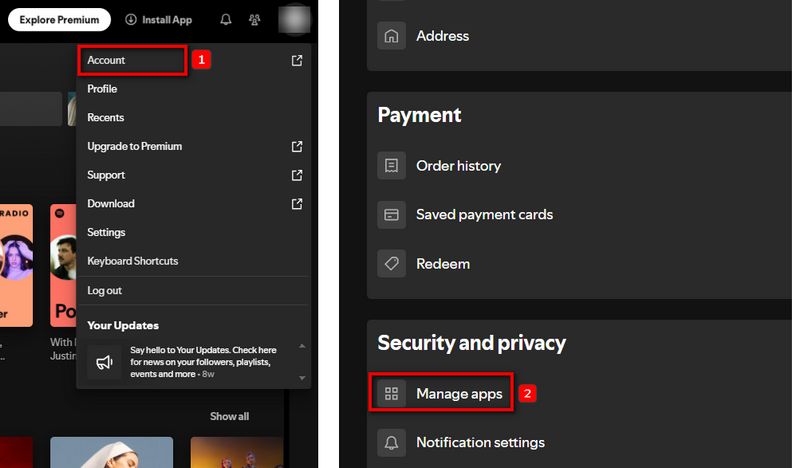
- You can revoke Instafest access anytime via Spotify Account → Manage apps → Remove Instafest.
- Avoid logging in from public or shared devices to maintain security.
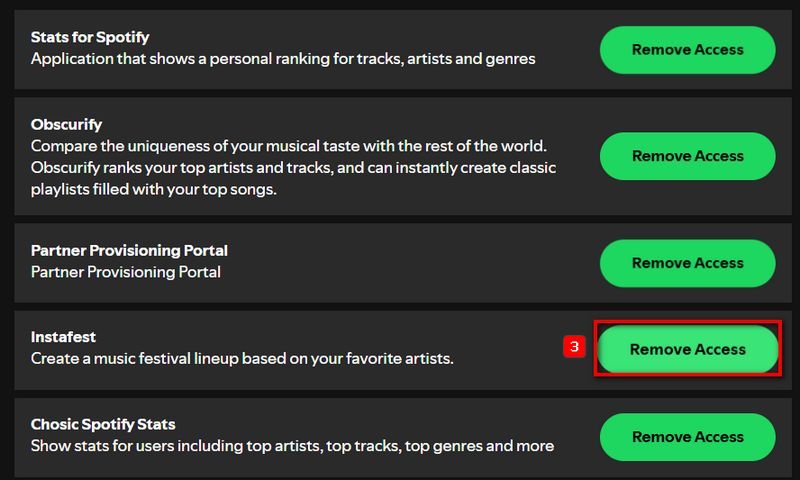
*Tips: Only approve apps you trust, and always double-check which permissions they request. By following these steps, you can safely generate your festival poster without risking your data.
Part 6: Best Instafest Spotify Alternatives
If Instafest doesn't fully meet your needs, these five popular tools offer different ways to visualize and share your Spotify listening habits:
| Tool | Feature | Best For |
|---|---|---|
| Spotify Pie | Visual genre and top track charts | Quick stats & shareable visuals |
| Stats.fm | Detailed listening analytics | Tracking trends & discovering favorites |
| Receiptify | Receipt-style summary of top songs | Social sharing on Instagram/TikTok |
| Obscurify | Compares your taste with other users | Discover niche artists & uniqueness |
| Playlistr | Export playlist as CSV/text | Offline save & playlist analysis |
Each tool has its own style. Some focus on visual charts, while others provide detailed analytics or make sharing on social media easy. Pick the one that works best for you, whether you want to share with friends, discover new artists, or keep track of your listening habits.
How to See Your Spotify Stats?
While these 5 Instafest Spotify alternatives are great starting points, there are plenty of other options to explore. For a full list of 15 free websites where you can see your Spotify stats, discover your top artists, and track your listening habits, take a look at this full guide.
Part 7: Bonus: How to Keep Your Festival Playlist Offline?
After discovering your top artists, many users want to enjoy their festival lineup offline. To play Spotify playlists on any device without streaming limits, you'll need a reliable third-party tool. One helpful option is TunePat Spotify Converter, which lets you quickly export songs, playlists, and albums from Spotify in common audio formats. You can also customize output settings, making it convenient to organize your music exactly how you like.
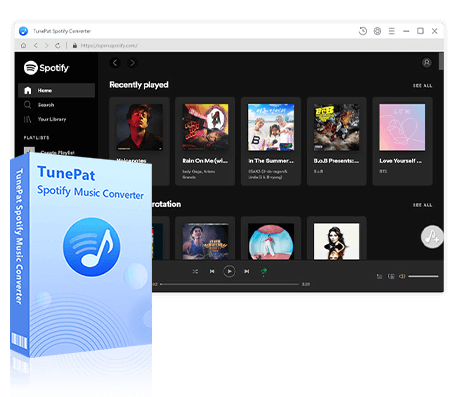
TunePat Spotify Converter
TunePat Spotify Converter enables users to convert and get Spotify songs, albums, playlists, podcasts, radio, and audiobooks from the Spotify app or web player and then save them permanently.
Here's a quick look at how it works:
Step 1 Open TunePat and Select Your Spotify Source
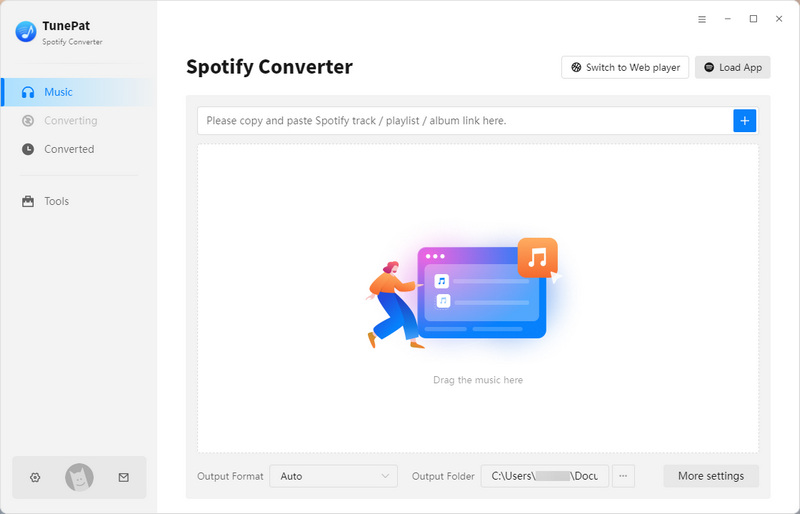
Launch TunePat, then use the button in the top left corner to switch between "Spotify App" and "Spotify web player". Choose the source you want to download from. For exporting Spotify lossless audio, select the Spotify App. Next, log in to your Spotify account through either the app or TunePat’s built-in web player. Both free and Premium accounts are supported.
Step 2 Configure Your Output Settings
Before picking songs, click "Settings" in the left sidebar to set your output options. You can select the conversion mode, output format (MP3, AAC, FLAC, WAV, AIFF, ALAC), bit rate, sample rate, output folder, file naming rules, etc. Ensure your device supports the chosen format and has enough storage. Close the Settings window to save and apply your preferences automatically.

Step 3 Open the Spotify Songs You Want to Convert
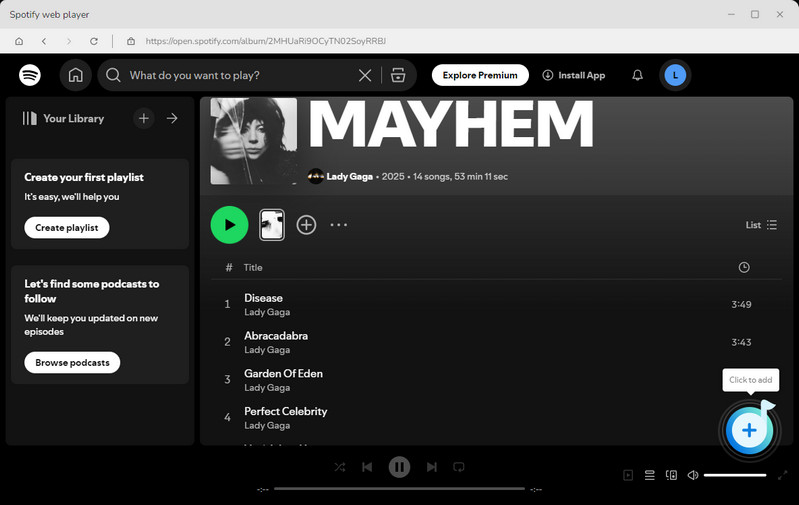
Return to your Spotify library and find the songs, playlists, or albums you want to convert. Click the "+" button at the bottom right to let TunePat scan and prepare your selection.
Step 4 Review and Add Songs to the Conversion List
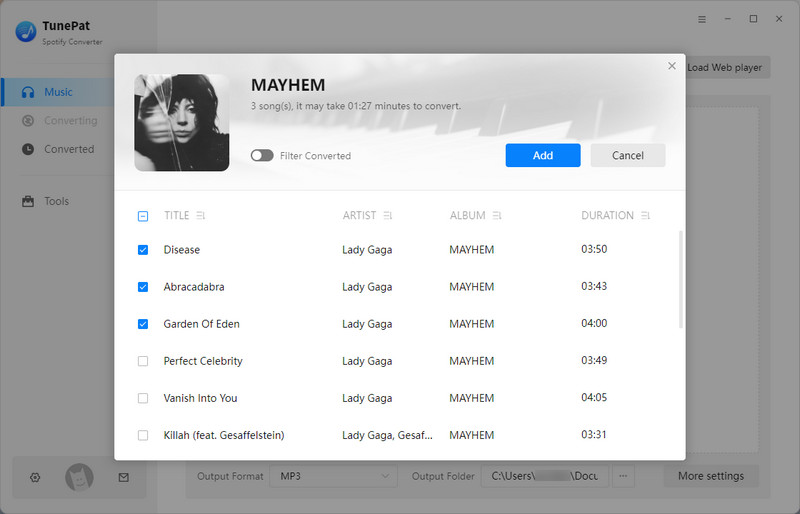
After scanning, a pop-up will display all available tracks, with all Spotify songs selected by default. Uncheck any tracks you don't want, then click "Add" to move on to the conversion step.
Step 5 Start Converting Spotify Tracks
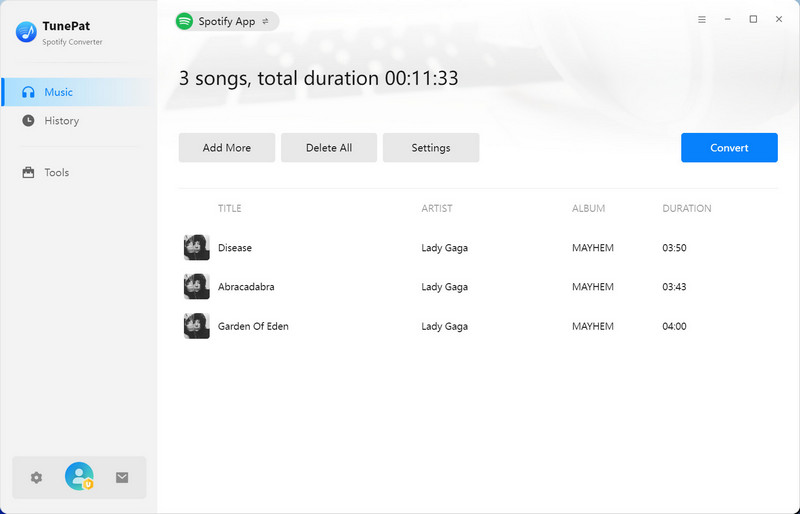
On the conversion page, the "Add More" button lets you include songs from other playlists or albums in the same batch. When you’re ready, click "Convert" to start processing.
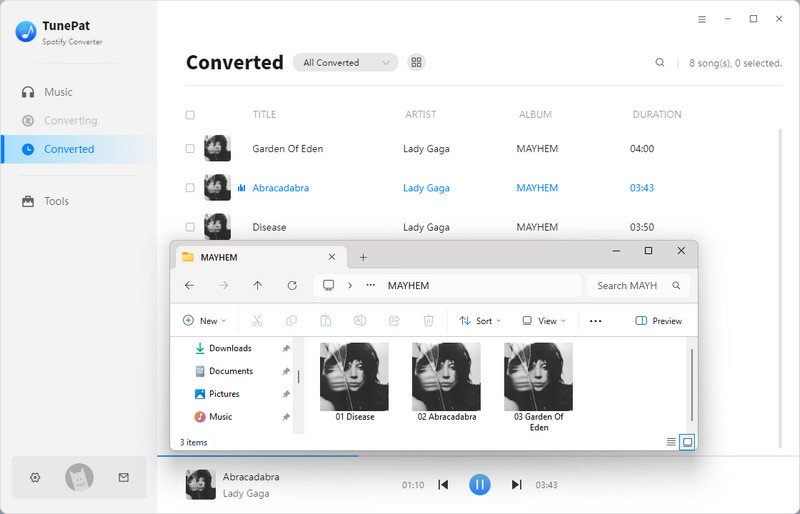
Wait patiently as the conversion completes. Once done, the output folder will open automatically, and your conversion history is available in the "History" module. The resulting files are real, editable audio files you can transfer and use freely. Now, you keep your festival playlist permanently and can enjoy it offline at anytime.
Part 8: FAQs About Instafest Spotify
Q1: Is Instafest Spotify free?
A: Yes. Instafest is completely free to use. There are no hidden fees or premium features, so you can generate your festival lineup poster anytime without paying.
Q2: Does Instafest require Spotify Premium?
A: No. Both free and Premium Spotify accounts can generate lineups. All your listening history, including top tracks and artists, can be used regardless of subscription type.
Q3: Can others see my Spotify data?
A: No. Your listening data remains private unless you choose to share your poster on social media. Instafest only reads your listening history and does not access playlists or account settings.
Q4: Does Instafest work with Apple Music?
A: Instafest mainly supports Spotify for generating festival lineups. The "Create with Apple Music" button does not fully integrate Apple Music yet. It only lets you import your playlist by copying its link. To do this, pick a playlist in Apple Music, then select "Share > Copy Link" and paste it into Instafest. For a more complete experience with Apple Music data, you can try alternatives like MusicScape, Stats.fm, or Chartable.
Q5: Why can't I log in to Instafest?
A: Most login issues are caused by browser permissions, cookies, or using in-app social media browsers like Instagram or TikTok. To fix this, open Instafest in your default browser, clear cookies if needed, and make sure pop-ups are allowed.
Conclusion:
By now, you've learned how to see your top artists, create your own festival lineup, and fix common issues with Instafest Spotify. You've also explored some handy alternatives and tips to get the most out of your Spotify experience. And if you'd like to enjoy your music even more, there's an easy way to take your playlists offline.
A reliable tool like TunePat Spotify Converter makes it simple to export your songs and listen anywhere, even without an internet connection. With just a few clicks, you can have your top tracks ready for offline playback on any device.
Olivia Anderson
Senior Writer