How to Check Your YouTube Music Stats in 2026
 By Delilah Rene
YouTube Music Tips
Updated on 8/21/2026
By Delilah Rene
YouTube Music Tips
Updated on 8/21/2026
YouTube Music users looking for listening statistics will find a yearly Recap, a full listening history, and a data export option through Google Takeout. What the app does not provide inside its interface is daily, monthly, or lifetime listening analytics. Some users turn to third-party tools if they need more detailed data. This guide explains how to access your official YouTube Music stats, how Recap works, how to view your listening history, and what alternatives exist for deeper analytics. Note that feature availability may vary by account type, region, and product updates.
- Part 1: Where Can You Check Your YouTube Music Stats?
- Part 2: View Your YouTube Music Recap (Official Stats)
- Part 3: Check Your YouTube Music Listening History
- Part 4: Can You See Daily or Monthly YouTube Music Stats?
- Part 5: Export Your Data Using Google Takeout
- Bonus Tips: Download and Manage Your YouTube Music Library
- FAQs About YouTube Music Stats
Part 1: Where Can You Check Your YouTube Music Stats?
| Method | Stats Available | Best For |
|---|---|---|
| YouTube Music Recap | Yearly summary: top songs, artists, podcasts, milestones, and music trends | Reviewing your listening habits over the past year |
| YouTube Music History | Recent listening activity in chronological order | Checking what you've listened to recently |
| Scrobbling Tools | Plays, top artists/albums, and weekly, monthly, or all time stats | Monitoring listening activity continuously from now on |
| Google Takeout + Analytics Tools | Advanced analytics generated from your exported listening history, including top tracks, artists, genres, and monthly trends | Analyzing your historical YouTube Music data |
Part 2: View Your YouTube Music Recap (Official Stats)
What Is YouTube Music Recap?
YouTube Music Recap is an official annual summary, similar to Spotify Wrapped and Apple Music Replay. Unlike real-time analytics tools, the annual review is designed to provide an overview rather than a continuously tracking dashboard. Every time a new yearly Recap is available, your Recap updates. You can always save your previous stats and playlists.
What Stats Does Recap Show?
Based on your activity on YouTube Music throughout the year, it summarizes your listening habits. It then displays your top songs, artists, podcasts, and more from the past year and season, how many days you listened to your top artist, and a musical passport showing how many different countries your artists are from.
Why Can't I See My Recap?
If your YouTube Music Recap is not available, it is usually due to one of the following reasons:
- You have not listened enough music within the tracking period.
- Your account does not meet the activity threshold required to generate a Recap.
- You started using YouTube Music too recently.
- The Recap feature has not yet been released for your region or account.
- You are using a different Google account than the one used for listening activity.
In most cases, Recap becomes available only when there is sufficient listening data accumulated over time.
Part 3: Check Your YouTube Music Listening History
Your YouTube Music Listening History is another way to review your listening activity. While it doesn't provide detailed statistics like play counts or listening time, it allows you to see the songs, albums, playlists, and artists you've recently played.
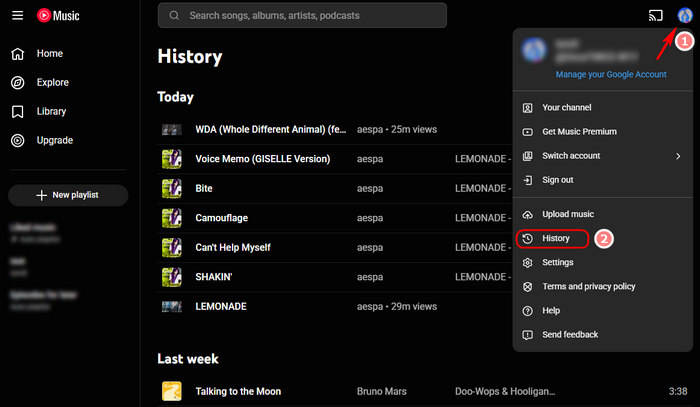
Step 1 Launch YouTube Music and make sure you're signed in to your Google account for music streaming.
Step 2 In the top right corner, tap your profile picture to open the account menu. In the menu that appears, tap "History". This will open your recent listening history. Now you can browse your most recently played songs, albums, artists, and playlists. The list is displayed chronologically, with recent activity at the top.
YouTube Music has Recap for analyzing your stats, but if you want a permanent local copy of your favorite songs, albums, or playlists, you might consider downloading them for offline storage. A tool such as TunePat YouTube Music Converter can save YouTube Music tracks as MP3 files and other formats while retaining important metadata, making it easy to manage your library outside the app.
Part 4: Can You See Daily or Monthly YouTube Music Stats?
Not within the official YouTube Music app. YouTube Music provides features such as Recap and Listening History, but you can't directly view metrics such as daily listening time, monthly top artists, song play counts, or long-term listening trends through YouTube Music's built-in features. However, that doesn't mean detailed listening statistics are completely unavailable. Several third-party tools can track your YouTube Music activity and generate reports that go beyond the insights offered by YouTube Music itself. Below are some of the most popular options for tracking daily, monthly, and long-term YouTube Music listening statistics.
1. Track Music Stats with Last.fm
Using Browser Extension (Web Scrobbler)
Step 1 Go to the official Web Scrobbler website. Choose your preferred browser extension (e.g., for Chrome, Edge, or Firefox) and install it. Please follow the prompts to complete the installation.
Step 2 Once installed, please click the Web Scrobbler icon in your browser's toolbar. Then follow the prompts to open Last.fm, log in to your account, and authorize the extension. After successful authorization, the extension will show a connected status.
Step 3 Open the YouTube Music web player and start playing any song. Web Scrobbler will automatically detect the currently playing content.
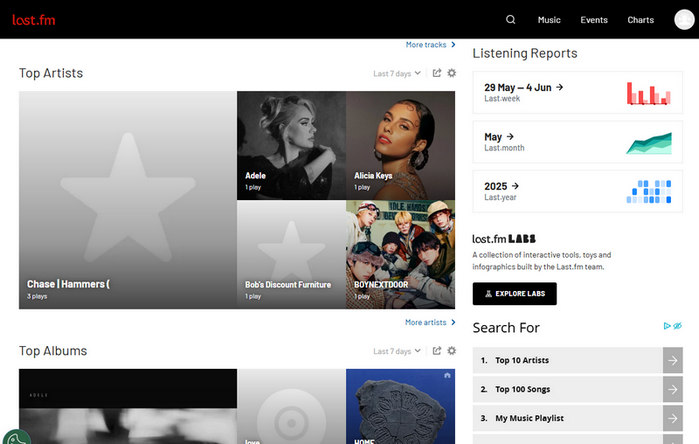
Step 4 After you have played a few songs, click the Web Scrobbler icon again, then click the settings icon. This will redirect you to the Last.fm website. Click "Profile". If you see the song(s) you just played, the installation was successful. Note that Web Scrobbler only records playback history from the moment of installation onward, so you will not see any listening history from before installation. Once confirmed, you can view your recent tracks, top artists, top albums, top tracks, listening reports, and weekly, monthly, and all-time stats.
Using Scrobbling App (Pano Scrobbler)
Step 1 First, go to the Pano Scrobbler download center and download the version that matches your device. For demonstration, we will use a Windows computer as an example.
Step 2 After launching the app for the first time, select Last.fm under Scrobbling Services. Then, in the new pop-up window, log in to your Last.fm account and authorize the connection.
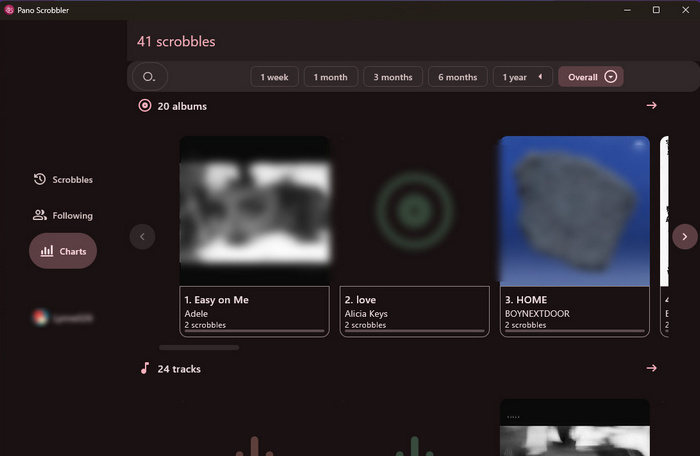
Step 3 When you play music on YouTube Music, Pano Scrobbler will automatically detect it. Once a song has been playing for more than 30 seconds, click "Scrobbles" on the left side of the interface. If song information appears, it means the player has been successfully detected. You can then start using Pano Scrobbler to view your YouTube Music stats.
Part 5: Export Your Data Using Google Takeout
Data exported directly from Google Takeout is simply your listening history arranged in chronological order, which can be very cluttered and lacks focus. To get a clearer and more intuitive view of your YouTube Music stats, we need to use third-party tools to generate advanced analytics.
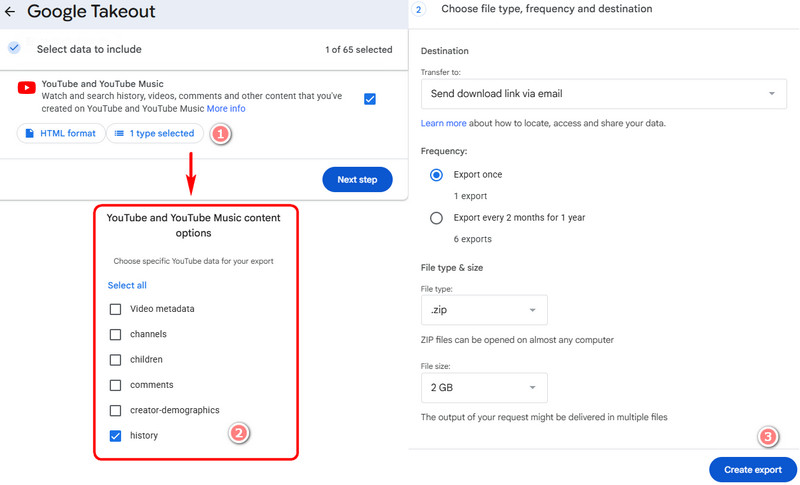
Step 1 Go to Google Takeout. By default, all data is selected, so click "Deselect all", then scroll to the bottom and select only "YouTube and YouTube Music". Click "All YouTube data included", then "Deselect all" again, and select only "history".
Step 2 Follow the prompts to complete some additional settings, then create the export file. Google will send a download link to your Gmail account; please download it before the link expires. Note that Self-degree requires the file to be downloaded in HTML format. You should check whether your third-party tool requires HTML or JSON format, and then download the corresponding format.
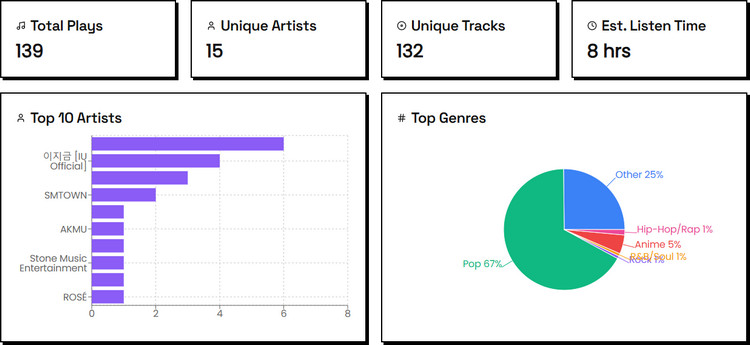
Step 3 Once the download is complete, navigate to some third-party sites and upload the watch history file. You will then see your Total Plays, Top 10 Artists, Top Genres, Top 10 Tracks, Monthly Listening History, and other YouTube Music data.
Bonus Tips: Download and Manage Your YouTube Music Library
Besides checking your YouTube Music Stats, some users may also want a way to keep a local copy of their YouTube Music library for offline use. YouTube Music does allow Premium subscribers to download songs and playlists for offline playback, but those downloads remain locked inside the app and cannot be exported as plain audio files. Moreover, downloaded content may become unavailable after the subscription ends. In such cases, users can turn to third-party tools that convert YouTube Music tracks into local files. TunePat YouTube Music Converter is such as a tool.
TunePat YouTube Music Converter is a tool designed to convert music from YouTube Music into common local audio formats such as MP3, AAC, WAV, FLAC, AIFF, and ALAC. It preserves essential metadata including song titles, artists, and album artwork to help keep your library organized. Users can download individual tracks, albums, or entire playlists with batch processing support, making it easier to save multiple songs at once.
TunePat YouTube Music Converter
TunePat YouTube Music Converter helps you download and convert all YouTube Music songs and playlists to MP3 and other common formats.
Step 1 Launch TunePat and sign in to your YouTube Music account within the built-in browser. TunePat permits both free and paid users to download music.
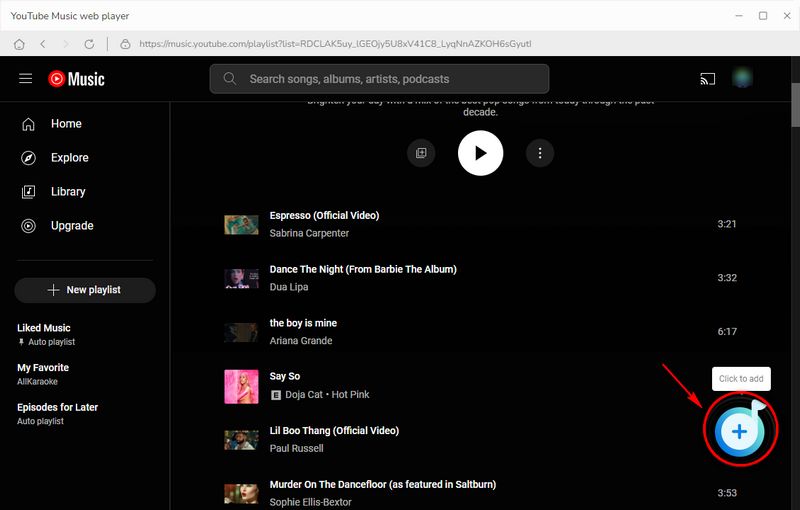
Step 2 Select the song, playlist, or album you wish to convert, then click the "+" button located in the bottom right corner. On the newly opened page, wait for TunePat to finish loading, select the songs you want to keep, and click the "Add" button to import them into TunePat.
Step 3 If you need to modify the settings, click "Settings" before converting to make your changes. Here, you can specify the output format, bit rate, sample rate, output folder, and output file name. After making changes, close the interface, and the program will automatically save your modifications.
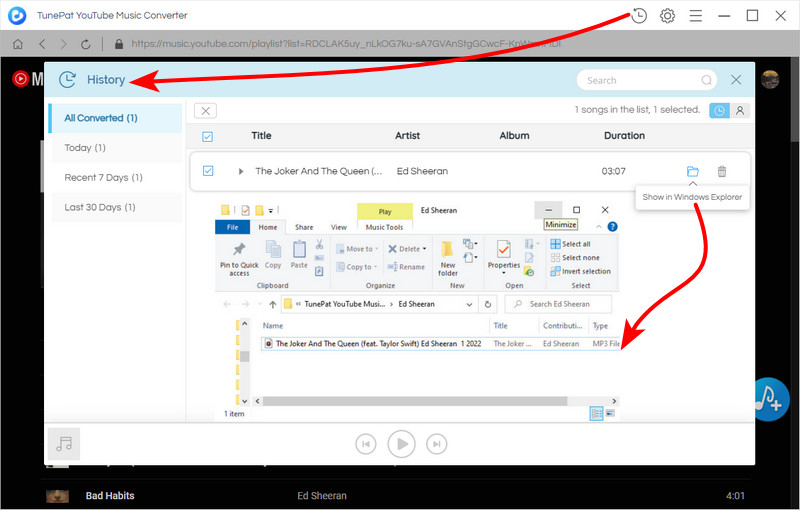
Step 4 Then click "Convert" to start the conversion. TunePat will download your YouTube Music songs at speeds up to 10x. Once done, you can find them in the "History" section.
FAQs About YouTube Music Stats
Q1: How accurate is YouTube Music Recap?
A: It's generally accurate for what it tracks, but only reflects activity within YouTube Music.
Q2: Does YouTube Music have a Spotify Wrapped equivalent?
A: Yes. YouTube Music Recap is its closest equivalent. It's a summary (usually yearly) that highlights your top songs, artists, and listening patterns.
Q3: What's the Difference Between YouTube Music Stats and Spotify Wrapped?
A: YouTube Music Recap is a periodic summary focused mainly on listening activity inside YouTube Music. Spotify Wrapped is more presentation-heavy, highly shareable, and often more detailed in storytelling. Spotify Wrapped is also more consistently branded and globally synchronized.
Q4: Is YouTube Analytics for Artists the same as YouTube Music stats?
A: No. YouTube Analytics for Artists is for creators and musicians, which shows performance data like views, audience demographics, and engagement. YouTube Music stats (Recap) are for listeners and reflect personal listening habits. They serve completely different purposes.
Conclusion
In summary, this article presents several ways to view your YouTube Music stats, depending on how much detail you need. While YouTube Music does not offer built in daily, monthly, or cumulative listening statistics, using third party tools can help you better understand your listening habits. For users who want more control over their music library, tools like TunePat YouTube Music Converter can save songs, albums, and playlists as local files for easier organization, backup, and offline playback. If you're interested, don't forget to download it!


Delilah Rene
Senior Writer