Spotdown Review: Does It Really Work? Our Tests and Results
 By Olivia Anderson
Spotify Tips
Updated on 9/08/2026
By Olivia Anderson
Spotify Tips
Updated on 9/08/2026
Spotdown is an online tool that claims to make it easy to download music from Spotify. But does it really work as expected, and what kind of audio quality can you actually get? To find out, we tested Spotdown with Spotify songs, albums, and playlists, checking its download success rate, speed, audio quality, and metadata. In this Spotdown review, we'll share our test results, look at its safety, and introduce some alternatives worth considering.
Part 1: What Is Spotdown?
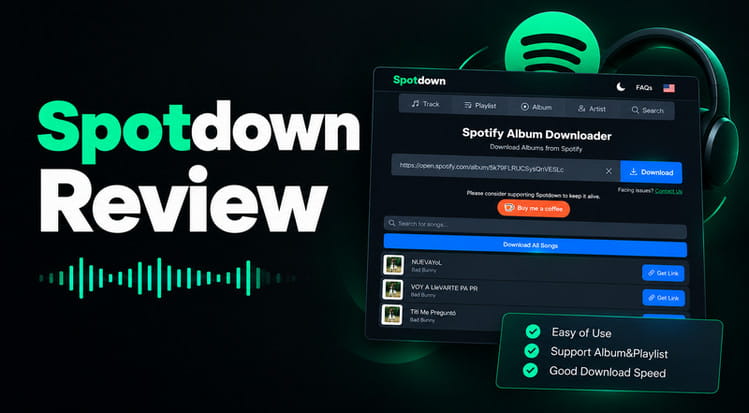
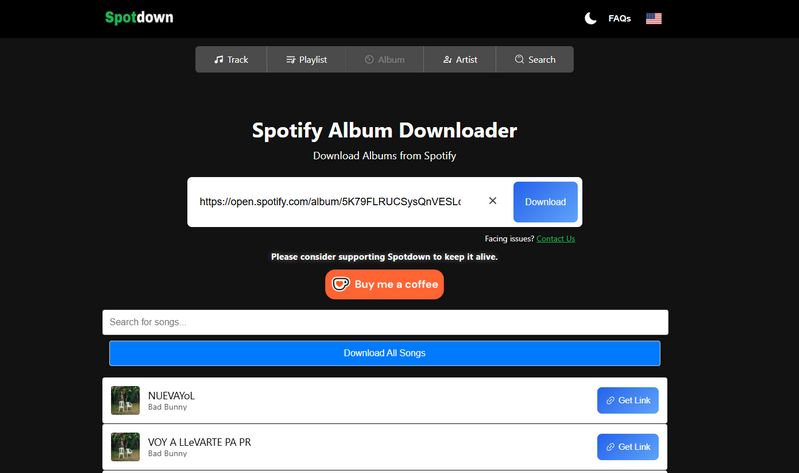
Spotdown is a free online Spotify link to MP3 downloader that allows users to download songs, albums, playlists, and artist tracks as MP3 files. It works directly in a web browser, so there is no desktop software to install or Spotify account to connect.
The site describes its downloads as high quality and supports individual tracks as well as multiple songs from albums and playlists. It also provides search functionality, allowing users to find songs without directly pasting a Spotify link.
Part 2: Spotdown Test Results: What We Found
To see how Spotdown performs in real-world use, we tested its Album, Playlist, and Artist download features with different types of Spotify content. We checked the actual download results, download speed, audio quality, and file organization to see how well Spotdown handles both smaller and larger batches.
Test Samples of Spotify Music:
| Type | Test Samples | Details |
|---|---|---|
| Albums | Short n' Sweet — Sabrina Carpenter GNX — Kendrick Lamar |
2 full albums, 12 tracks each |
| Playlist | Confidence Boost — Spotify | 1 playlist with 75 tracks |
| Artist | The Weeknd | 10 popular tracks |
Testing note: We tested Spotdown on a Windows PC using Google Chrome. The same test setup was used throughout the testing process. Because some downloads produced inconsistent results, we repeated selected tests to check whether the issue was limited to a specific album or network connection.
| Test | Result | Details | Verdict |
|---|---|---|---|
| Albums | ⚠ Inconsistent | 1/12 and 1/12 initially; 12/12 on retest | Unstable |
| Playlist | ⚠ 51/75 | 24 tracks missing | Poor |
| Artist | 10/10 | All 10 tracks downloaded, but files were out of order | Good |
| Download Speed | Very fast | Usually completed within seconds | Excellent |
| Audio Quality | ⚠ Mostly 15–16 kHz | Most files showed 15–16 kHz cutoffs despite 220–240 kbps bitrates | Below average |
| File Organization | Poor | Unsorted files & site name in filenames | Needs fixing |
Looking for a more reliable way to download Spotify playlists and albums in batches? A dedicated Spotify converter can help avoid missing tracks and messy downloads while preserving proper ID3 tags. It also supports Windows, Mac, and Android, making it easier to build and manage a well-organized local music library.
Downloads Can Be Fast, But Results Are Unreliable
Spotdown's download speed was one of the strongest parts of our testing. When we first tested Sabrina Carpenter's Short n' Sweet, which contains 12 tracks, Spotdown showed that all songs had been downloaded in less than 10 seconds. However, the result did not match what was shown on the screen. Although the site displayed "All songs are downloaded!", we actually received only the third track, "Good Graces."
Each track also had a "Not matched? Click here" option for retrying a failed download. We tried this option for the missing tracks, but it did not successfully retrieve the corresponding songs.
To check whether the problem was related to the album or network connection, we reconnected to the network and tested Kendrick Lamar's GNX, another 12-track album. The result was similar. The download completed within seconds and Spotdown reported that all songs had been downloaded, but only the third track, "luther (with sza)," was actually obtained.
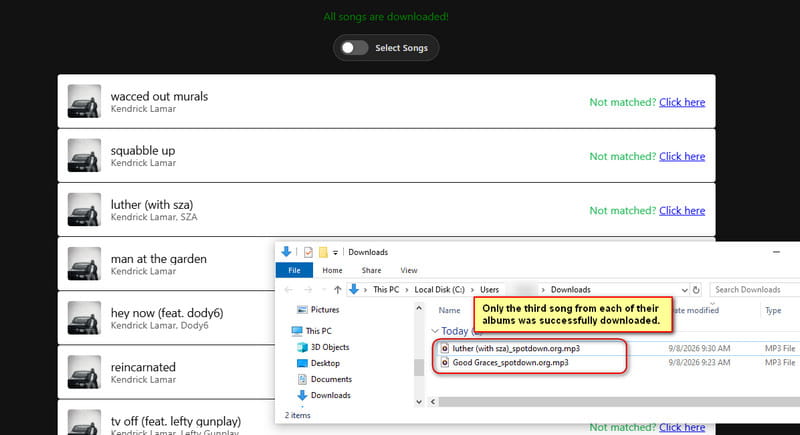
However, when we tested Short n' Sweet again later, Spotdown successfully downloaded all 12 tracks in less than 10 seconds. This shows that the issue was not consistent across every attempt. Instead, Spotdown's album download performance appears to be unreliable and inconsistent, even when the same album is tested more than once.
Playlist Downloads Can Miss a Large Number of Tracks
We also tested Spotdown with Spotify's Confidence Boost playlist, which contains 75 tracks. The site estimated that the download would take around 12 minutes. In practice, it displayed that all songs had been downloaded after about one minute, but no files appeared in our local download folder.
We then refreshed the page, parsed the playlist link again, and started the download once more. As with the earlier tests, we had to repeat the download action several times before the process actually started. During the second attempt, the download reached around 80%, when a browser notification appeared asking for permission to download multiple files. After clicking Allow, multiple songs suddenly started downloading to the computer.
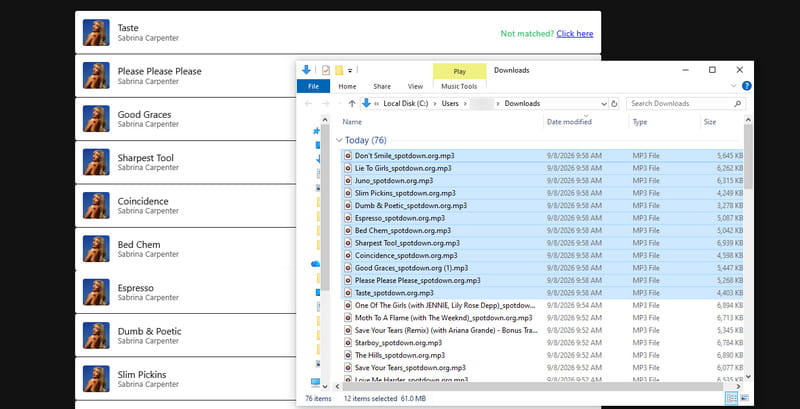
We eventually received 51 of the 75 tracks, meaning 24 songs were missing. It is possible that the browser's multiple-download permission affected some of the earlier results, but we cannot confirm that this was the only reason for the missing files. Either way, the inconsistent process makes Spotdown less reliable for large playlists.
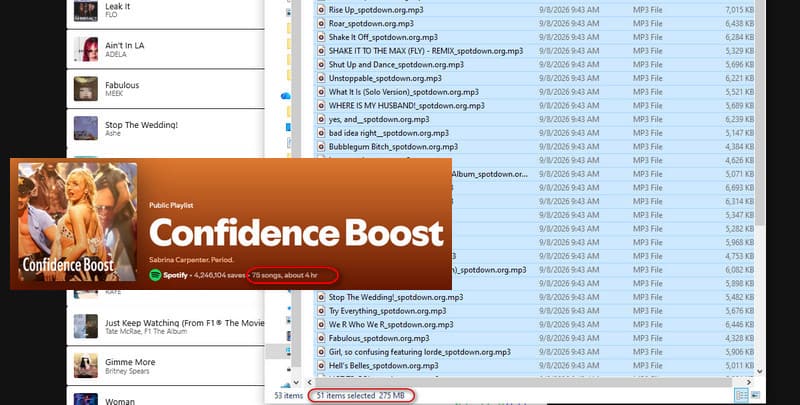
Another issue is that Spotdown does not package batch downloads into a ZIP file or keep the tracks in their original Spotify order. The downloaded files appeared in a mixed order, making it difficult to check which songs were missing from a large playlist.
Artist Downloads Are Fast, but Files Can Be Disorganized
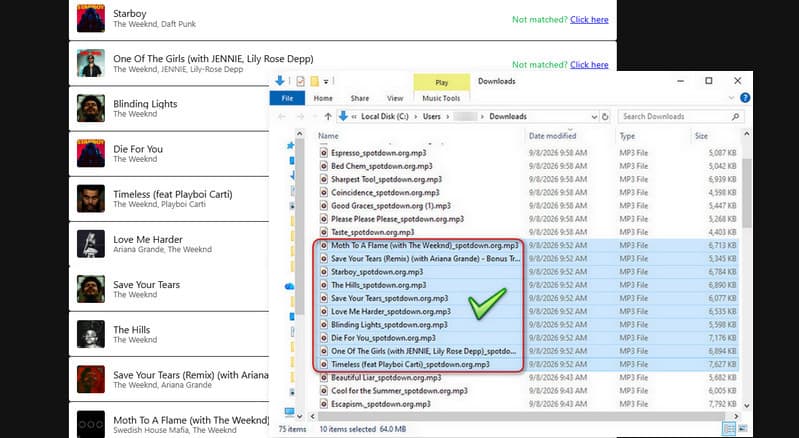
Next, we tested Spotdown using The Weeknd's Spotify artist URL, which returned 10 popular tracks. The download was again very fast, taking only a few dozen seconds before the site reported that all songs had been downloaded. At first, we thought we had received only 7 of the 10 tracks. However, after checking the downloaded files more carefully, we found that all 10 tracks were actually downloaded. The confusion was caused by the files being out of order, which made some tracks difficult to find.
For a small list of 10 songs, this is still manageable because you can check the files manually. However, when downloading a large playlist or album, the disorganized file order can make it much more difficult and time-consuming to confirm whether every track has been downloaded successfully.
Reported Bitrate Looks Good, but Actual Quality Is Limited
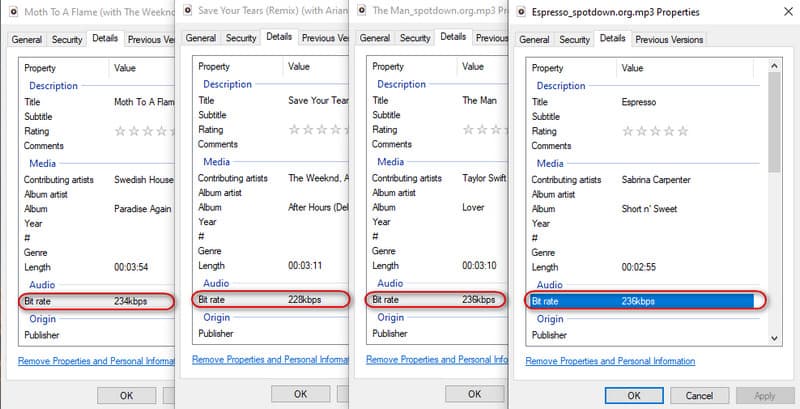
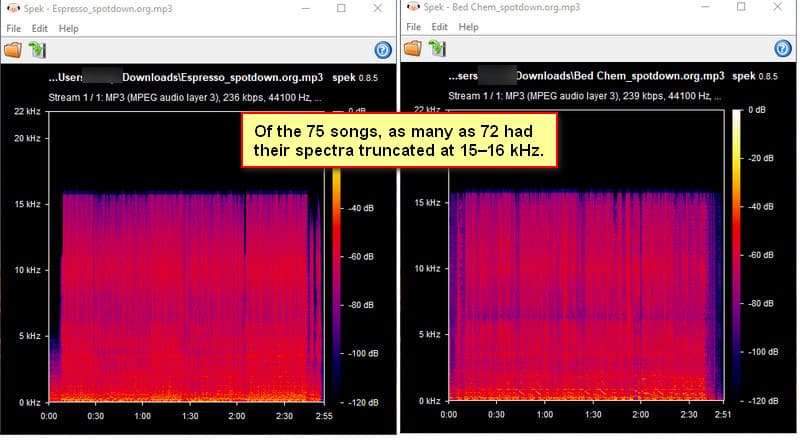
At first glance, Spotdown's audio quality looks fairly good. The downloaded MP3 files were generally reported at 220–240 kbps, with the full test range falling between 199 and 259 kbps. However, bitrate alone does not tell the whole story, so we analyzed all 75 downloaded tracks with Spek.
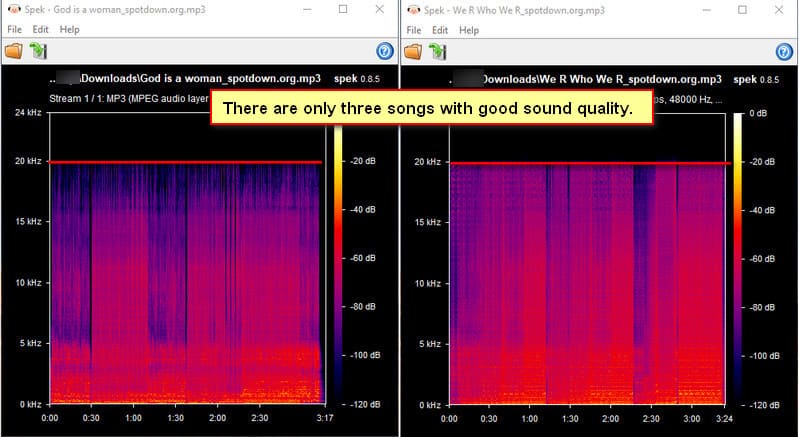
The results were less impressive. Except for "Lie To Girls", "God is a woman", and "We R Who We R", which showed frequencies extending to around 20 kHz, nearly all other tracks had a clear cutoff at around 15–16 kHz. This suggests that many of the files may have been re-encoded from lower-quality sources, despite their relatively high reported bitrates.
If audio quality matters to you, consider a tool that lets you choose the actual output quality. With options like FLAC Lossless and 320 kbps MP3, you can get better control over your downloaded Spotify music. Below are desktop and Android options worth checking out.
In other words, Spotdown's 220–240 kbps files should not be treated as true high-quality MP3s. They are still fine for casual listening, but if you care about higher-quality audio, the actual sound quality may fall short of what the bitrate suggests.
Downloaded Files Are Poorly Organized
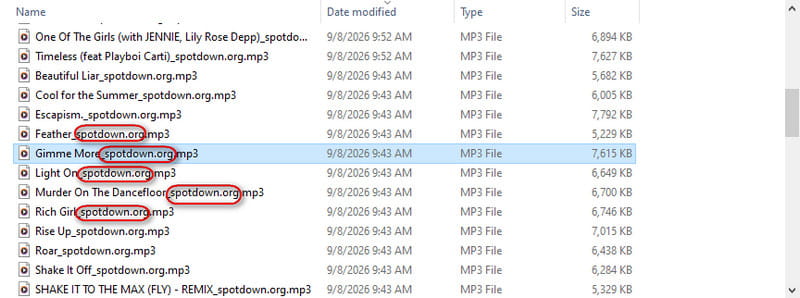
Spotdown's batch downloads also require some manual cleanup. The downloaded songs are not kept in the original Spotify order, and there is no ZIP package to keep a large batch together. With a 75-track playlist, the mixed file order made it difficult to identify the missing songs.
We also noticed that the downloaded filenames included the Spotdown website name. This may not matter if you only plan to listen to the files casually, but it becomes inconvenient if you want to build and organize a local music library. Removing the extra text from a large number of filenames can take considerable time.
Part 3: Is Spotdown Safe to Use?
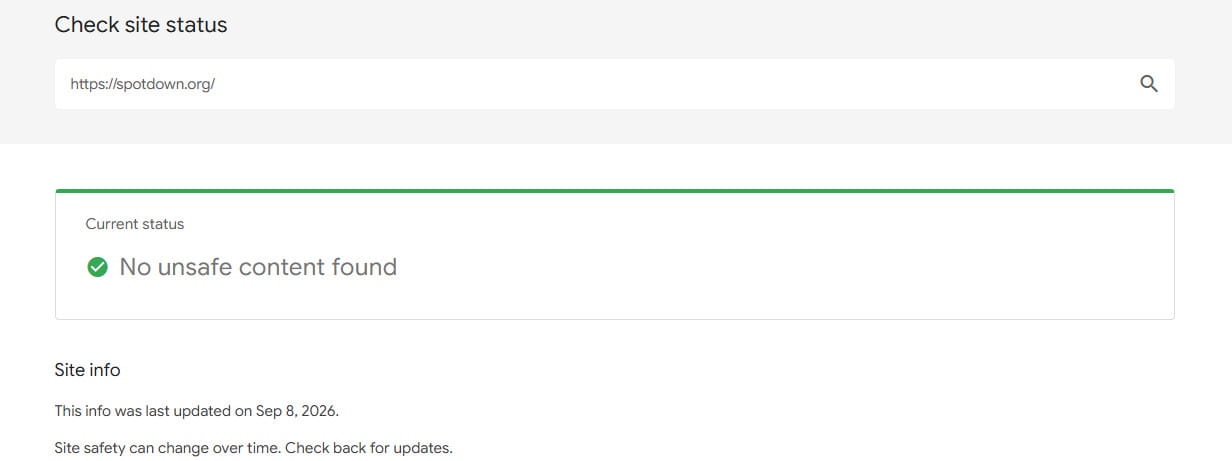
Our security checks did not flag Spotdown as a malicious website. VirusTotal showed 0 detections from 90 security vendors, meaning none of the security engines checked by VirusTotal identified the site as malicious or suspicious. Google Safe Browsing also reported "No unsafe content found" when we checked the site.

However, our hands-on testing found frequent redirects, especially when clicking the Download button. We often had to click it three or more times before the actual MP3 download started, while some clicks opened redirected pages instead. This does not necessarily mean that Spotdown is malicious, but users should still be cautious with pop-ups, redirects, and unfamiliar pages during the download process.
Part 4: Best Spotdown Alternatives
Spotdown is handy for quick downloads, but our tests also revealed a few drawbacks. The output folder names include Spotdown branding, audio quality was not always as good as expected, some playlists were not downloaded completely, and we also ran into redirects and pop-up ads. If you want better control over audio quality, file organization, or batch downloads, the following alternatives are worth a look.
4.1 TunePat Spotify Converter (Windows/macOS)
If you mainly use a Windows or Mac computer, TunePat Spotify Converter is a more flexible way to download and manage Spotify music. It supports songs, albums, playlists, podcasts, audiobooks, and more, with output formats including MP3, FLAC, WAV, and others.
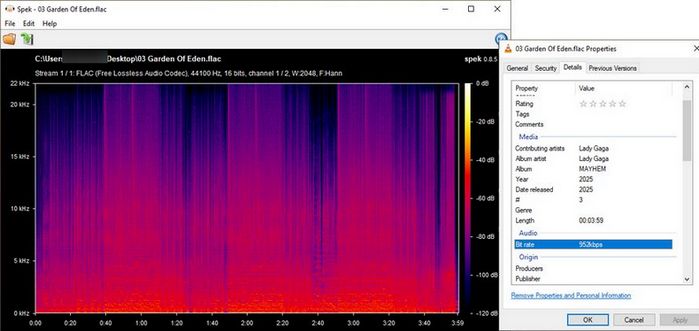
When it comes to audio quality, TunePat lets you download Spotify Lossless music for the best possible sound quality, or save Spotify music as high-quality 320kbps MP3 songs when you prefer smaller file sizes. Its batch conversion feature lets you download multiple Spotify songs, albums, playlists, podcasts, audiobooks, and more in one go, which is especially useful when you have a lot of content to download.
It is just as easy to organize the files after downloading. TunePat lets you customize the output file names and decide how the downloaded files are arranged. You can include information such as the artist, album, track title, or playlist in the file names and folder structure, so your downloads can be organized in the way that works best for you.
Step 1 Choose a Music Source and Set Up the Output
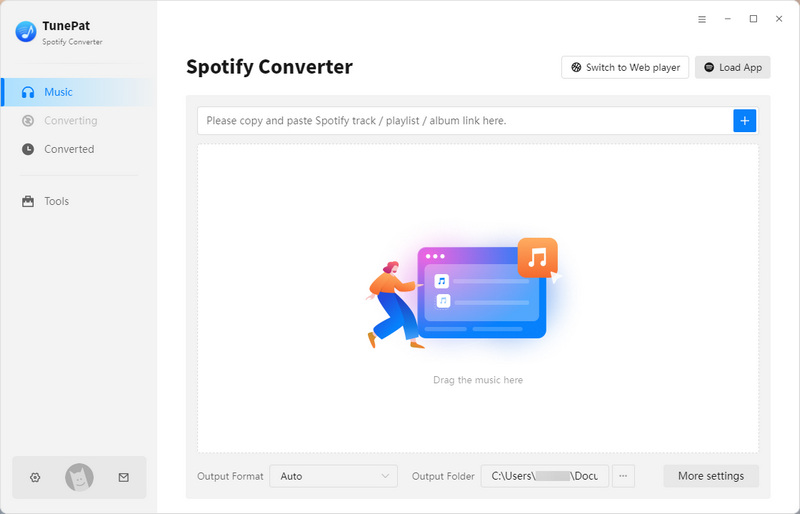
Start TunePat Spotify Converter and select either the Spotify App or Spotify web player to load your music.
Then go to Settings from the left-side menu. You can set the output format, bit rate, sample rate, and save location here. The file and folder naming options let you further organize your downloads by adding the tag information you prefer.

Step 2 Load the Spotify Content
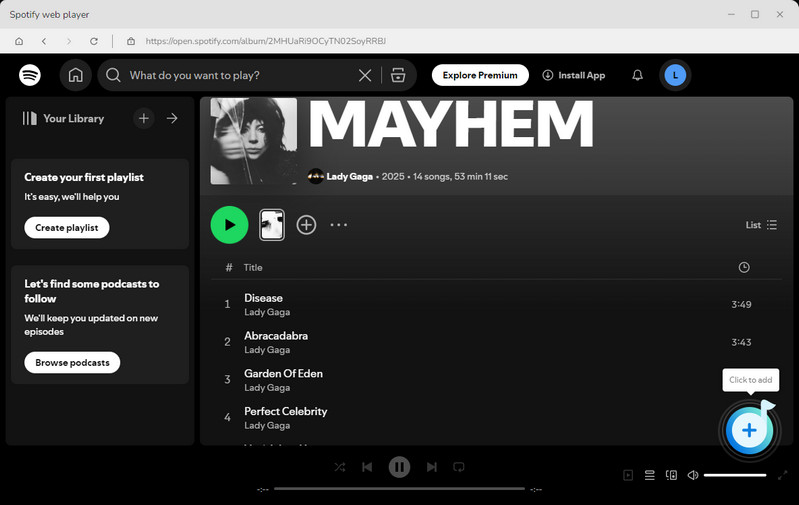
In Spotify, open the song, album, or playlist you want to save. In TunePat, click the "+" button at the bottom right to have the program analyze the selected content.
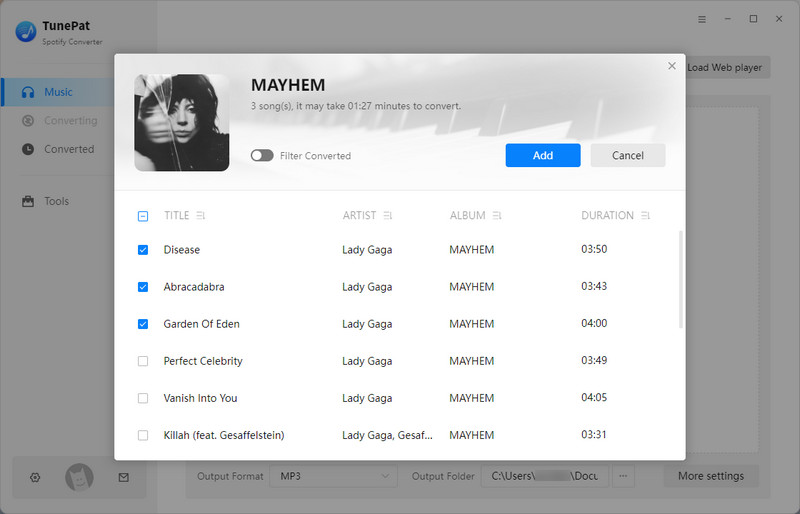
After the scan, TunePat will display the available tracks in a pop-up window. All tracks are checked by default, so you can remove any unwanted songs and click "Add" to add the selection.
Step 3 Start the Conversion
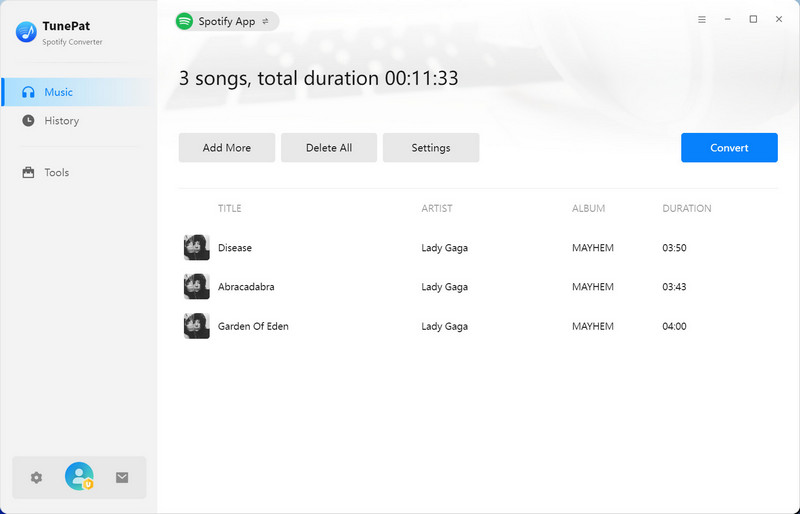
Need to download more Spotify content? Click Add More to continue adding songs, albums, or playlists. When everything is ready, click Convert to begin. TunePat processes multiple tracks at once, making it easier to handle larger downloads. Once finished, go to the History tab to view your downloaded files.
4.2 TuneCable Spotify Downloader (Android)
If you prefer to download Spotify music directly on your Android phone, TuneCable Spotify Downloader offers a straightforward way to save music without relying on a browser. As a dedicated Android app, it does not depend on the browser download process, which can help avoid the redirects and extra pages we came across while testing Spotdown.
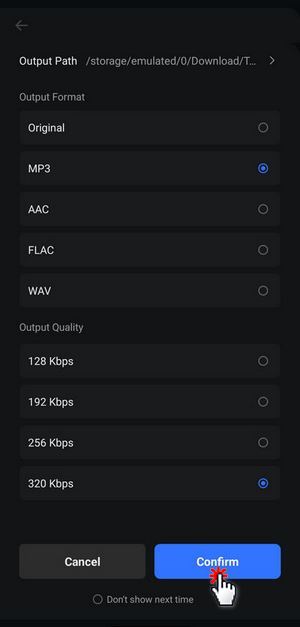
TuneCable supports audio quality of up to 320 kbps and can handle multiple songs in one batch. Before downloading, you can set the output format, audio quality, and storage location according to your needs, giving you more control over how the music is saved on your phone.
Step 1 Install the App on Your Android Device
Download the TuneCable Spotify Downloader APK using the button below. After the APK is saved, open the file and follow the instructions shown on your phone to install the app. Once the installation is complete, launch TuneCable and allow the required permissions when asked.
Step 2 Choose the Spotify Music You Want
After opening TuneCable, tap "Login Spotify" at the top and sign in to your Spotify account. Go back to the "Home" page, where you can browse to the album or playlist you want to save.
Tap the "+" button to bring up the available tracks. Select the songs you need on the next screen and tap "Download". Check your preferred output format and audio quality, then tap Confirm to start the download.
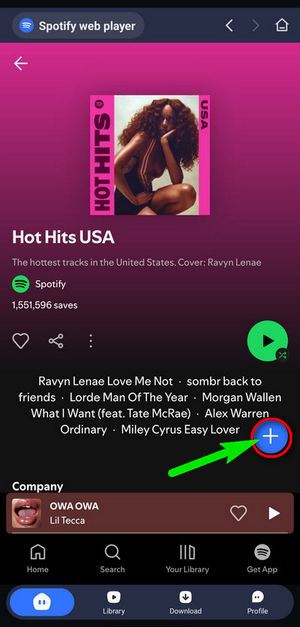
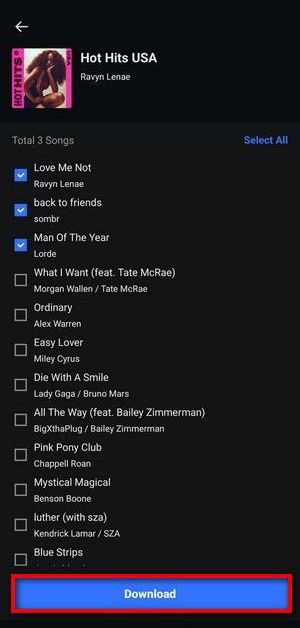
Step 3 Access Your Downloaded Songs
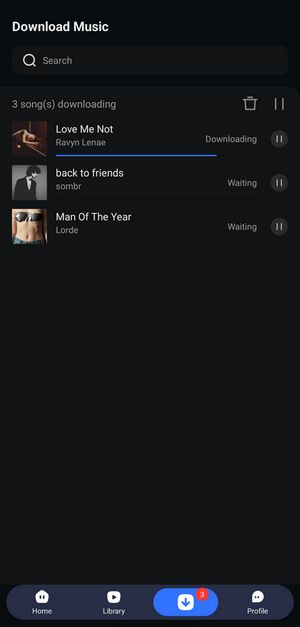
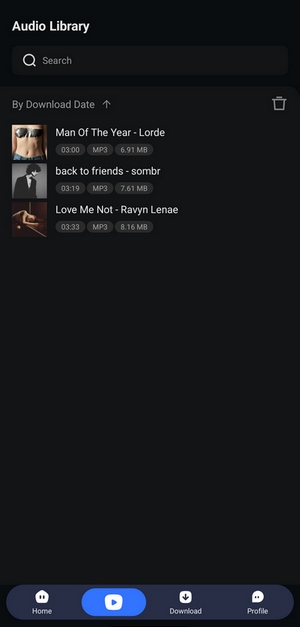
When the download is finished, tap "Library" in the bottom menu to see the songs saved to your device. From there, you can select a track and play it directly in TuneCable.
Part 5: FAQs About Spotdown
Q1. Is Spotdown safe to use?
A: Spotdown does not appear to have obvious security issues based on common website safety checks. However, our testing found that clicking the download button could trigger redirects and additional pages before the actual download started. It is recommended to pay attention to pop-ups and avoid downloading any unrelated files.
Q2. Does Spotdown really download Spotify songs in high-quality MP3?
A: Spotdown can download Spotify songs as MP3 files, but the displayed bitrate should not be considered the only indicator of actual audio quality. Our testing found that some downloaded files showed higher bitrates, while the audio characteristics did not always match true high-quality MP3 sources.
Q3. Can Spotdown download Spotify playlists and albums?
A: Yes. Spotdown supports downloading Spotify albums and playlists. You can search for music directly on the website or use a Spotify link to start the process. However, larger playlists may require more time to process, and some tracks may be missing from the final download results.
Q4. Do I need a Spotify account to use Spotdown?
A: No. Spotdown does not require you to log in with a Spotify account. It works directly in your browser, allowing you to search for songs or paste Spotify links without connecting your personal account.
Q5. What are the main limitations of Spotdown?
A: The main limitations of Spotdown include inconsistent audio quality, occasional incomplete playlist downloads, and redirects during the download process. If you need better control over audio quality, batch downloads, or file organization, you can check the alternatives listed in Part 4, including TunePat Spotify Converter for desktop users and TuneCable Spotify Downloader for Android users.
Conclusion
Based on our tests, Spotdown works well for basic Spotify MP3 downloads without requiring a Spotify account or desktop software. However, the overall experience is not always consistent. Some downloaded files did not match the expected audio quality, larger playlists were not always completed successfully, and the download process could involve multiple redirects before the actual file was saved.
For users who only need to download a few Spotify tracks occasionally, Spotdown can still be a convenient choice. But if you want to create a well-organized music library with more reliable audio quality, batch downloading, and better control over your files, desktop and Android alternatives such as TunePat Spotify Converter and TuneCable Spotify Downloader may be a better fit.


Olivia Anderson
Senior Writer