Is SpotifyDown the Ultimate Spotify Downloader? A Detailed Review
 By Olivia Anderson
Spotify Tips
Updated on 9/15/2026
By Olivia Anderson
Spotify Tips
Updated on 9/15/2026
⚠️*Notice [March 18, 2026]: The original SpotifyDown website is no longer accessible and has moved to https://spotidownloader.com/. The review content below has been updated.
As the leader in the streaming music industry, Spotify now boasts a collection of over 100 million tracks and has more than 760 million users, with over 290 million of them being paid subscribers. With Spotify's popularity surging, some Spotify online download sites have also gained close attention in recent years. For paid users in regions where certain songs have licensing restrictions, for users who want to download music without paying for a Premium subscription, and for those who want to freely create their own local music library, using download sites has become a preferred choice.
Currently, there are many such free sites, with SpotifyDown being one of the more popular ones. But is this site user-friendly? Is it safe to use? Are there alternatives? This article will provide you with the most comprehensive SpotifyDown review.
*Note: SpotifyDown is currently shut down and the website can no longer be accessed. If you need to download Spotify songs, use the following best Spotify downloader:
Part 1: SpotifyDown Review: Its Pros and Cons
🔗: https://spotidownloader.com/
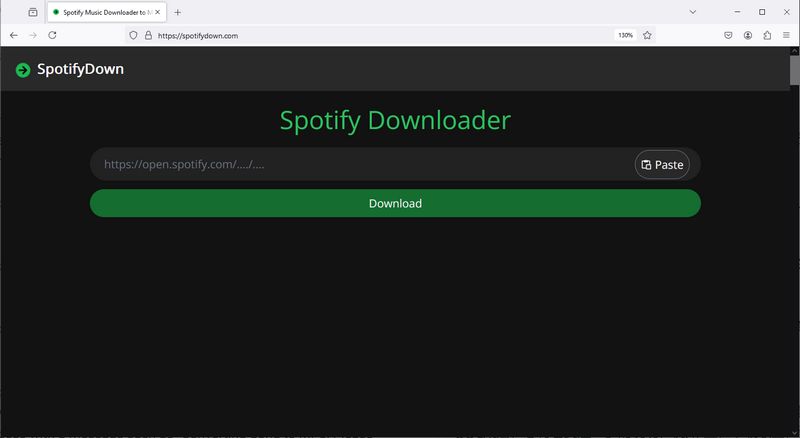
As you can see, SpotifyDown is an online Spotify link to MP3 tool that is accessible via any device through a browser. It is completely free and does not require downloading any additional software, plugins, or other components. This allows users to easily and efficiently download music from Spotify to MP3 format, and the downloaded songs can be played offline on your phone, computer, or other devices. We conducted a comprehensive test of this website and summarized the following pros and cons.
Pros
-
 Free and easy to access.
-
Supports retaining some ID3 tags, such as the Artist Name, Album Title, and Artwork.
-
Supports parsing albums or playlists with multiple songs and download them in ZIP.
-
Retain a maximum quality of up to 320 kbps.
Cons
-
 Displays a redirect page before downloading, raising security concerns.
-
Limited output format support (MP3 only).
-
Only works for Spotify music; does not support podcasts, radio, or audiobooks.
-
Occasional poor audio quality in exported files.
-
Intermittent access and parsing issues with no timely technical support.
-
Output filenames contain the website name, and sometimes become garbled due to network issues.
Part 2: How to Use SpotifyDown?
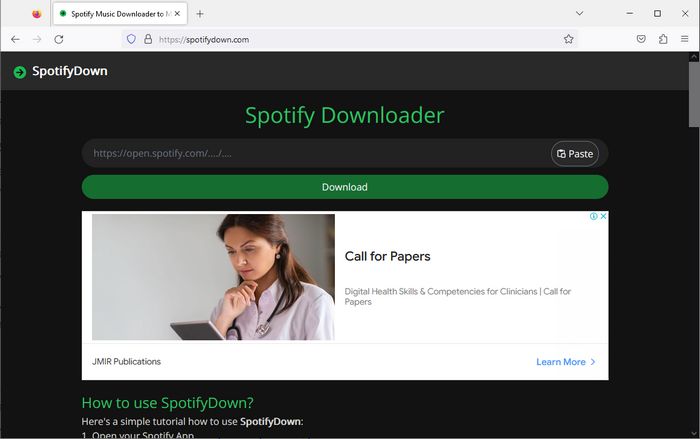
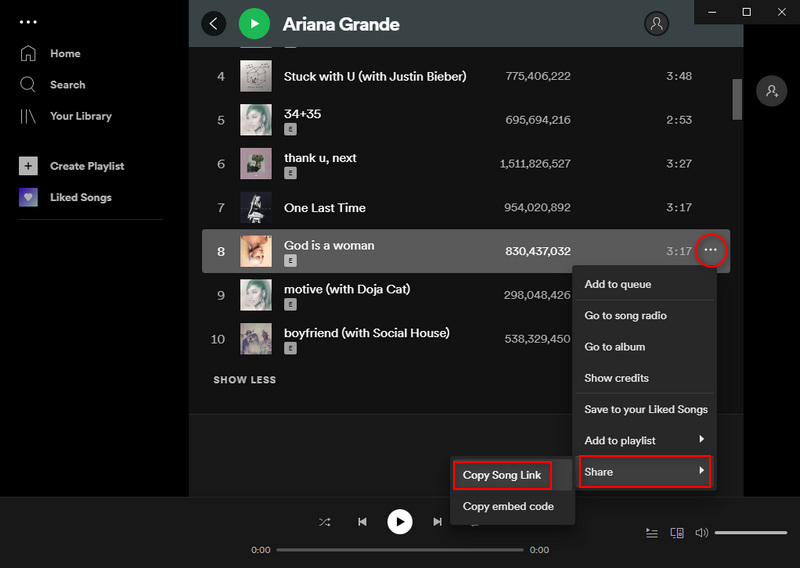
Step 1 Open the Spotify app and go to the playlist you want to convert. Copy the playlist’s shareable link.
Step 2 Paste the link into the designated field on the website and start the parsing process by clicking the "Download" button.
Step 3 The website will display the playlist’s songs, each with its own "Download" button. Find the song you wish to convert and click its "Download" > "Download MP3" button to start downloading. To downlaod the playlist or album at once, click the "Download ZIP" option instead.
Part 3: How to Fix SpotifyDown Website Not Working?
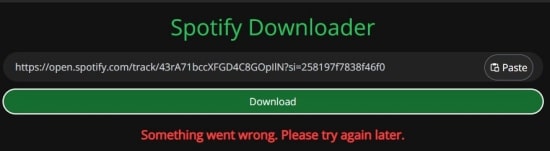
When the SpotifyDown website is not working properly, you can get an error like this. Or just can't access the site. Here are several potential reasons and solutions that could help resolve the issue. Here's a list of common problems and corresponding solutions:
Reason 1: Server Issues
The website's server might be down or experiencing high traffic.
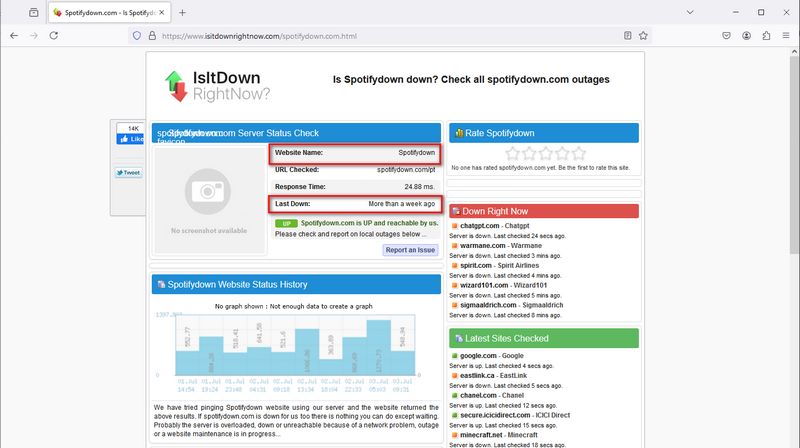
Solution: Check if the website is down for everyone or just you using tools like Down For Everyone Or Just Me. If the site is down for everyone, you can only wait for the website administrators to resolve the issue.
Reason 2: Browser Cache and Cookies:
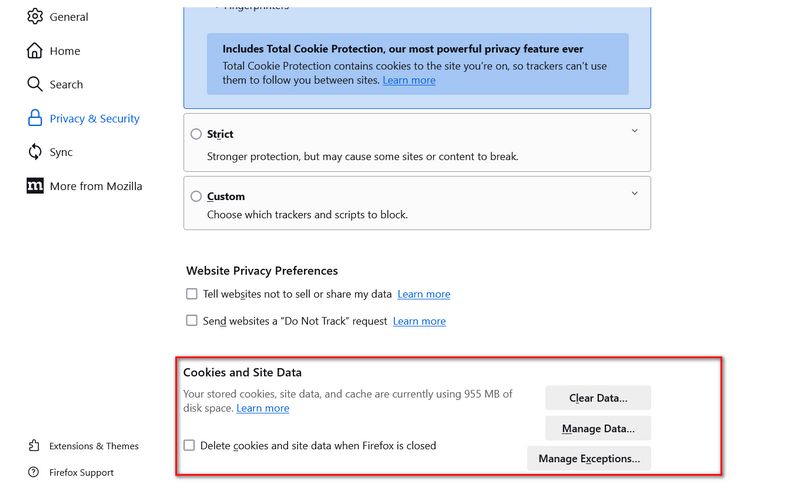
Corrupted caches or cookies in your browser can prevent the website from loading correctly.
Solution: Clear your browser's cache and cookies. Instructions vary by browser, but generally, you can find this option in the settings page under privacy or history. The following is the Firefox.
Reason 3: DNS Issues
Your DNS settings might be causing issues connecting to the website.
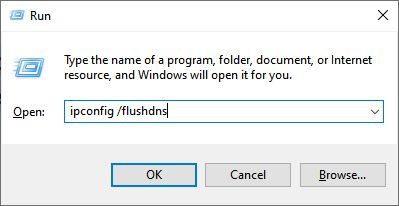
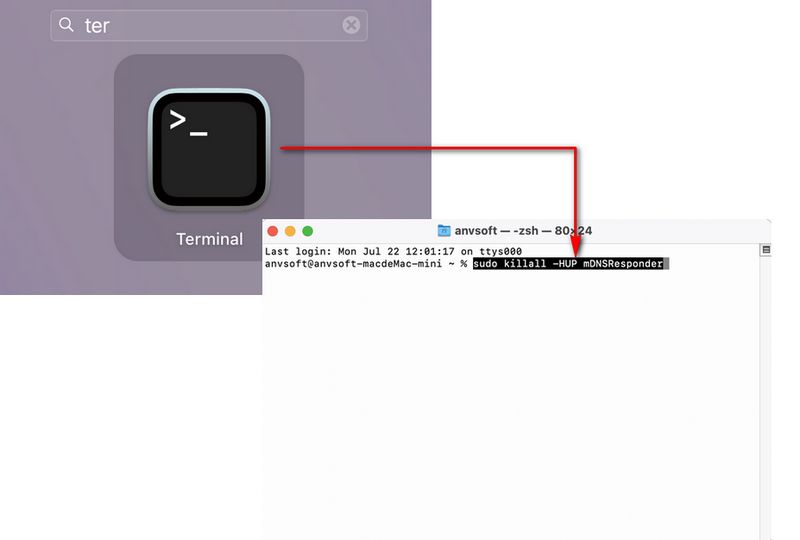
Solution: Try flushing your DNS cache. On Windows, open Command Prompt and type ipconfig /flushdns. On macOS, open Terminal and type sudo killall -HUP mDNSResponder.
On a Windows:
On a Mac:
Reason 4: Firewall or Security Software
Your firewall or security software might be blocking the website.
Solution: Temporarily disable your firewall or security software to see if the site loads. If it does, add an exception for the website.
Reason 5: Browser Compatibility
Your internet connection might be unstable or slow.
Solution: Restart your router or modem. Try using a different network, such as switching from Wi-Fi to mobile data, to see if the issue persists.
Reason 6: Internet Connection Issues
Your firewall or security software might be blocking the website.
Solution: Temporarily disable your firewall or security software to see if the site loads. If it does, add an exception for the website.
Reason 7: Website Blocked by ISP
Your Internet Service Provider (ISP) might be blocking the website.
Solution: Use a VPN to bypass ISP restrictions and access the website.
Reason 8: Incorrect URL
You might be entering an incorrect URL.
Solution: Double-check the URL for any typos or errors and try again. Do not add extra spaces before and after the URL.
Part 4: What is the Best Alternative to SpotifyDown?
If you have tried the methods mentioned above and still cannot get SpotifyDown to work properly, or if you simply cannot tolerate the drawbacks of the free online Spotify downloaders like SpotifyDown—such as instability, security concerns, and poor output quality—then it is time to explore the best alternatives! TunePat Spotify Converter is undoubtedly the perfect substitute for SpotifyDown. This tool is specifically designed for batch downloading and converting Spotify tracks, albums, podcasts, playlists, audiobooks, and radio to various popular output formats like MP3, FLAC, and AAC.
And besides the basic function of getting and converting Spotify songs, TunePat Spotify Converter can satisfy more needs of users, for example, you can choose to synchronize export lyrics files while converting songs and exporting them, and TunePat supports exporting the lyrics of Spotify songs as LRC or TXT files. You can also burn CDs within the program, edit the tag information of the songs, synchronize the converted Spotify songs to iTunes with one click, and so on. Now, let’s take a look at the pros and cons we discovered during our testing.
Pros
-
Supports converting various Spotify audio content to six output formats: MP3, AAC, FLAC, WAV, ALAC, and AIFF.
-
Allows one-click parsing and batch conversion of multiple albums/playlists.
-
Supports fetching and converting songs from both the Spotify app and Spotify web player to meet different needs.
-
Retains original sound quality (320 kbps MP3 or Lossless FLAC).
-
Fast conversion speed, up to 40X.
-
Free Spotify users can also easily get ad-free Spotify files.
-
Preserves ID3 tags, including title name, album name, artist, artwork, track number, disc number, year, etc.
-
Customizable output file names, order, output path, and more, making it easy to create and manage a local music library.
Cons
-
Limited features in the free trial version.
Simple 5 Steps to Use TunePat Spotify Converter to Download Spotify Music?
Step 1 Launch TunePat Spotify Converter on your computer. To maintain optimal audio quality at 320 kbps, access songs through the app. For easier file management, use the Web player for direct operation within the embedded window.
Regardless of your chosen method, log in to your Spotify Premium or Free account through the provided Spotify app or web player window.
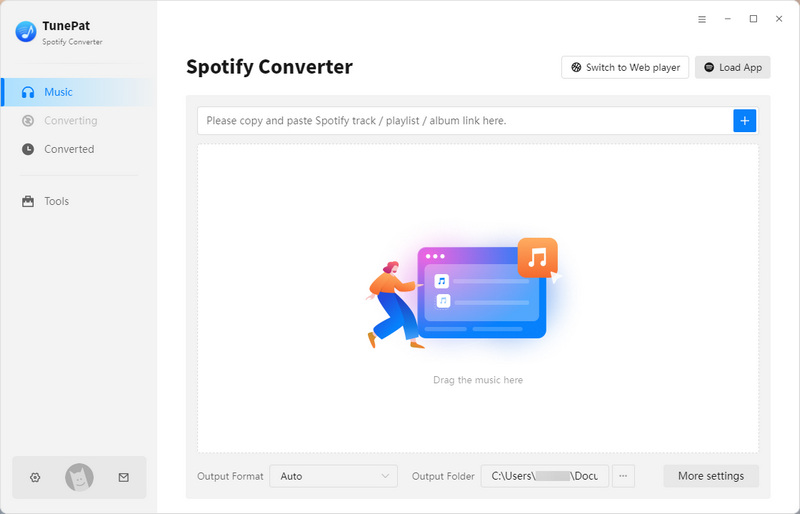
Step 2 Select the "Music" tab on the main interface. You'll see a Convert Settings module below, where you can adjust parameters such as Conversion Mode, Output Format, Bit Rate, and more. To modify additional settings like the output file name, click the "More settings" button.

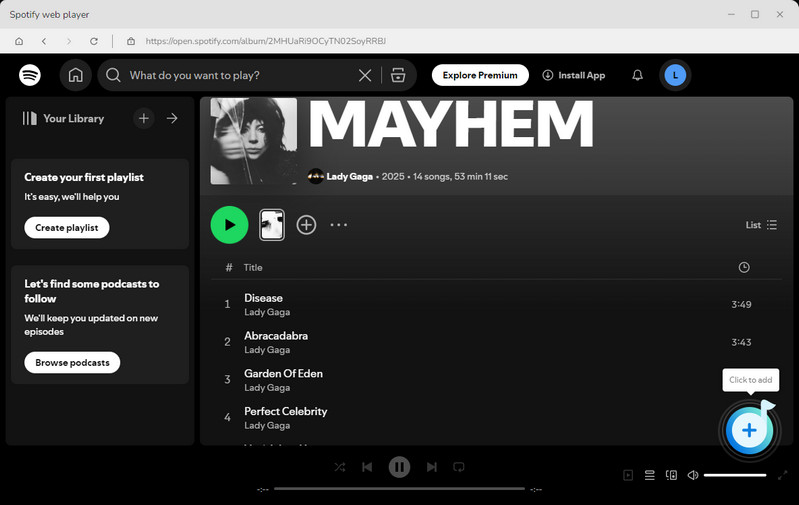
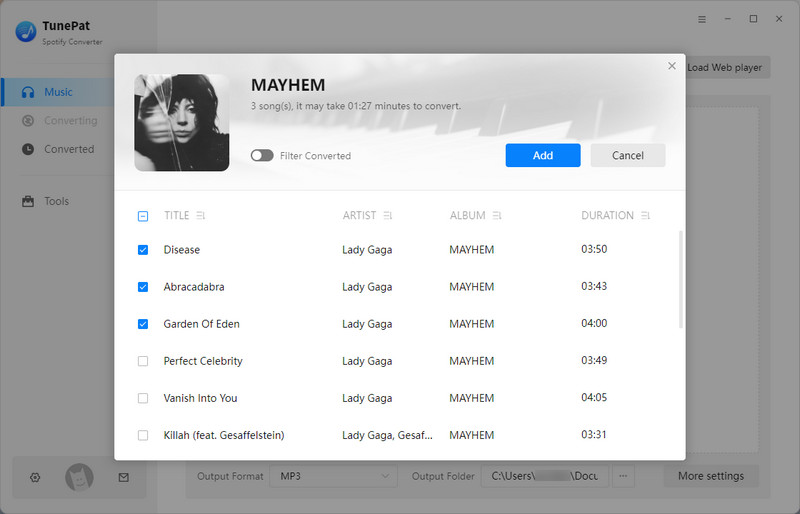
Step 3 After configuring your settings, return to the Spotify app or web player window. Open the song, album, or playlist you wish to convert. You'll see a "+" button. Click it, and TunePat will automatically parse the current list and show the content in a pop-up window. By default, all items are selected; you can manually choose specific items and then click "Add" to move to the next step.
Step 4 The selected songs will appear on the Music page. To add more tracks for batch conversion, click "Add More". Click "Convert" to begin the conversion process. If you forgot to adjust the output parameters earlier, you can click the Settings icon in the top right corner to make changes.
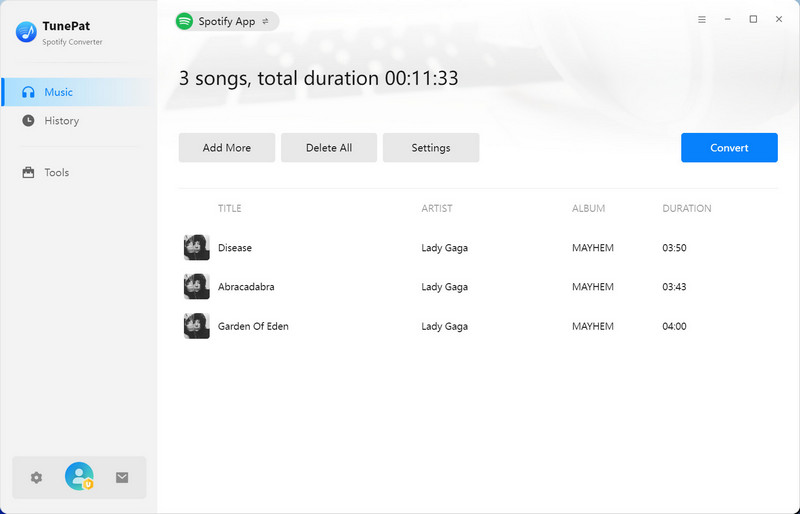
Step 5 After the conversion is complete, you can view the history records in the "History" module. You now permanently own these favorite Spotify songs and can enjoy them without restrictions.
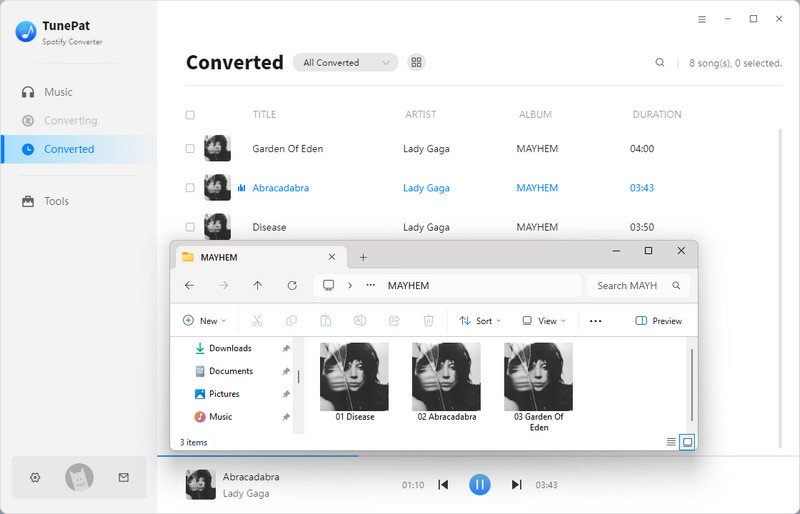
The converted Spotify songs can be used to:
- Import Spotify Music to various DJ software for offline mixing, such as djay Pro, Virtual DJ, Traktor DJ, and more.
- Upload to other types of software for use, such as live streaming software (OBS Studio), video editing software, and more.
- Play Spotify Music on Android, iPhone, iPad, iPod, and any cell phone without an internet connection and without using the Spotify app.
- Transfer Spotify music to Sonos Speaker, and more other devics for playback.
- Set Spotify music as a alarm, ringtone, or other tone.
Comparison Table: SpotifyDown vs. TunePat Spotify Converter
| Name | TunePat Spotify Converter | SpotifyDown |
|---|---|---|
| Supported Systems | Windows & Mac | Mobiles or Computers |
| Supported Audio Types | music, albums, playlists, podcasts, audiobooks, radio | music, albums, playlists |
| Output Format | MP3, AAC, WAV, FLAC, AIFF, ALAC | MP3 |
| Audio Quality | 320 kbps / Lossless FLAC | up to 320 kbps |
| Conversion Speed | up to 40X | 1X |
| Safe to Use | √ | × |
| Keep in the Original Playlist Order | √ | × |
| Customize Output File Name | √ | × |
| Preserve Full ID3 Tags | √ | × |
| Success Rate | 100% Work | Relatively low |
Conclusion:
This article has showcased the advantages and disadvantages of the online tool SpotifyDown, provided detailed usage steps, and offered solutions for when SpotifyDown fails to work. Clearly, for Spotify enthusiasts, it is a very convenient tool that can easily download songs from Spotify to MP3.
However, it also has some significant drawbacks, such as annoying pop-up ads and a low success rate. Therefore, you might consider the best alternative to SpotifyDown that we introduced in the article. TunePat Spotify Converter is a professional and meticulously designed Spotify converter, downloader, and offline player that helps you avoid the issues mentioned above while providing an excellent user experience. Downloading Spotify playlists becomes a breeze. Click the "Download" button to try it now, and you'll only regret not using it sooner.

Olivia Anderson
Senior Writer