How to Set Spotify Music as Alarm on iPhone/Android
 By Olivia Anderson
Spotify Tips
Updated on 8/14/2026
By Olivia Anderson
Spotify Tips
Updated on 8/14/2026
Waking up to your favorite song can make mornings feel more enjoyable and personalized. However, most phones come with only a limited selection of built-in alarm sounds, which can quickly become repetitive. While Spotify gives you access to millions of songs, it does not allow you to directly set Spotify music as your alarm due to its streaming format and usage restrictions. To set Spotify music as your alarm, you need to convert your favorite tracks into compatible audio files that can be used with your phone’s alarm app.
Part 1: Why Spotify Music Cannot Be Used as an Alarm Directly
While Spotify Premium users can download songs for offline playback, these files are still protected by DRM. This means they are encrypted and can only be played inside the Spotify app, not accessed or recognized by other apps or system tools. Because of this restriction, Spotify tracks cannot be set directly as alarms on your phone. You’ll need to convert Spotify music into a file your device can actually detect and use, and then set it as an alarm. Wondering how to do it? Just keep reading, we’ll guide you through it step by step.
Part 2: Download Spotify Music into Alarm-Supported Formats
TunePat Spotify Converter is a program to convert Spotify music to MP3, AAC, WAV, AIFF, and FLAC formats on the computer. You will see a simplified interface that only displays several buttons, and it is easy to use, as you can get the converted music files within several steps. TunePat downloads music with up to 40X speed and keeps the whole metadata information after conversion. With TunePat, the downloaded music is totally free, and you can set it as an alarm directly.
TunePat Spotify Converter
Step 1 Launch TunePat Spotify Converter. You will see the Spotify app open automatically on the main interface. If you want to convert music from the Spotify Web Player instead, you can click the "Spotify App" button to switch. Please make sure to log in to your account so you can download your favorite songs and set them as alarm.
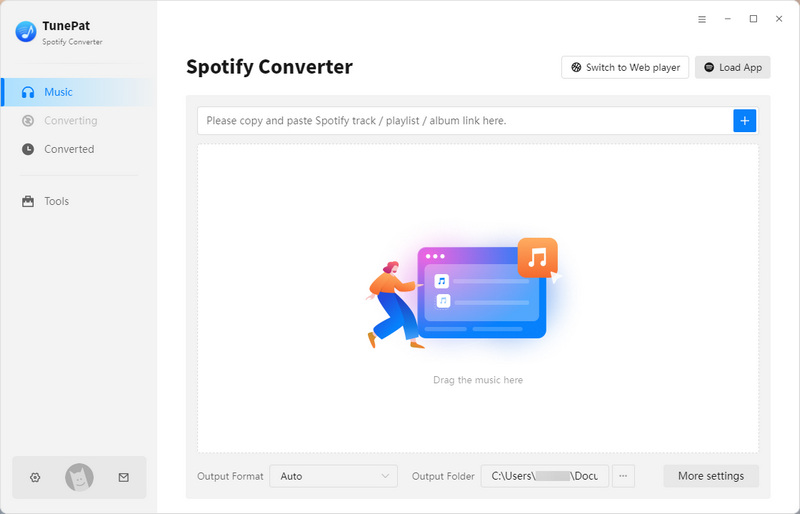
Step 2 Click the settings button to choose the output format, output audio quality, output path, and organize the output files in different ways.

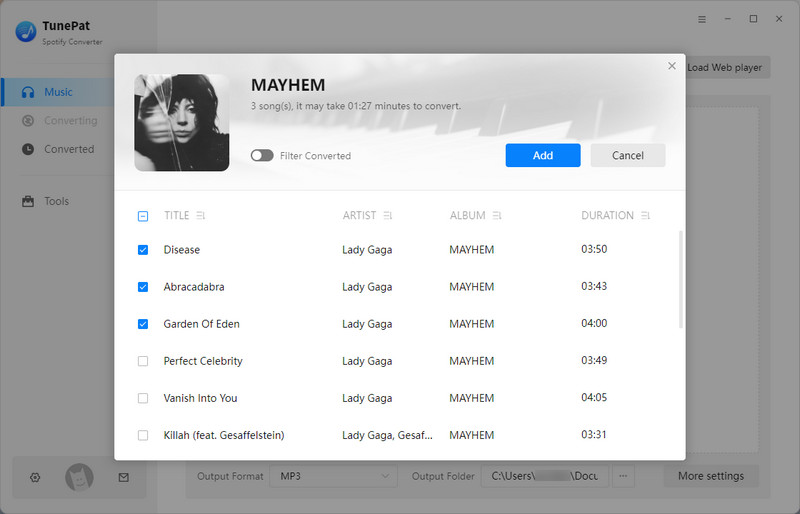
Step 3 Go back to Spotify. Choose a playlist and click the "+" button. TunePat will display all songs in the list, and you need to select the songs you want to convert. Then click "Add" to proceed.
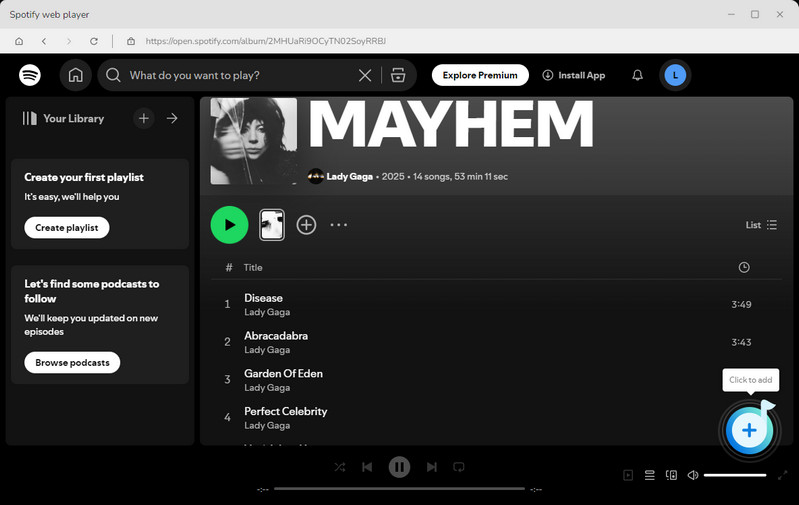
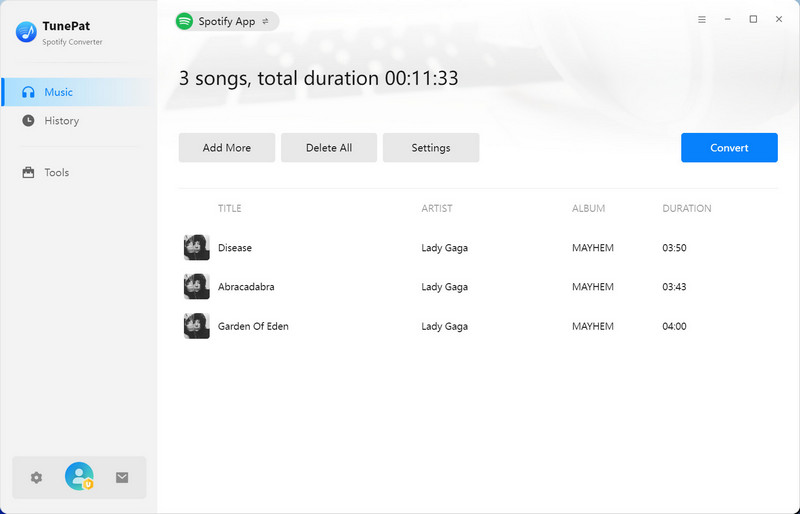
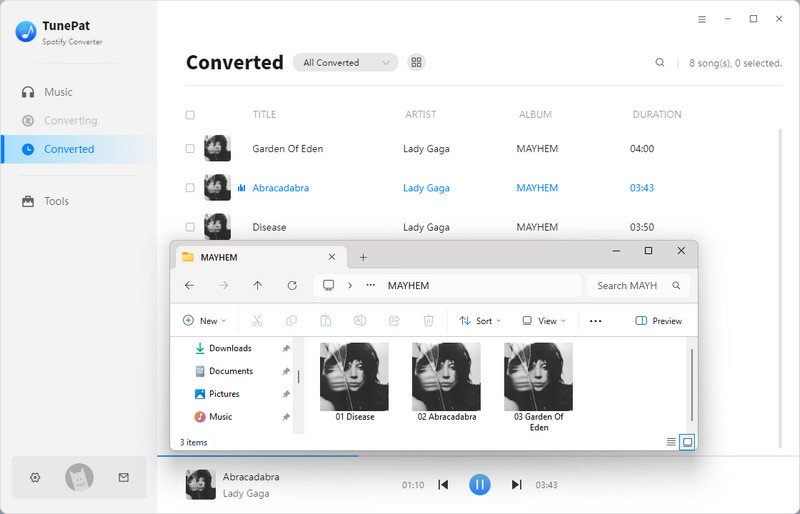
Step 4 After selecting the music, click the "Convert" button. TunePat will start the conversion process. Once the conversion is complete, the folder containing the downloaded songs will open automatically. Alternatively, you can click "History" to view all converted songs.
Part 3: How to Set Spotify Song as Alarm on Your Phone
On iPhone
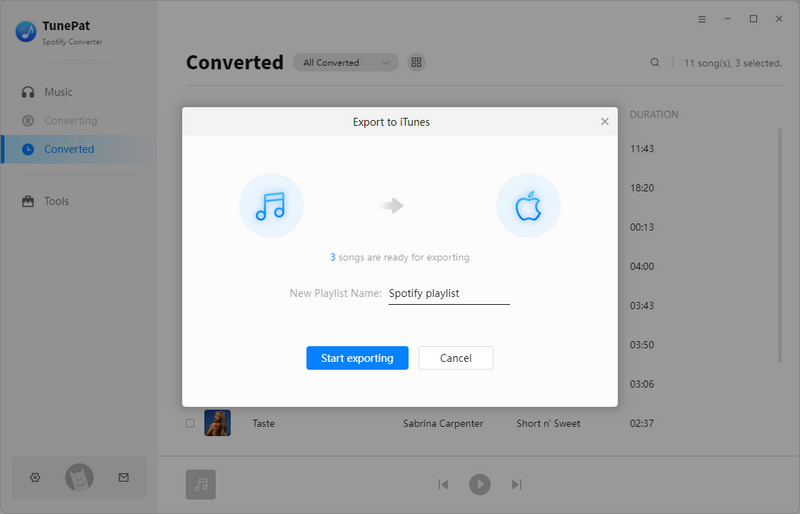
Step 1 All the downloaded Spotify songs will be saved in "History" section. Select the tracks you want to set as alarm tones, click the square-shaped edit icon, choose "Export to iTunes", enter a name for your new playlist, and click "Start exporting".
Step 2 Go to "Settings" > "Music" on your iPhone, then turn on "Sync Library". Your exported Spotify songs should automatically appear in your iPhone music library. After that, you can go to your alarm settings and select Spotify song as alarm.
On Android
Step 1 Connect your Android phone to your computer via a USB cable. Locate the downloaded Spotify music on your computer, then copy and paste it into your device’s folder so that your phone can detect it.
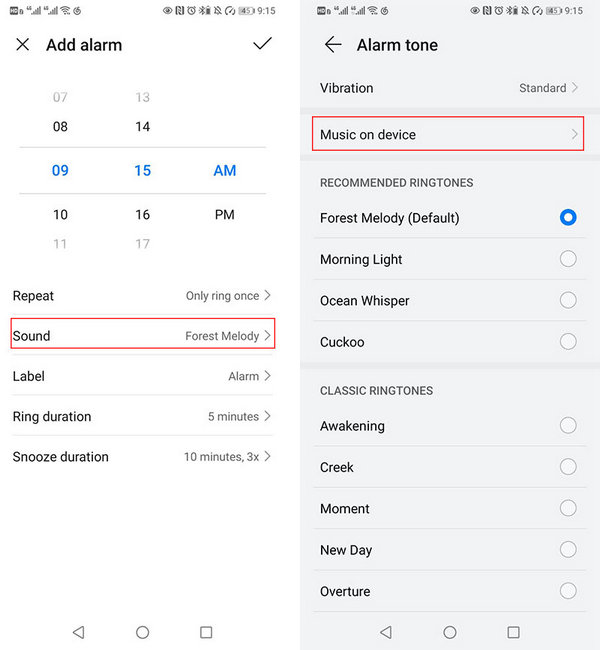
Step 2 On your Android device, open the "Clock" app and either edit an existing alarm or add a new one. Tap Sound and then select Music on device. Browse to the downloaded Spotify music and set it as your alarm tone. Keep in mind that the exact steps may vary slightly depending on your Android phone’s brand and version.
Part 4: FAQs About Setting Spotify Song as Alarm
Q1: Can I convert Spotify music without a Premium account?
A: Yes. TunePat Spotify Converter allows you to convert songs even if you are using a free Spotify account. With TunePat, even free Spotify users can download songs and set them as their alarm.
Q2: Can I convert entire Spotify playlists at once?
A: Yes. TunePat Spotify Converter supports batch conversion, so you can add multiple playlists or albums and convert all tracks simultaneously at up to 40X speed.
Q3: Are the converted songs permanently available?
A: Yes. Unlike Spotify downloads that depend on your subscription, the converted files are fully yours and can be used anytime, even if your Spotify account expires.
Conclusion
In a world where digital music is often restricted by platforms and subscription services, tools like TunePat Spotify Converter give you real autonomy and flexibility. By converting your favorite Spotify songs into common audio formats, you break free from app-only playback and premium barriers, enjoying your music anytime, anywhere, even as the alarm that powers up your mornings.
So why not pick a song that truly speaks to you, set it as your alarm, and let every sunrise begin with the rhythm you love? Because a day that starts with your favorite music isn’t just louder, brighter, and more vibrant, it’s a day that feels more energized, more personal, and unmistakably yours.

Olivia Anderson
Senior Writer